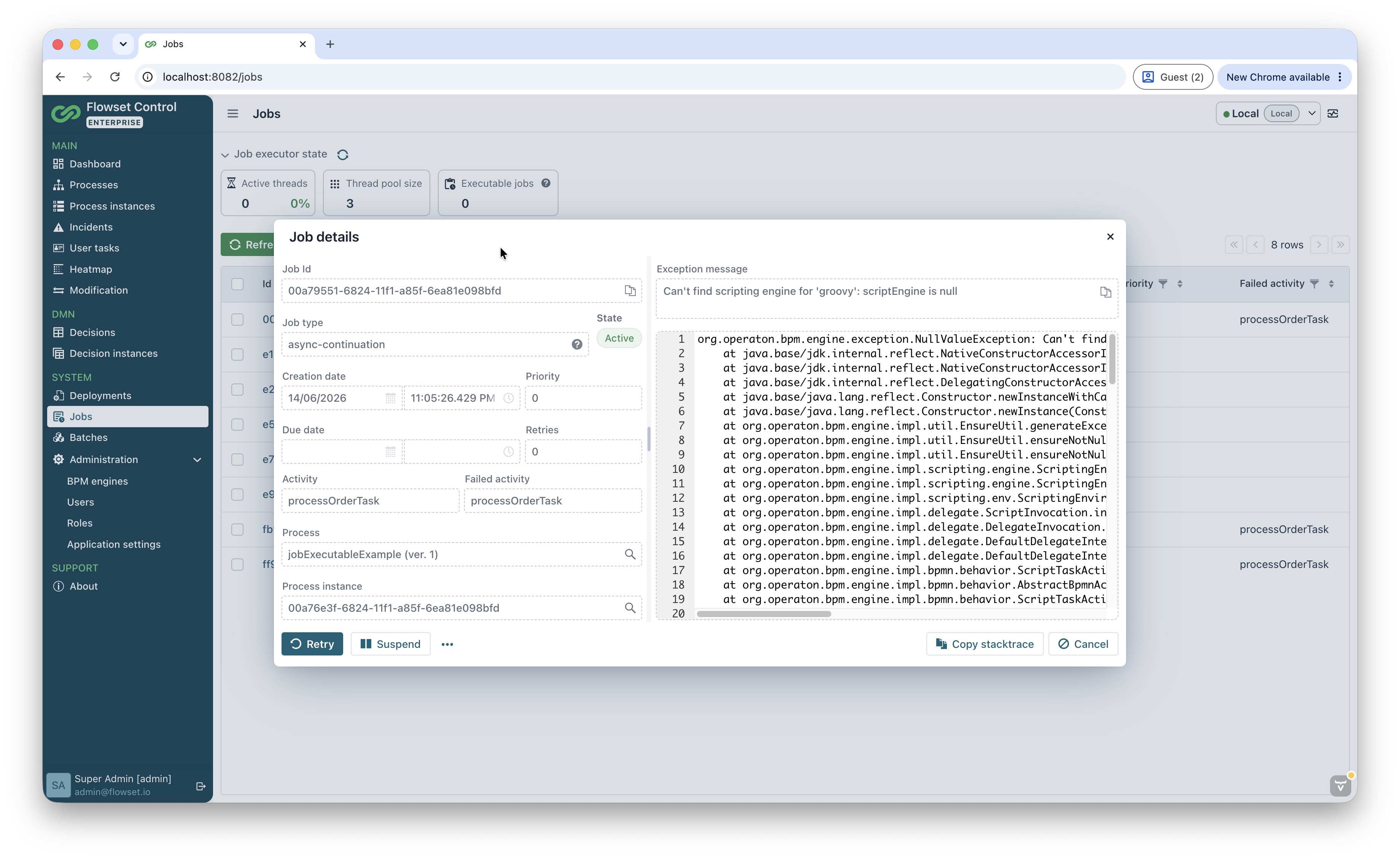
Jobs
A job is an internal execution element that the engine creates for deferred or asynchronous work: firing timers, executing activities asynchronously, and other operations performed in the background by the Job Executor. A detailed description of this mechanism is provided in the Job Executor section.
The jobs of a specific process instance are shown on the Jobs tab of the detailed instance view. There you can retry a failed job, suspend or activate it, and open the detailed view with the error text. All jobs of the engine on one screen are shown by the Jobs screen, described in Job Management EE.
Jobs tab in a process instance
The Jobs tab is available on the detailed process instance view screen (the Runtime block) and displays the jobs of the selected instance.
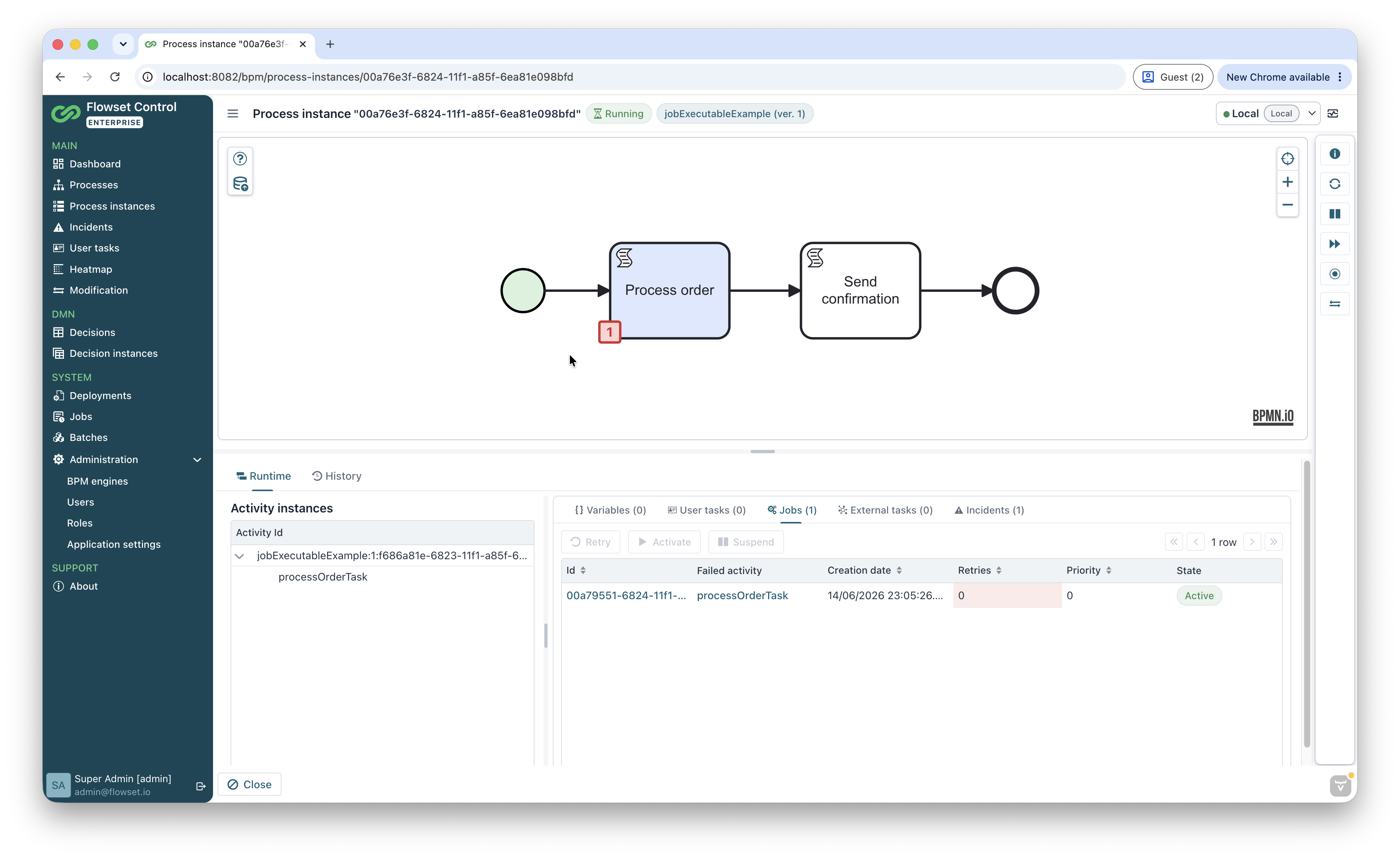
For each job, the columns Job, Failed activity, Create time, Retries, Priority, and State are shown; the actions Retry, Activate, and Suspend are available.
| Clicking the value in the Failed activity column highlights the corresponding element on the process instance diagram, which helps quickly locate where the error occurred. |
Job operations
| Action | Description |
|---|---|
Retry |
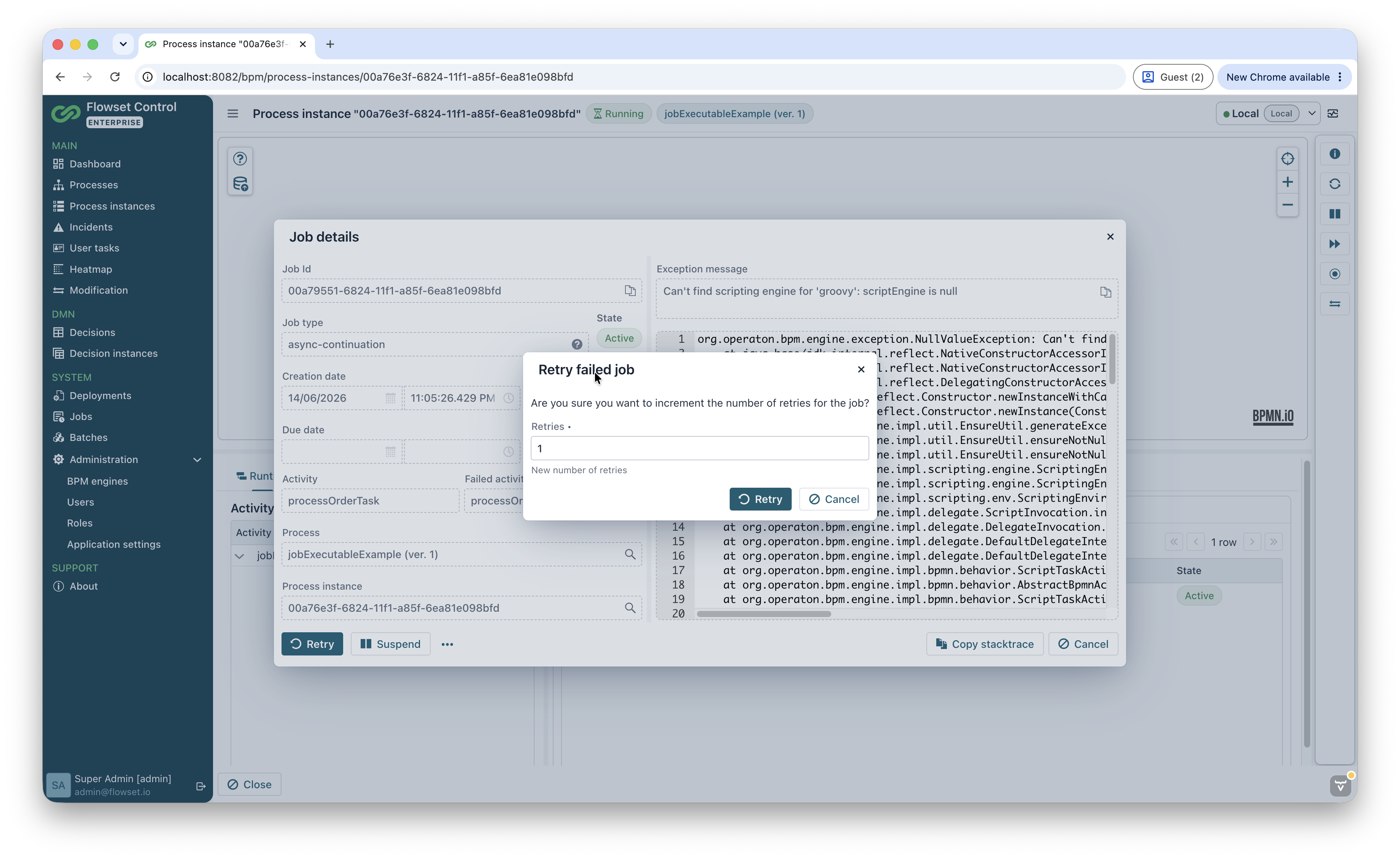
Sets a new number of execution attempts, after which the Job Executor will be able to pick up and execute the job again. Available only for jobs whose number of attempts is |
Activate |
Resumes execution of a previously suspended job. Available only for jobs in the Suspended state. |
Suspend |
Suspends execution of an active job. Available only for jobs in the Active state. |
The Enterprise edition also lets you change a job’s priority and due date. See Additional job actions EE.
Detailed job view
To open detailed information about a job, click its identifier or use the View action.
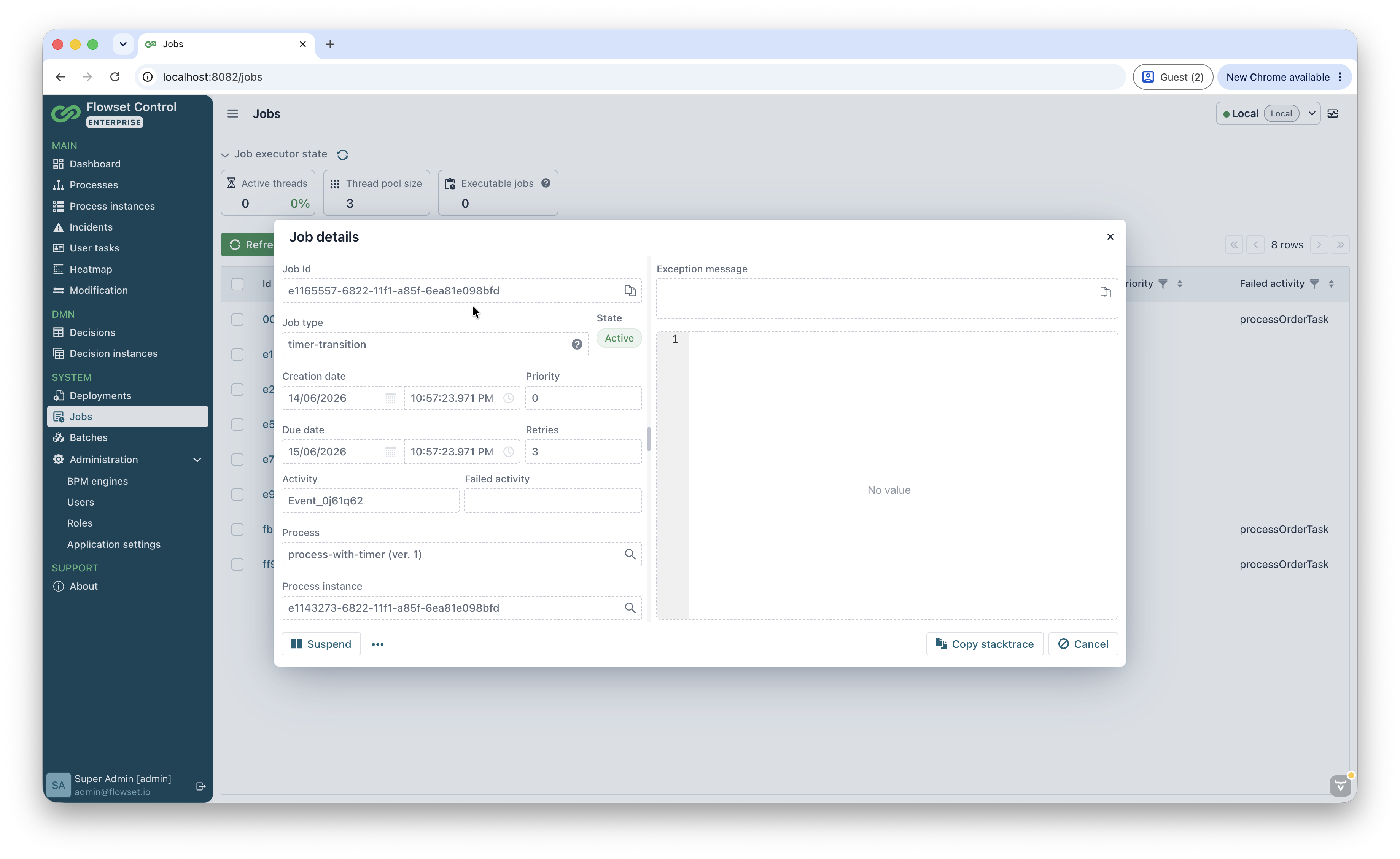
The screen contains detailed information about the job:
-
Job Id — the job identifier, with the option to copy it.
-
Job type — the job type, for example
timer-intermediate-transition(a timer event) orasync-continuation(asynchronous continuation). A localized tooltip explaining the type is shown for the field. -
State — the current job state (Active / Suspended).
-
Creation date and Due date — the creation time and due date of the job.
-
Priority — the job priority.
-
Retries — the remaining number of execution attempts.
-
Activity and Failed activity — the job’s activity and the activity where the error occurred.
-
Process — the process definition; the navigation button opens the process definition.
-
Process instance — the process instance; the navigation button opens the detailed instance view.
-
Exception message and stack trace — the text and full call stack of the execution error.
For a job that ended with an error (Retries = 0), the Exception message and stack trace fields show the cause of the failure, and the Retry action allows the job to be run again.