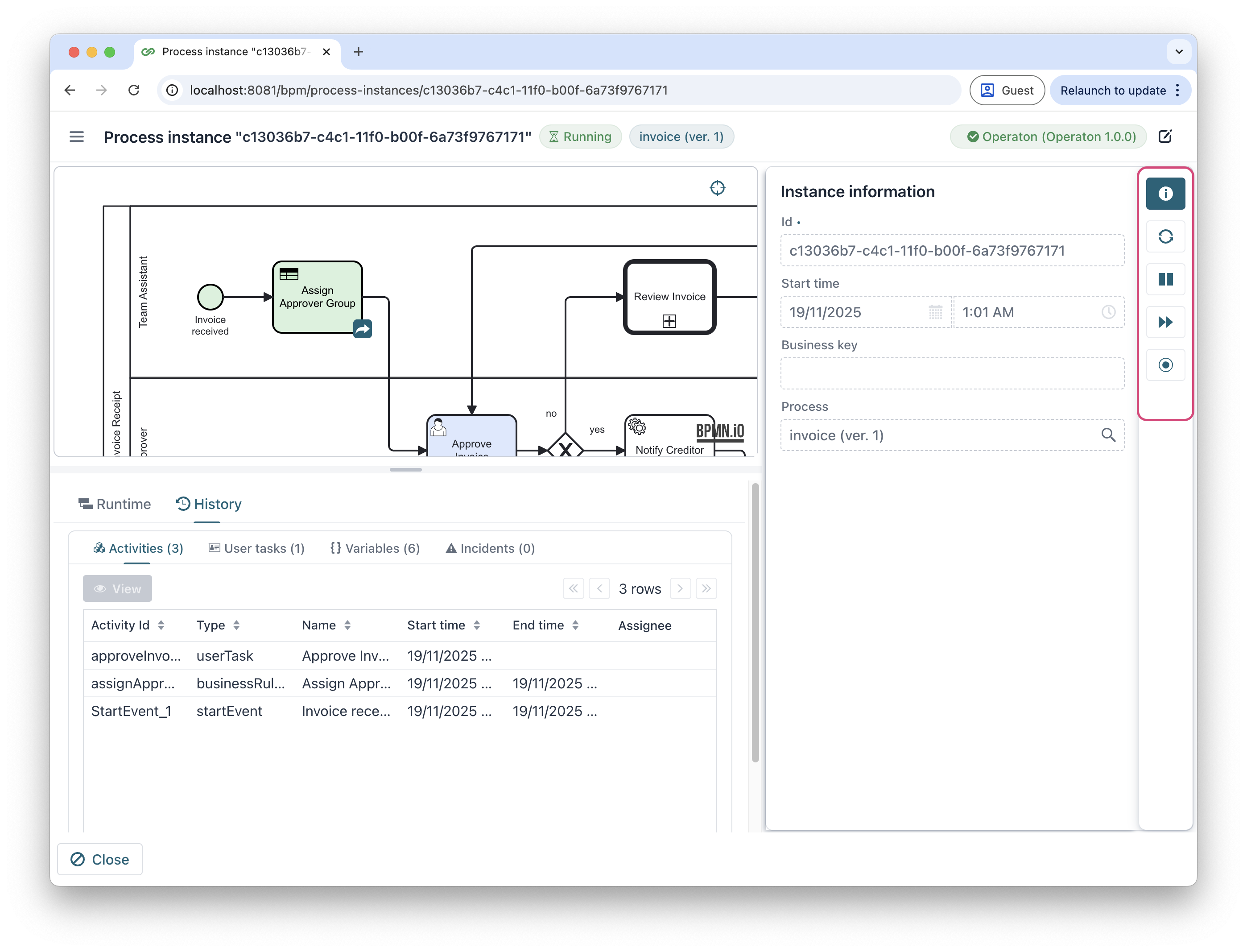
Process Instances
To view process instances stored in the BPM engine, select Process instances from the application menu.
Instance List Features
The Process instances view presents all currently running process executions retrieved from the connected BPM engine.
Every process initiation generates a new instance that is visible in this view. The system presents instances in a tabular format, displaying essential execution details.
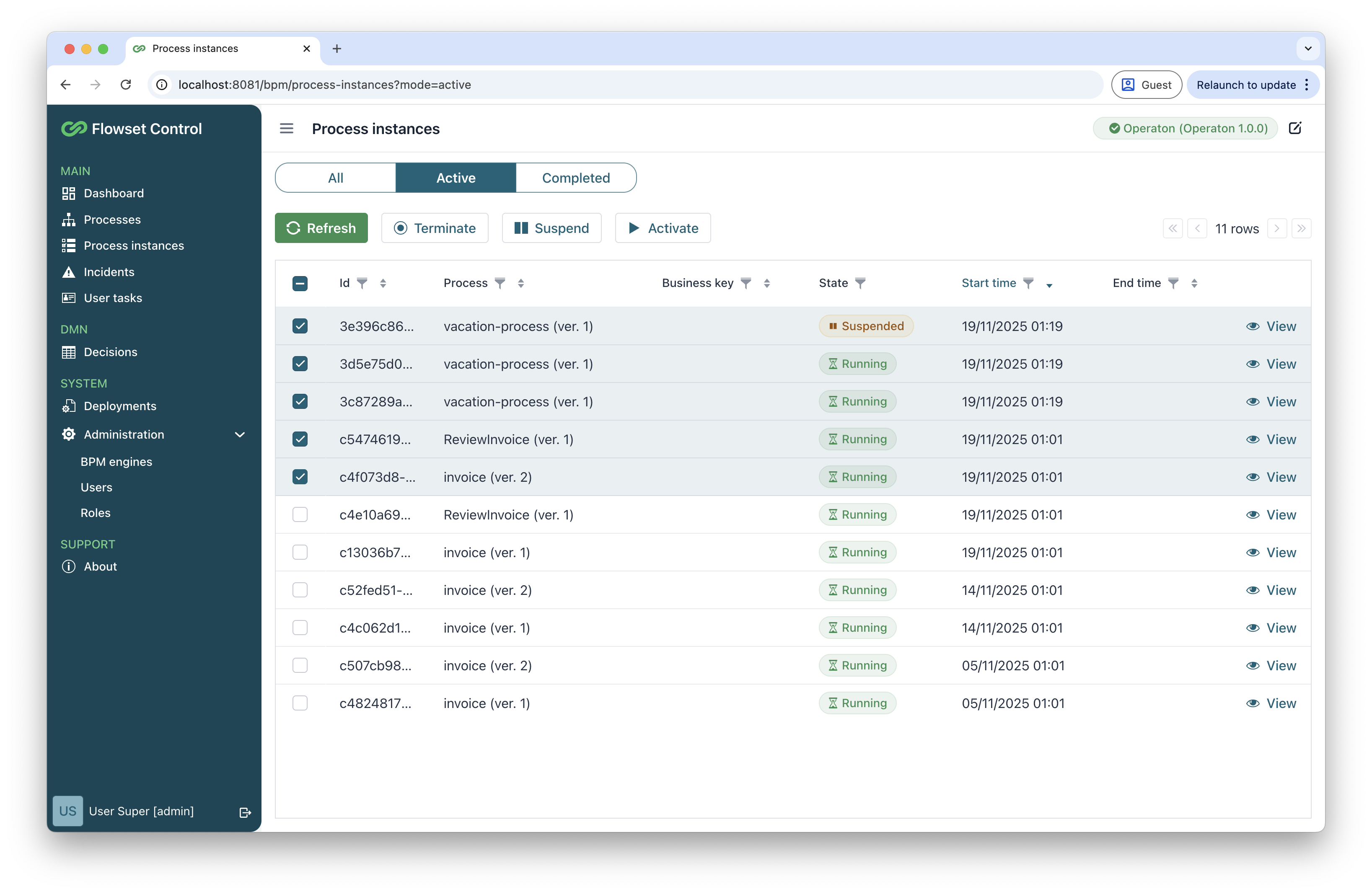
The process instances table provides filtering and sorting capabilities, enabling users to organize instances according to various criteria, such as:
-
State: running, suspended, completed, or error
-
Business key: used to initiate and execute the instance
-
Start time/End time
-
And so forth.
By default, the process instances table shows exclusively active instances to focus attention on currently executing workflows.
The following operations are available:
| Action | Description |
|---|---|
Refresh |
Updates the current process instance list, synchronizing it with the most recent state from the BPM engine. |
Terminate |
Immediately stops the execution of selected process instances. |
Suspend |
Pauses the execution of running process instances. |
Activate |
Resumes previously suspended process instances. |
| These actions are applicable to a set of process instances selected by the user. |
|
Process instances that encounter errors (incidents) during execution are marked with a special icon: a red triangle. 
|
Process Instance Details
To view the execution details of a particular process instance, use the View action.
This action opens the detailed instance view, which contains:
-
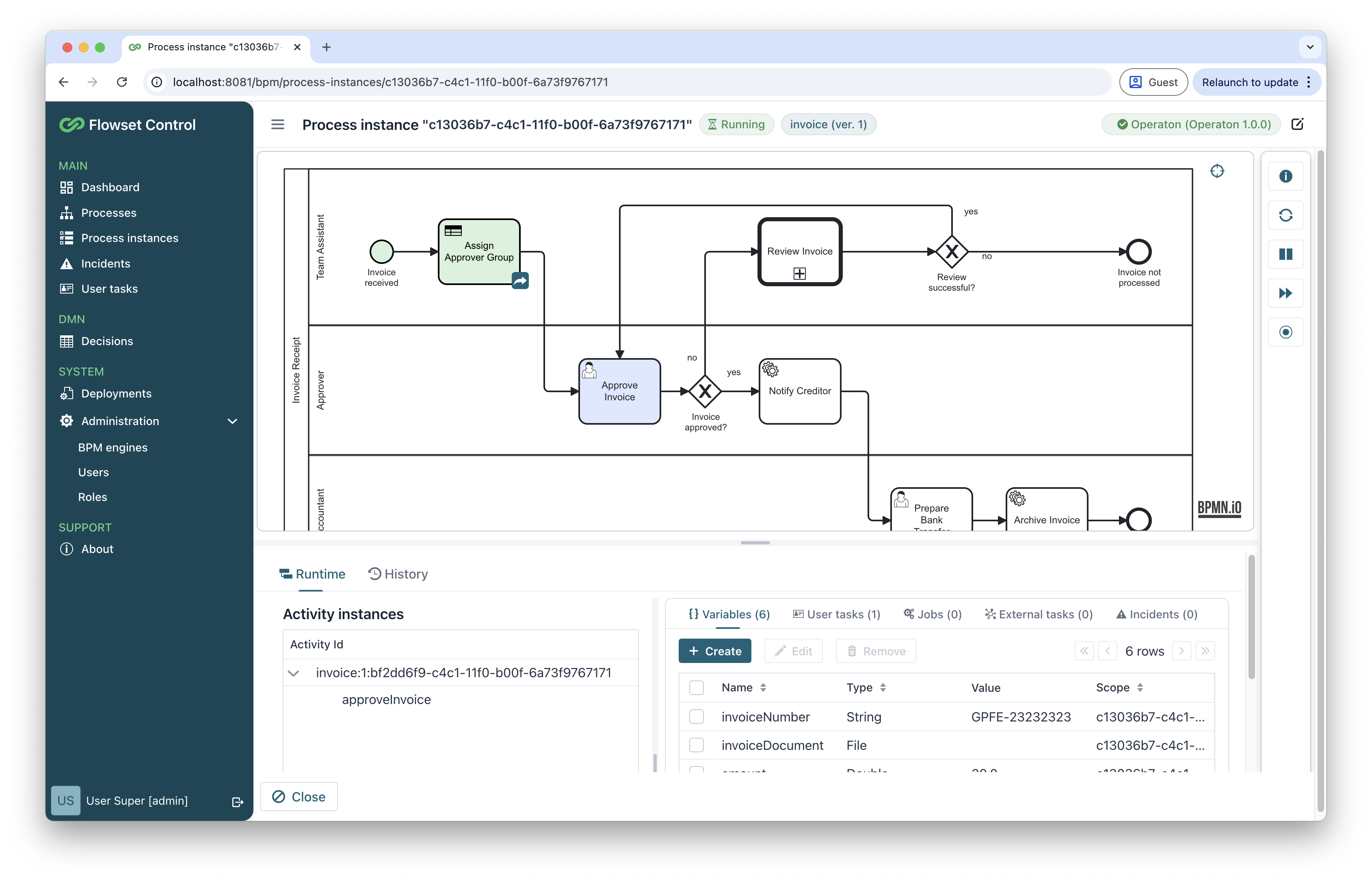
Process diagram with execution progress visualization:
-
Green-highlighted nodes - completed activities
-
Blue-highlighted node - currently active element
-
Red borders - error locations (with tooltip details)
-
-
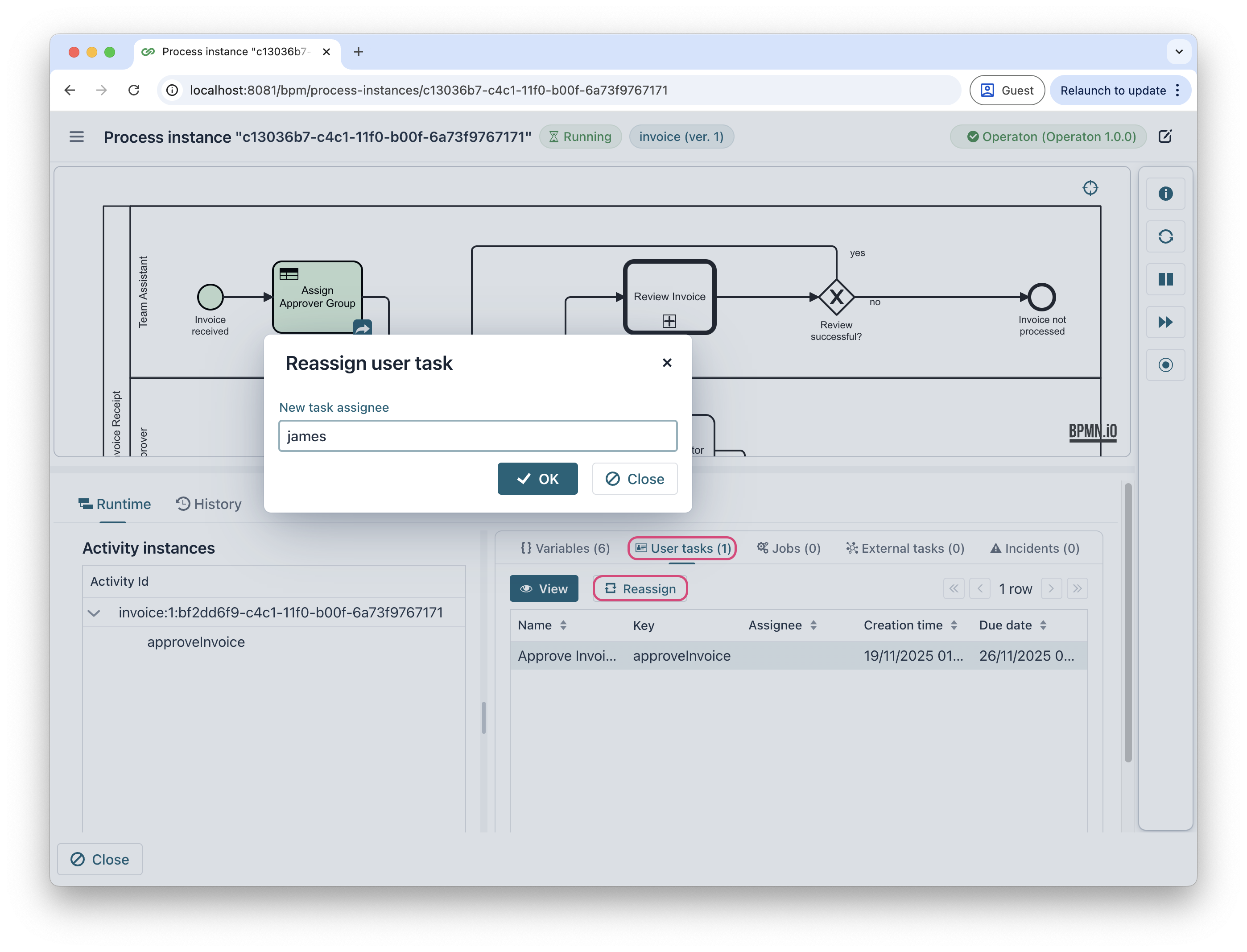
The Runtime tab is accessible only for active process instances and provides information about the current process state. This tab includes:
-
Execution tree. Selecting items in the execution tree updates the content of the Variables and Tasks tabs. When you select a specific execution, only objects related to that execution are displayed.
-
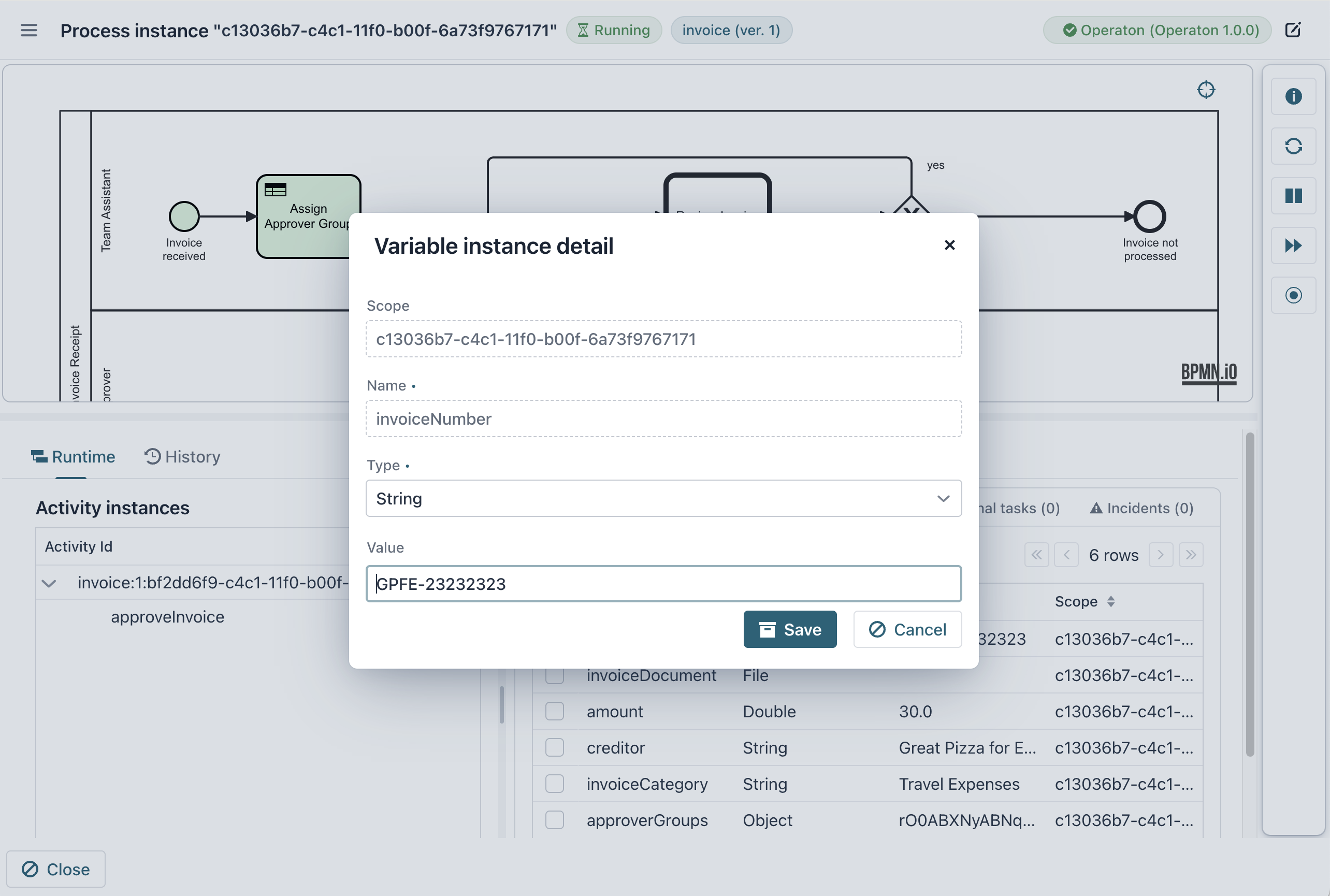
Variables. View and modify process variables:
-
User tasks. View a list of active tasks and reassign tasks to other users:
-
Jobs
-
External tasks
-
Incidents
-
-
The History tab displays a list of all user tasks (both completed and active), a comprehensive list of completed activities, and the last values of process variables. The History tab is available for both active and completed process instances.
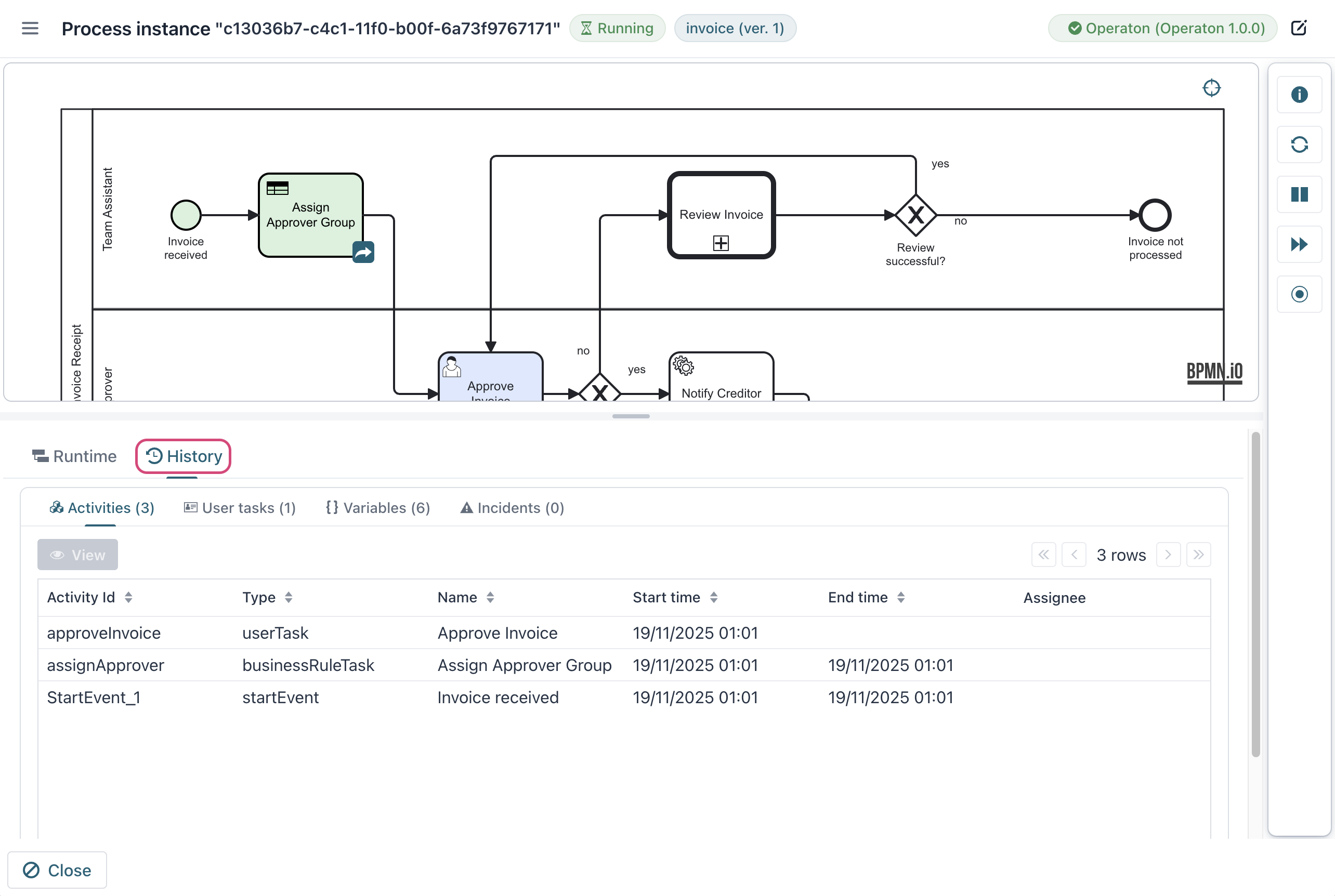
In Flowset Control Enterprise, the History tab also contains the Variable log tab with all changes of process variables. See Process Variable History for details.
-
The right panel displays actions available for the process instance, including: