Usage
Flowset Tasklist provides a convenient interface for working with business processes and user tasks executed in the connected BPM engine.
Tasklist requires authentication — each user sees only their own active tasks and the processes available for them to start.
Working with Processes
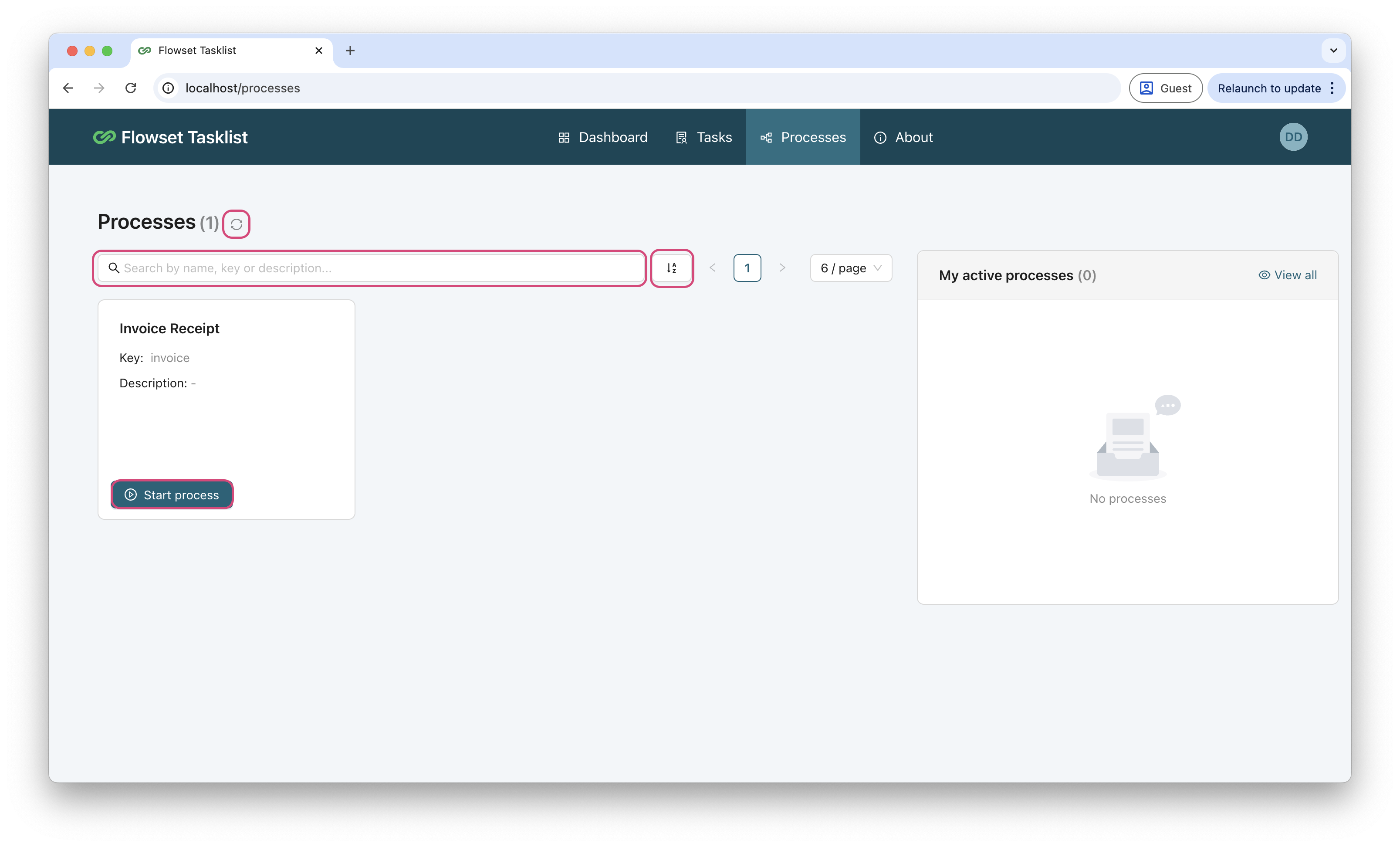
To view the available business processes, open the Processes menu item. The page displays a table with the latest versions of all deployed processes in the connected BPM engine.
Available actions on the page:
-
Refresh — load the latest list of processes from the engine
-
Sort — order processes by name or deployment time
-
Filter — filter processes by name, key, or description
-
Start Process — start a new instance of the selected process
Starting a Process
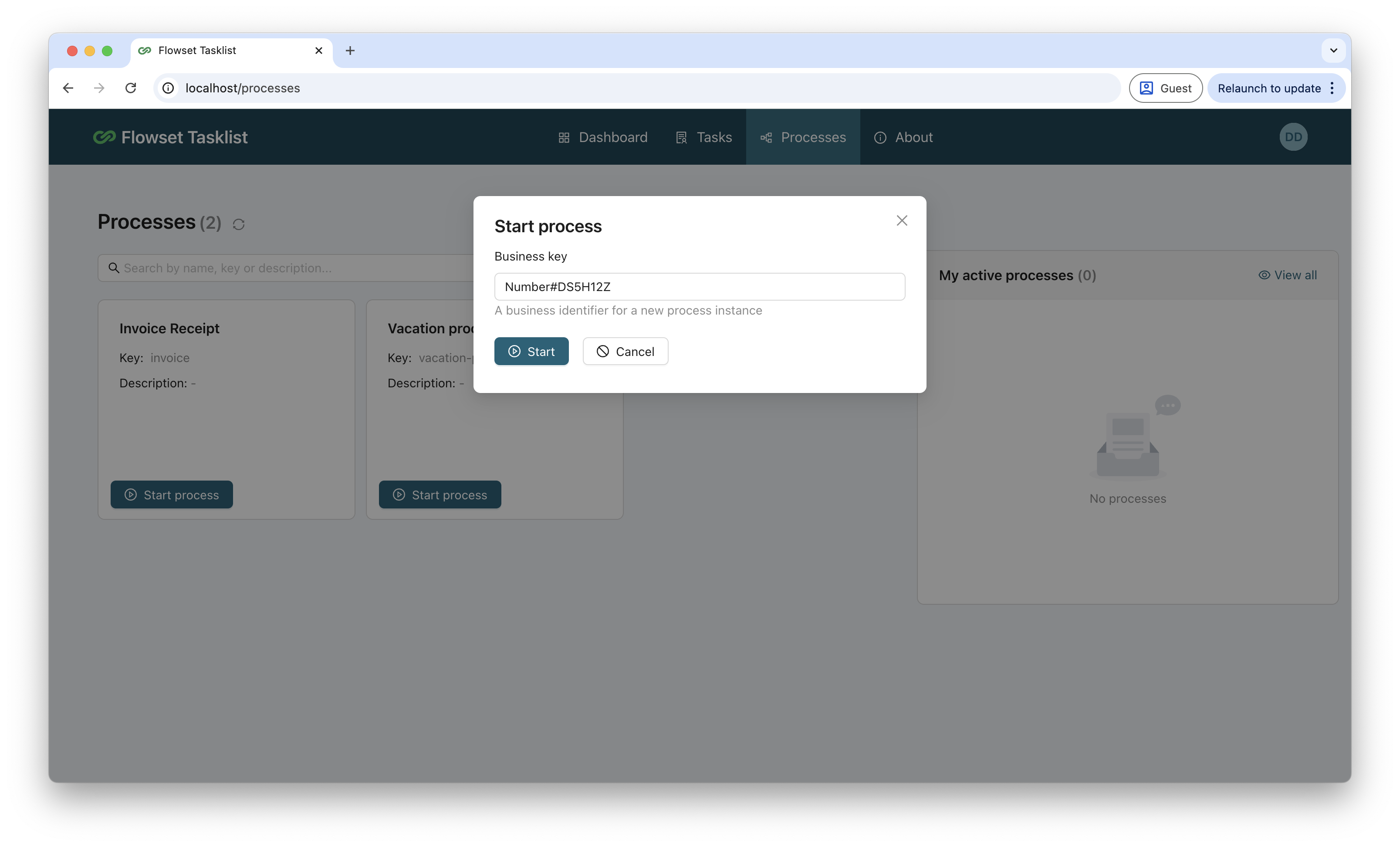
To start a process, click Start Process next to the desired row. A dialog window will open; its content depends on the type of form linked to the process’s start event:
-
If no form is specified — only the Business Key field is shown
-
If a Camunda form is used — the published Camunda form will be shown
-
If a Custom form is used — Tasklist displays the component registered for the given
formKey
|
Form types Embedded and Generated are not supported in Flowset Tasklist. |
After filling out the form and clicking Start, Tasklist creates a new process instance with the provided variables and business key.
Working with User Tasks
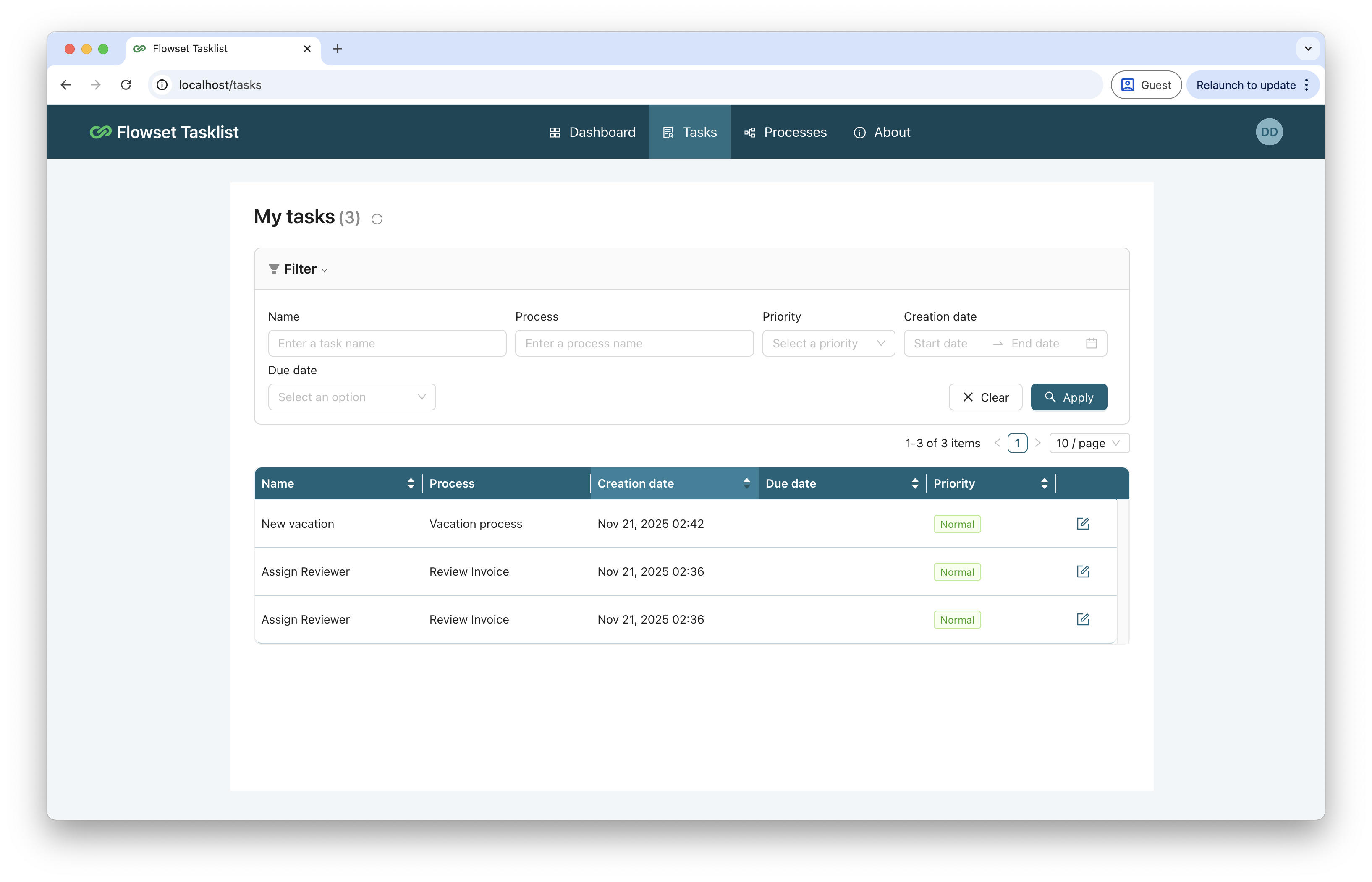
To view active user tasks, open the Tasks menu item. A page will open with a table of tasks assigned to the current user.
Available actions:
-
Filtering and sorting tasks
-
Viewing task details
-
Completing a task
Viewing a Task
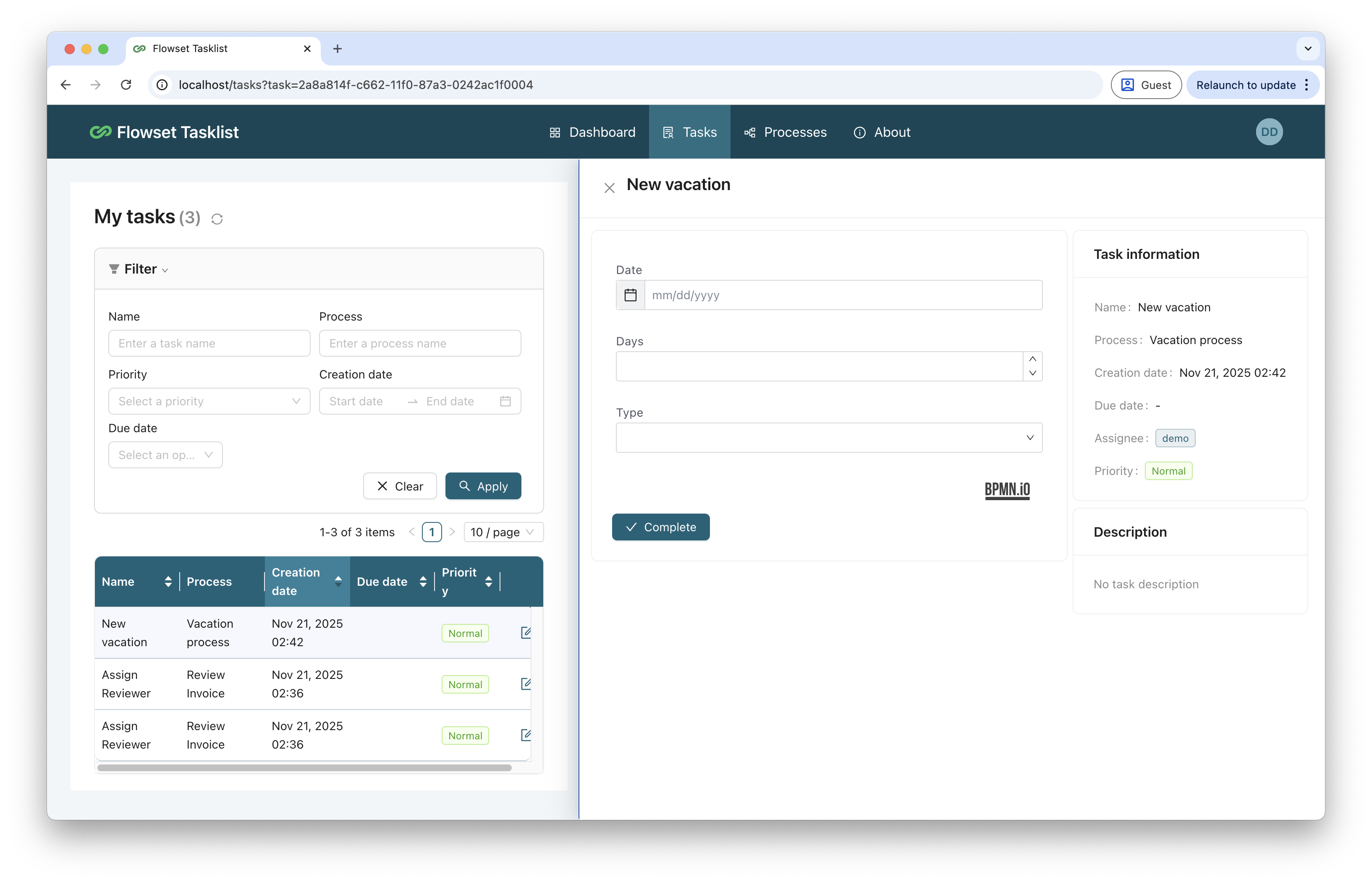
To open a task, click Edit next to the corresponding row. A panel with task details and the associated form will appear on the right side of the screen.
Depending on the form type, Tasklist displays:
-
Only a Complete button if no form is linked
-
A full Camunda form if a Camunda form is used
-
A custom form if a component is registered for the
formKey
Completing a Task
To complete a task, fill out the required fields in the form and click Complete (or a similarly named button). Tasklist sends the form data to the BPM engine, after which the task is closed and the process continues according to the model.
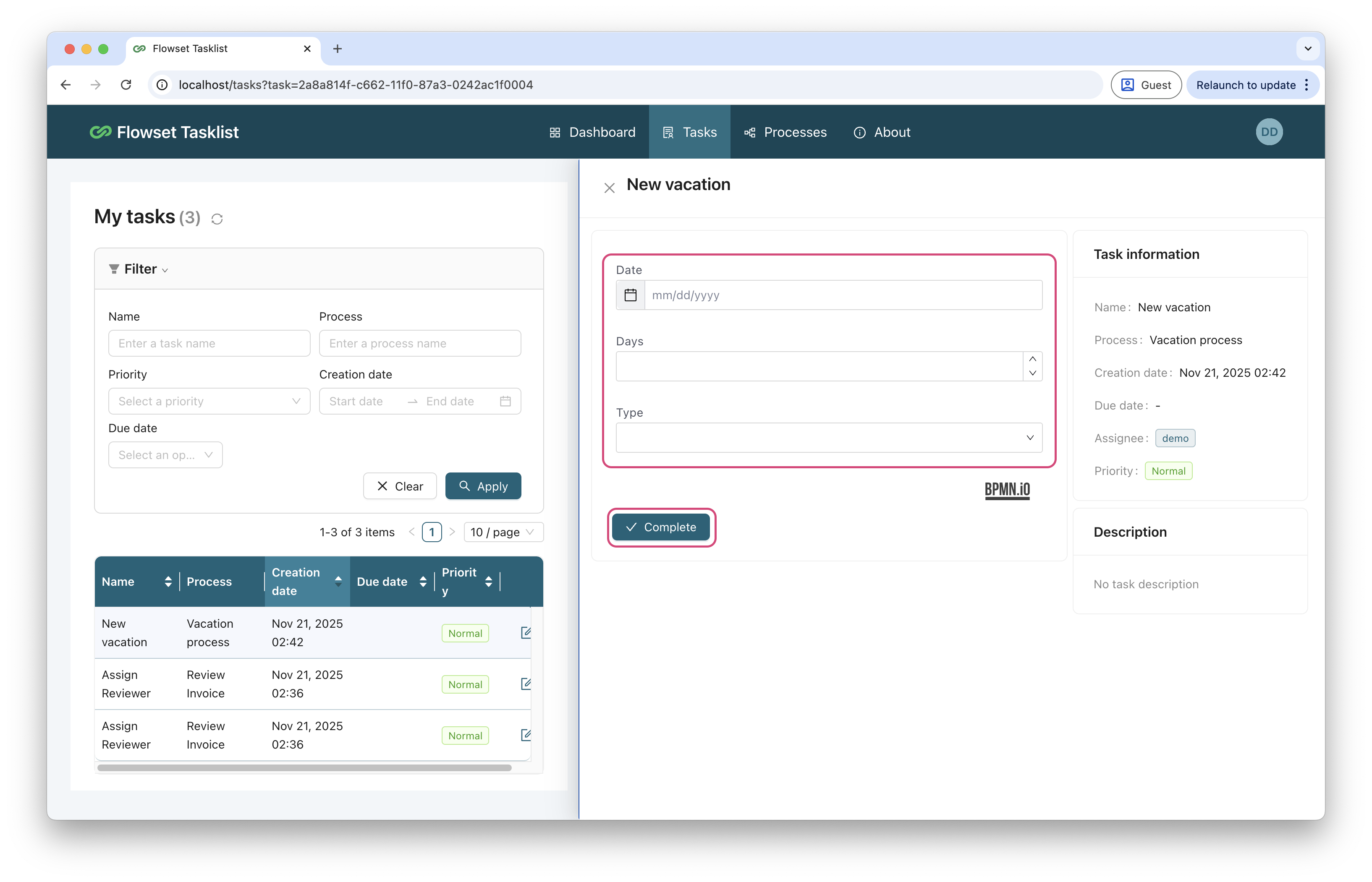
|
Supported form types: Camunda form and Custom form. Embedded and Generated forms are not supported. |
Authorization and Users
Access to Tasklist is provided using Basic Authentication. The list of users and their permissions is defined on the BPM engine side.
For proper operation, ensure that the user’s group has the following authorizations enabled:
-
User
-
Process Definition
-
Process Instance
-
Task
-
Historic Task Instance