User Form Designer
Use the Flowset Form Designer to edit Camunda Forms in IntelliJ IDEA. The Form Designer will appear when you open an existing .form file. If you create a new form via Flowset Studio, it will open automatically in the Designer.
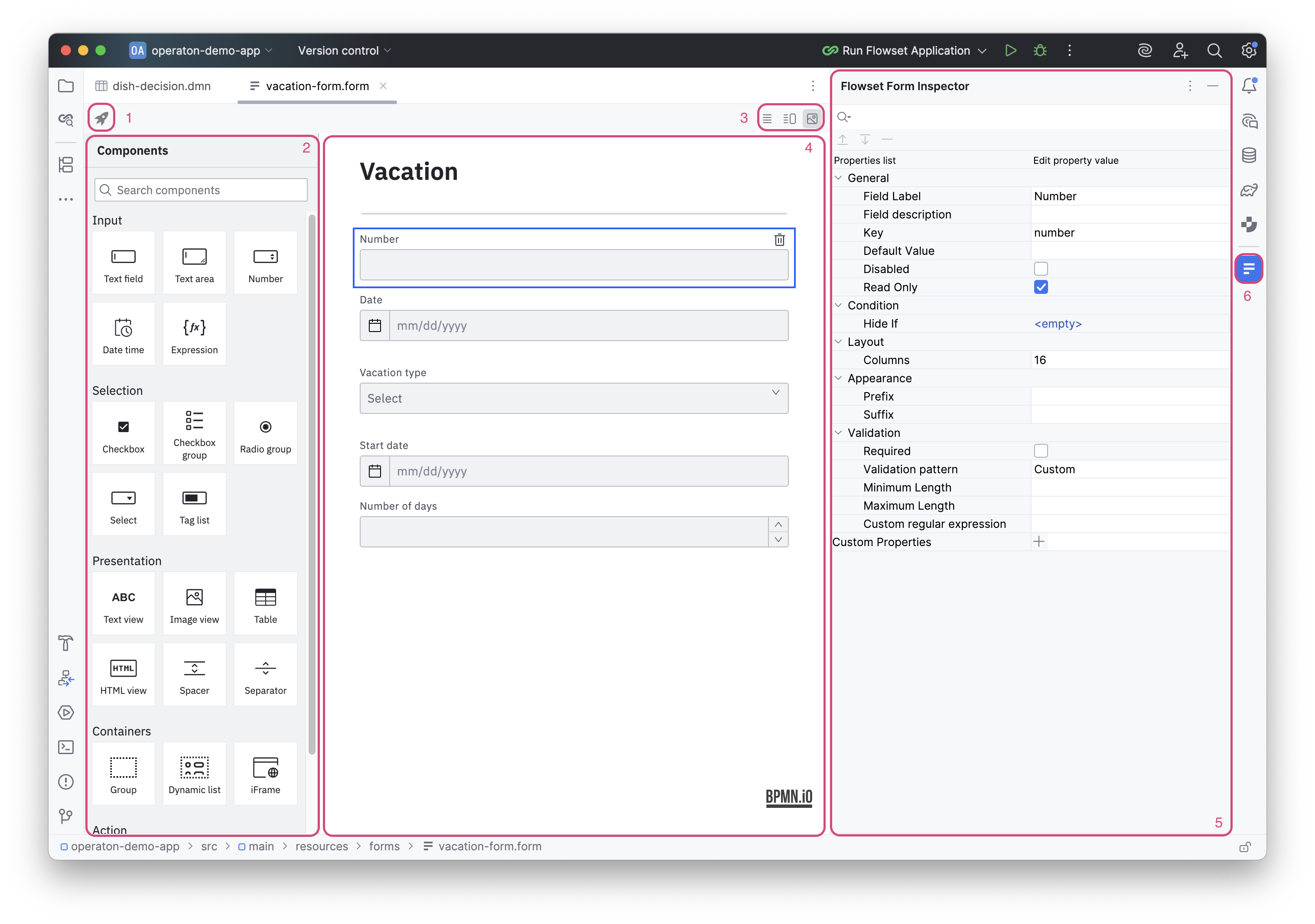
The User Form Designer interface consists of:
Form Actions |
(1) |
Panel of available actions for the form. |
Components Palette |
(2) |
The Components Palette provides a complete set of elements for building forms. |
Editor Modes |
(3) |
Panel for selecting the view mode. Three view modes are available: JSON only, JSON and form, form only. |
Canvas |
(4) |
Workspace for creating a form. |
Form Inspector |
(5) |
The inspector panel displays the attributes of the selected element and allows editing them. |
Visibility Button |
(6) |
Visibility toggle for the inspector. |
Properties Panel (Form Inspector)
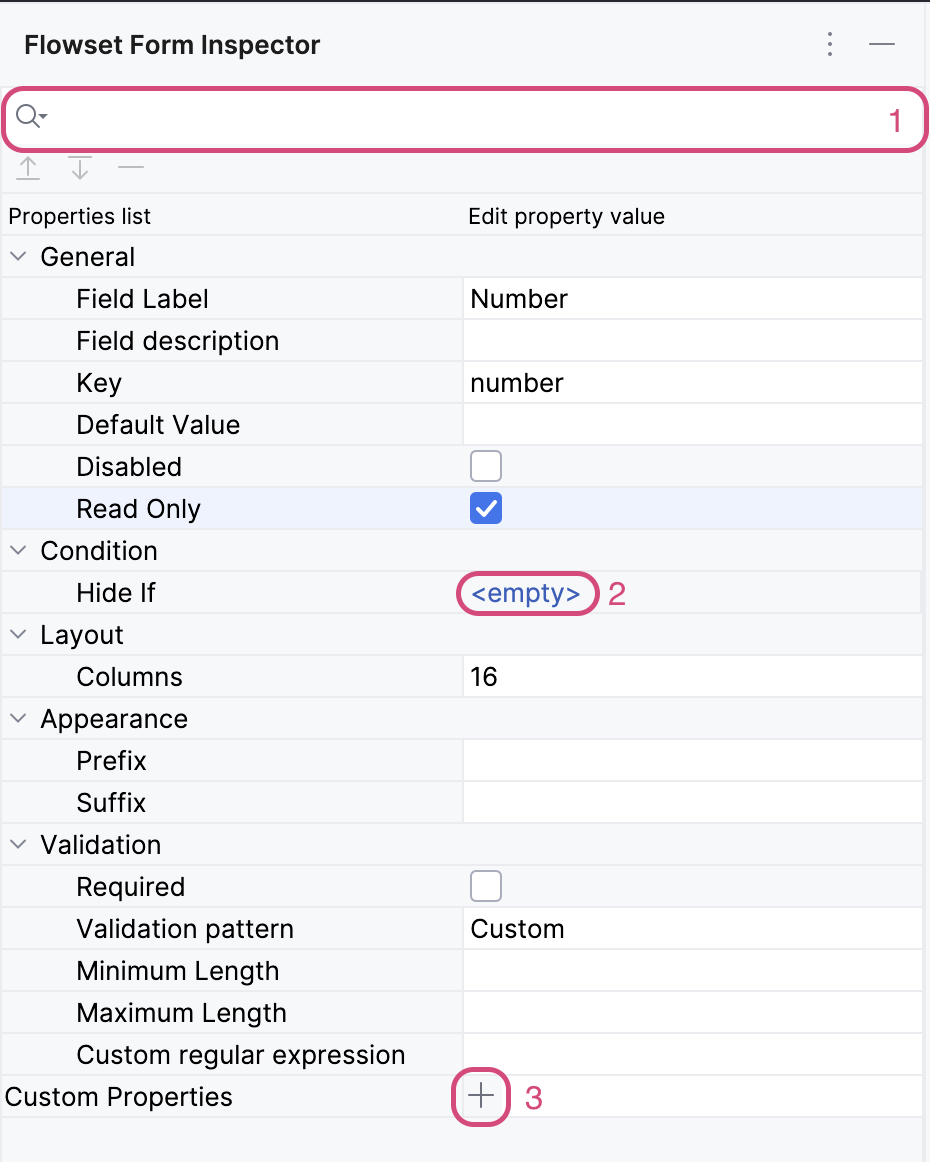
The properties panel allows changing the parameters of the selected form element. If no element is selected, the form properties are displayed.
Search |
(1) |
Search for an attribute by name; clicking the icon shows a dropdown search history. |
<empty> link |
(2) |
Opens a dialog for editing multi-line text. If text is already set, the first line is displayed as a link. |
|
(3) |
Opens a dialog for setting a property or a wizard for generating an element |
Deployment
The Form Editor allows deploying the form to a remote Camunda/Operaton engine. To invoke the deployment wizard, click the rocket icon in the Editor Toolbar (Form Actions pannel). A correctly configured connection to an external engine is required.
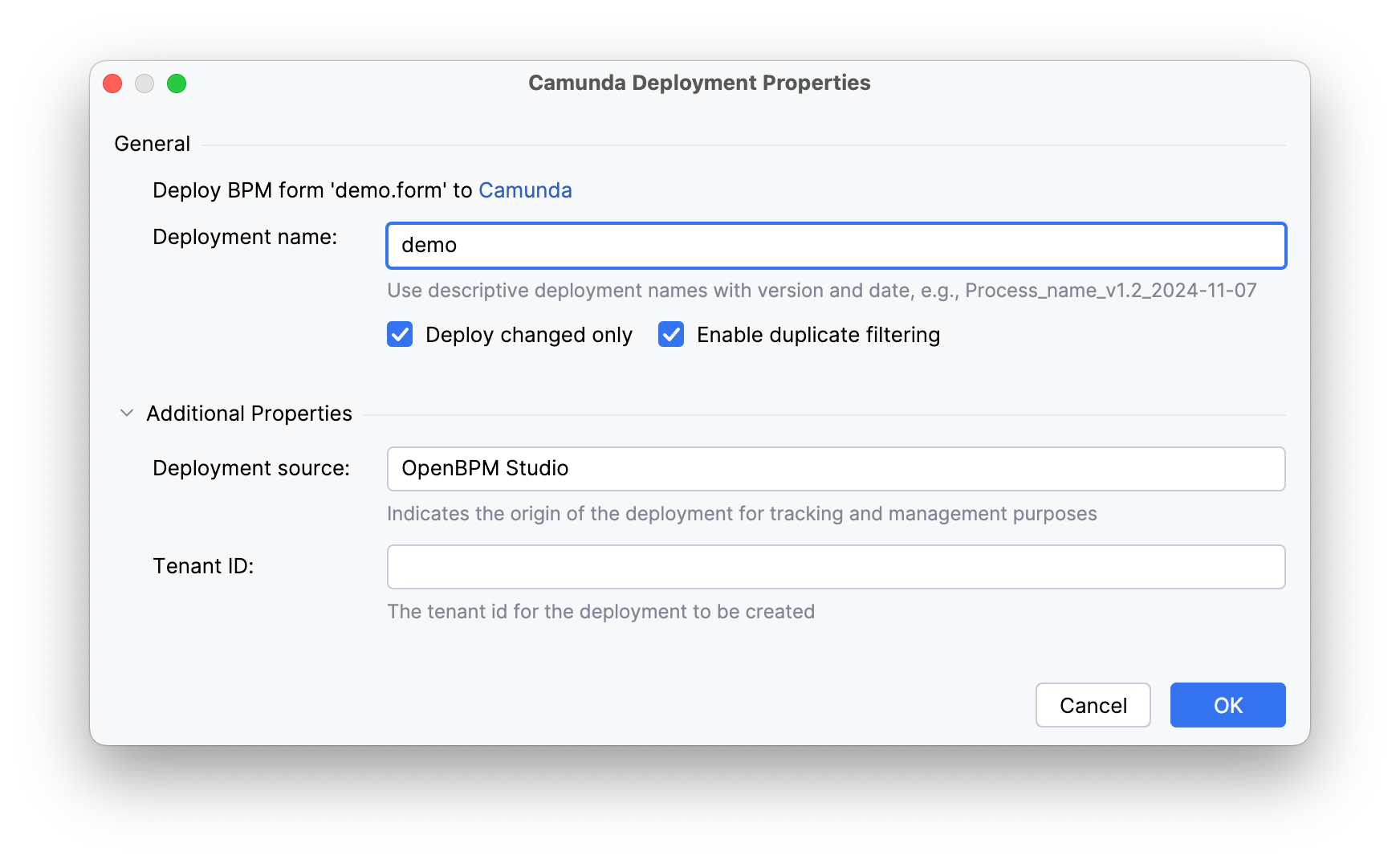
Deployment name |
A unique name for identifying the deployment package. Allows easy finding and administration of a specific process version in the system. |
Enable duplicate filtering |
Filtering at the individual file level. Skips redeployment of unchanged resources (e.g., BPMN diagrams) within a deployment. Saves database space by preventing duplicate creation. |
Deploy changed only |
Filtering at the entire deployment package level. If no file in the deployment has changed, the operation is entirely ignored. Ensures idempotence, excluding unnecessary process version creations. |
Deployment source |
The source from which the deployment was initiated (e.g., 'Flowset Studio'). Used for auditing and tracking deployment origins. |
Tenant ID |
The tenant identifier for a multi-tenant architecture. Allows isolating processes and data for different clients or departments within a single Camunda cluster. |