Evaluating Decisions
Flowset Control allows you to evaluate a DMN decision table directly from the user interface without starting a BPM process.
Use this mode to test business rules with sample input data, validate production behavior, or investigate decision logic without creating a technical process only for DMN execution.
For background on DMN and FEEL expressions, see:
Opening Evaluate Mode
You can open evaluate mode from the DMN → Decisions list or from a decision detail view.
In the Decisions list, click the Evaluate decision action for the required decision definition.
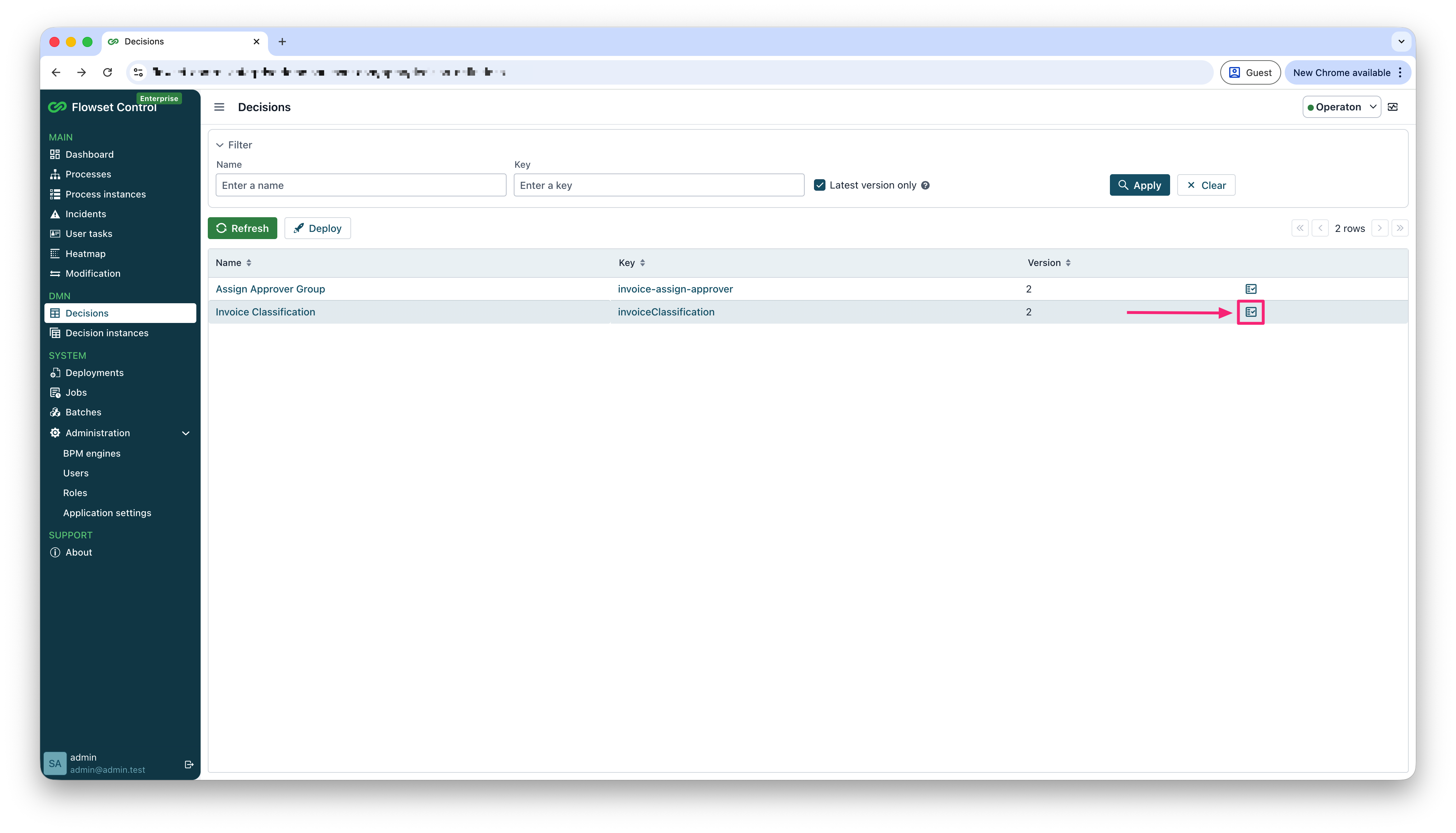
Flowset Control opens the Evaluate decision view for the selected decision definition and version.
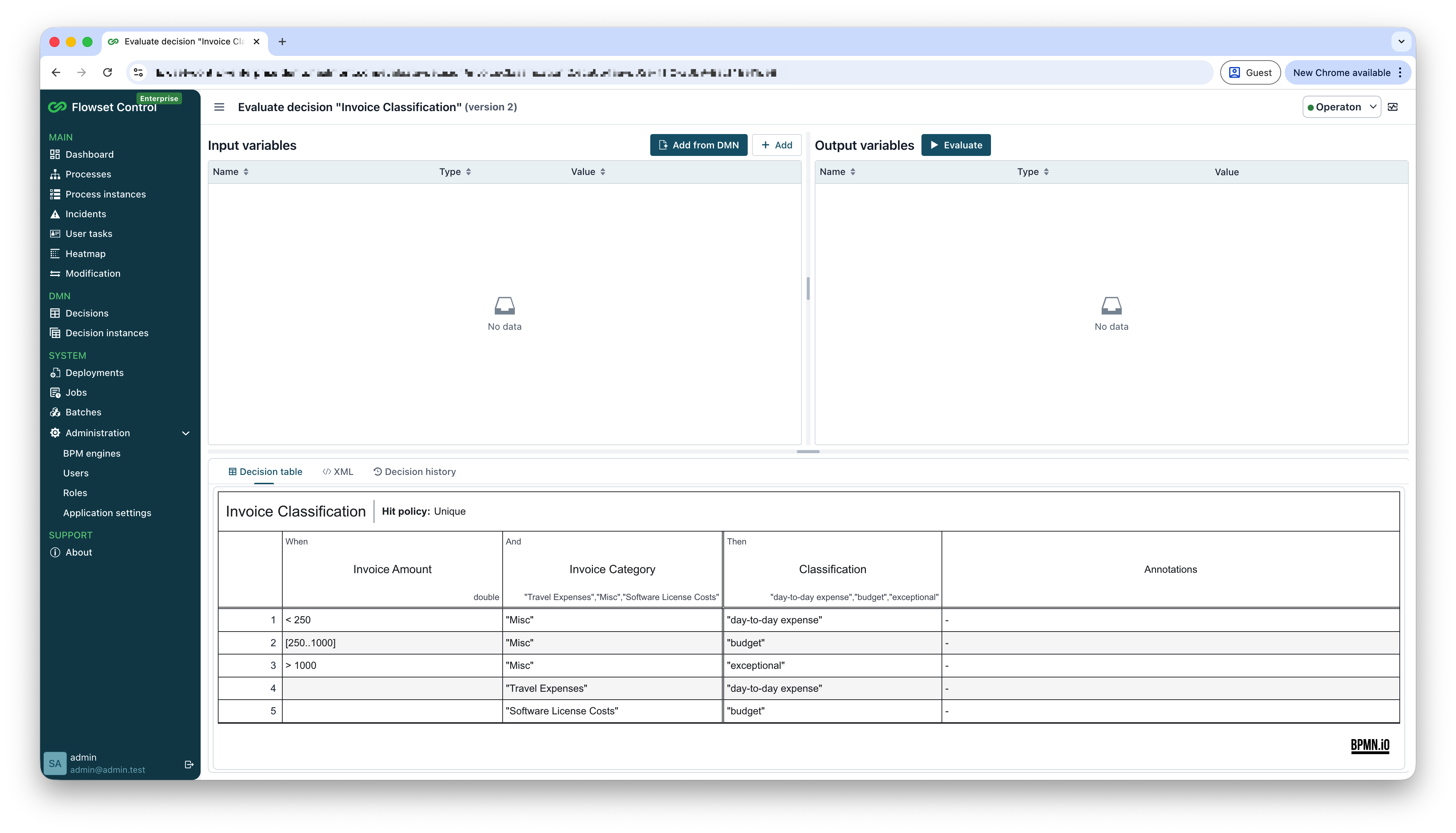
The view contains:
-
Input variables - variables passed to the decision evaluation.
-
Output variables - values returned by the matched decision rules.
-
Decision table - rendered DMN table for visual analysis.
-
XML - raw DMN XML definition.
-
Decision history - previous decision instances for the selected decision definition.
Input Variables
Before evaluation, add the variables that the decision table expects.
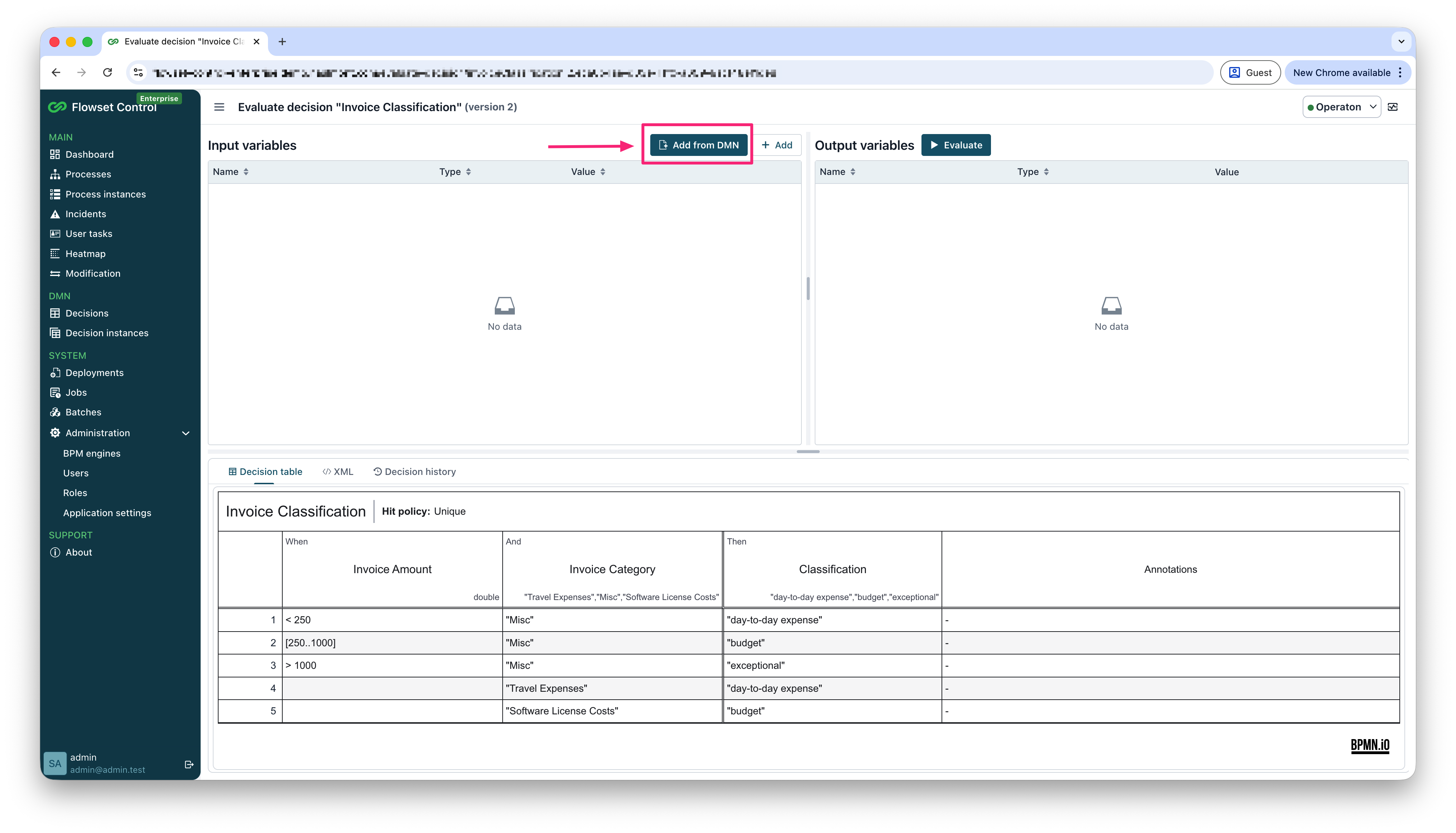
You can add variables manually with Add or detect variables from the DMN XML with Add from DMN.
The Add variables from DMN XML dialog lists detected input variables. Select the variables you want to add and confirm with Add.
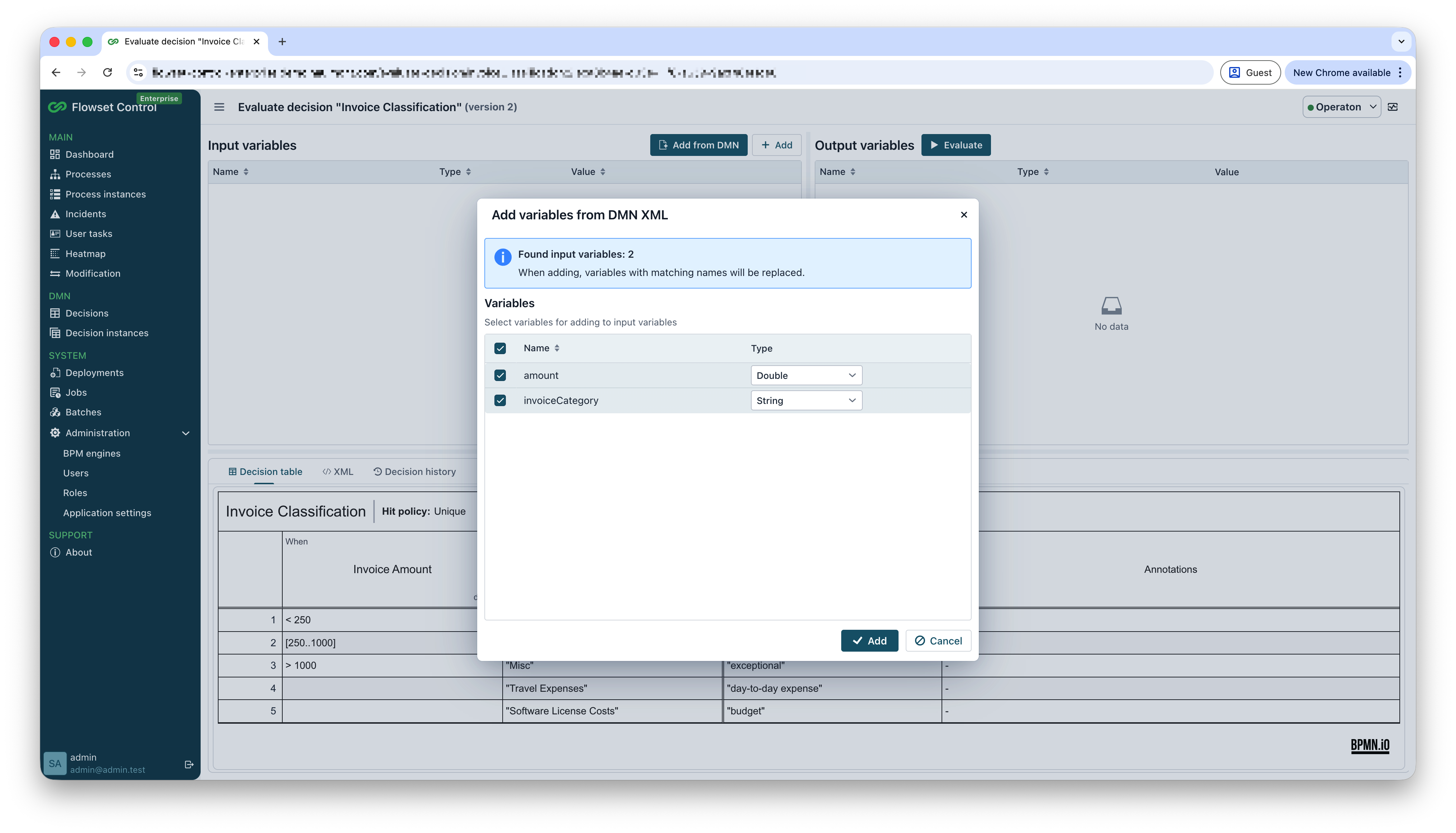
When variables are added from DMN XML, Flowset Control detects input variables from:
-
FEEL expressions used in the input expression of each decision table input.
-
The
camunda:inputVariableattribute when the input expression is empty. -
Input entry expressions from each rule.
If only one variable is detected from an input expression, Flowset Control uses the input type from the DMN XML as the variable type.
If the variable type cannot be detected from the DMN XML, String is used as the default type in the dialog.
| Variables with matching names are replaced when variables are added from DMN XML. |
Only simple variable types are supported in the evaluate view and in the Add variables from DMN XML dialog. File, Object, and Bytes variables are not available.
Editing Input Values
After adding variables, enter test values in the Value column.
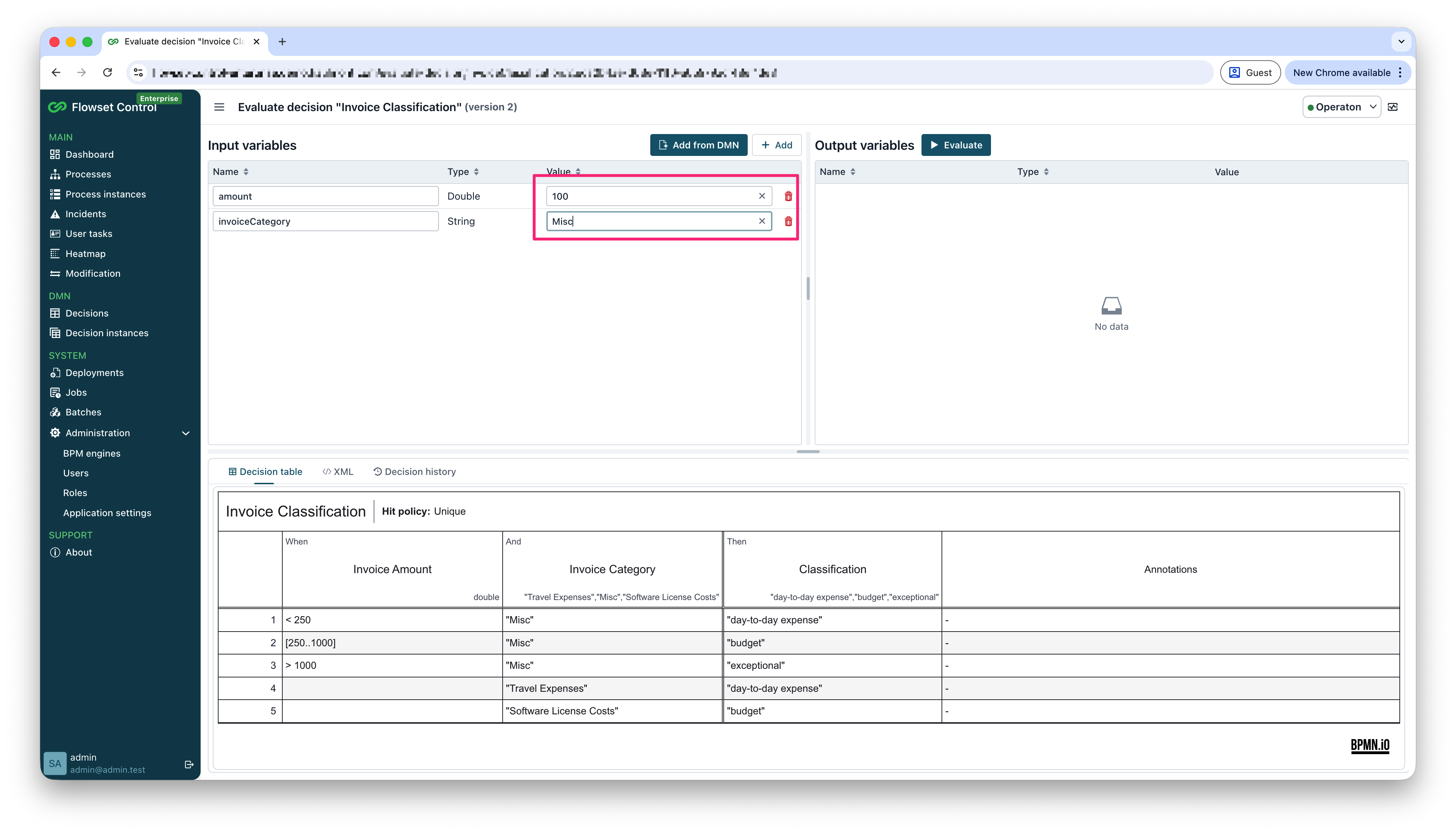
The value format must match the selected variable type. For example, numeric values can be entered for Double variables, and plain text can be entered for String variables.
If you change input variables after a successful evaluation without running the evaluation again, Flowset Control marks the current output as Outdated. Run the evaluation again to refresh the output variables and decision history.
Running Evaluation
Click Evaluate to execute the decision table with the current input variables.
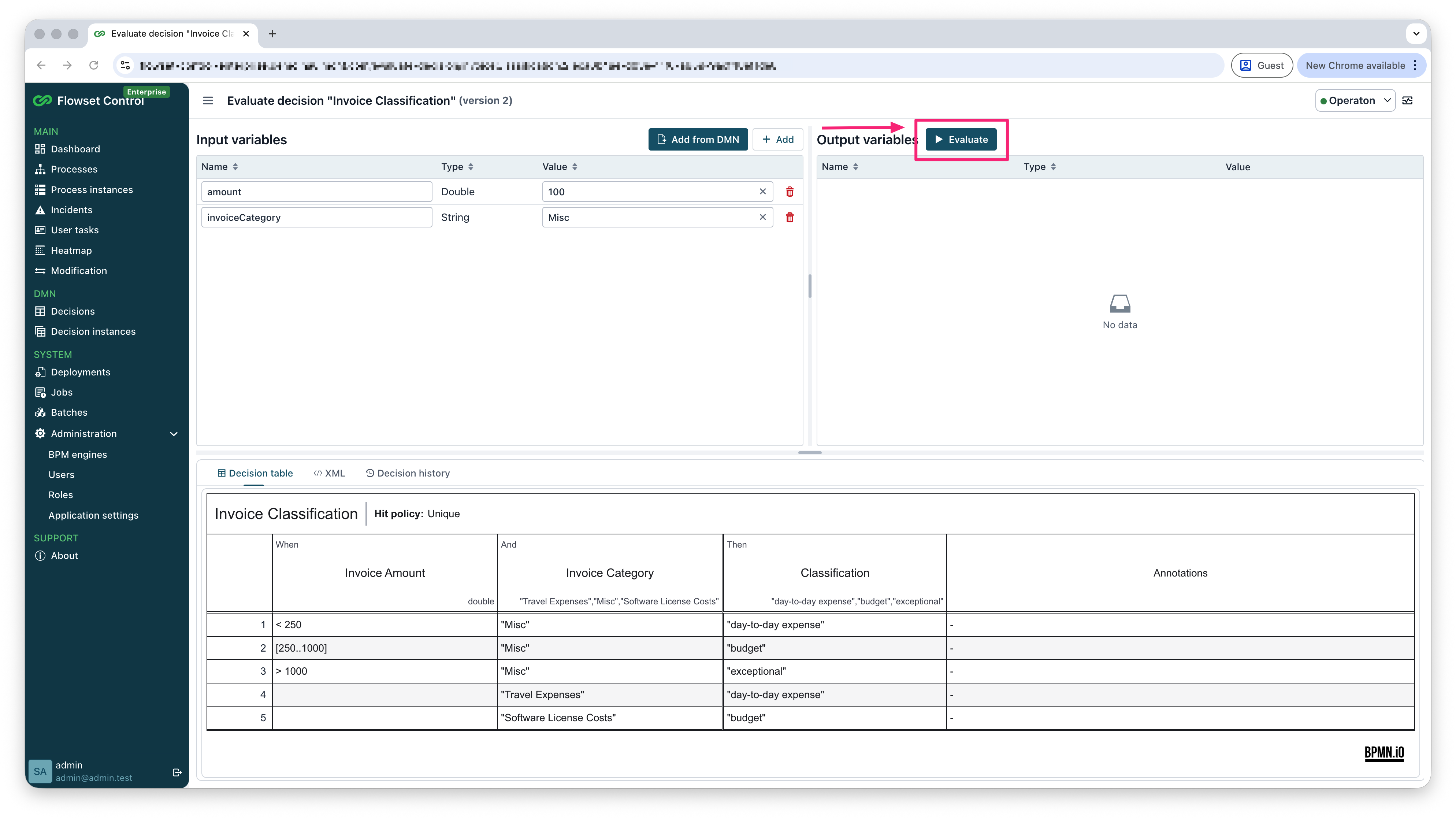
Flowset Control sends the input variables to the connected BPM engine and displays the evaluation result in the Output variables panel.
For each applicable rule, the output tree contains a root node. Output values for that rule are displayed as child nodes.
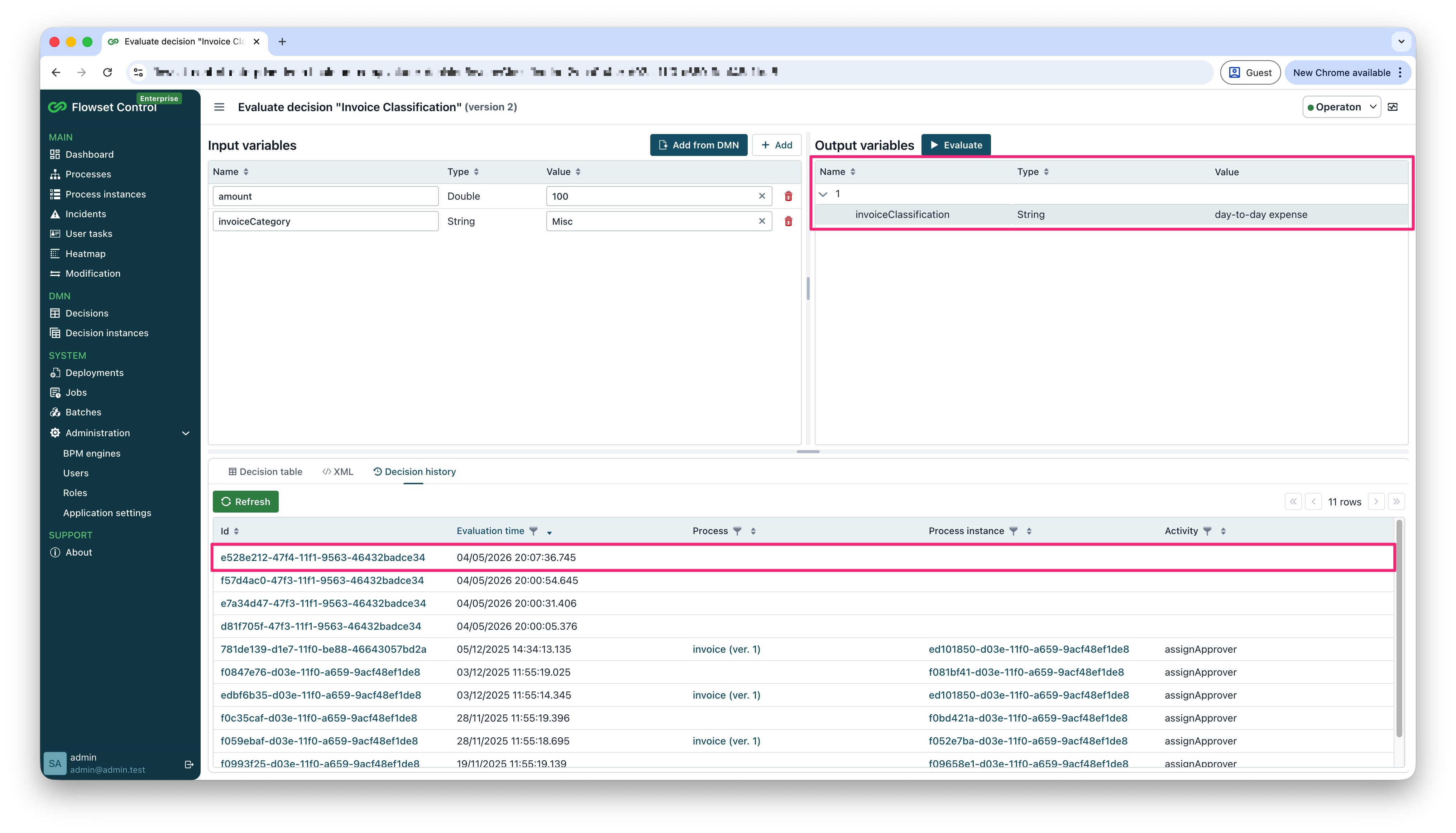
After each evaluation:
-
The Decision history tab is opened automatically.
-
The decision instance list is refreshed.
-
The latest decision instance appears in the history table.
Analyzing Evaluation Results
Open a decision instance to inspect the evaluated input and output values together with the decision table.
The Inputs tab shows the variables used for evaluation and highlights the matched rule in the table.
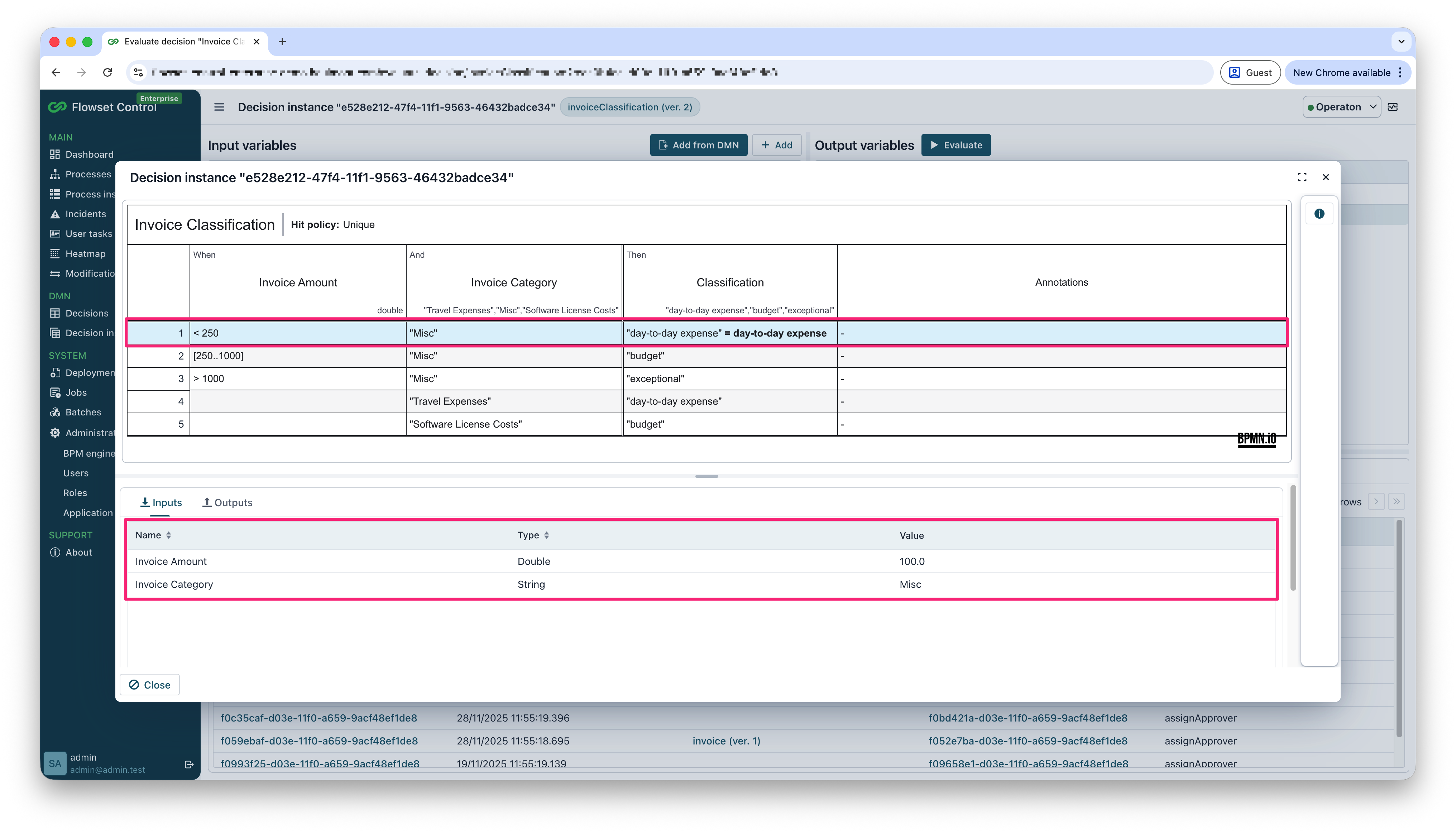
The Outputs tab shows the values returned by the evaluation.
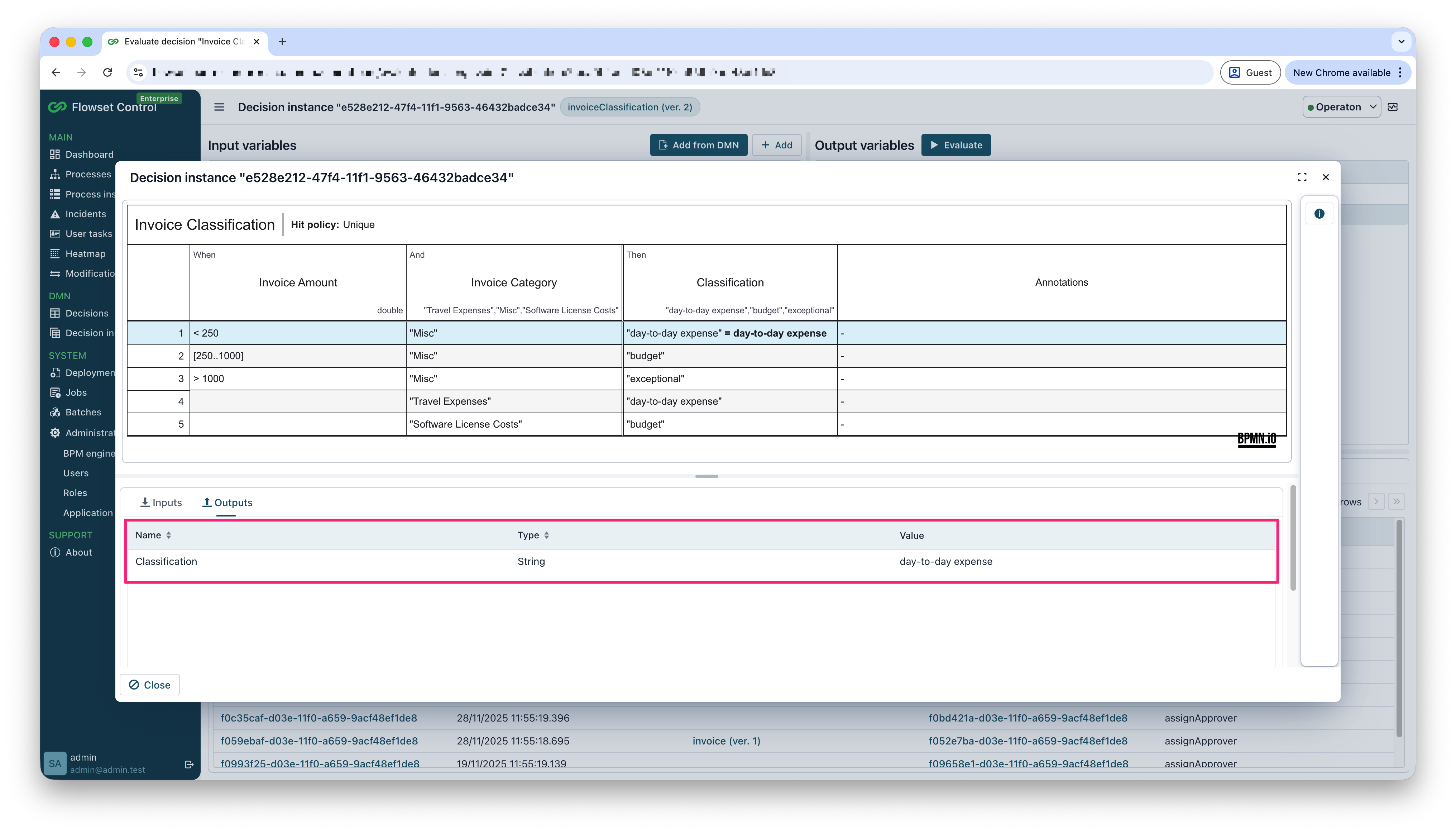
Use this view to verify which rule matched, what input values were used, and what output values were produced.