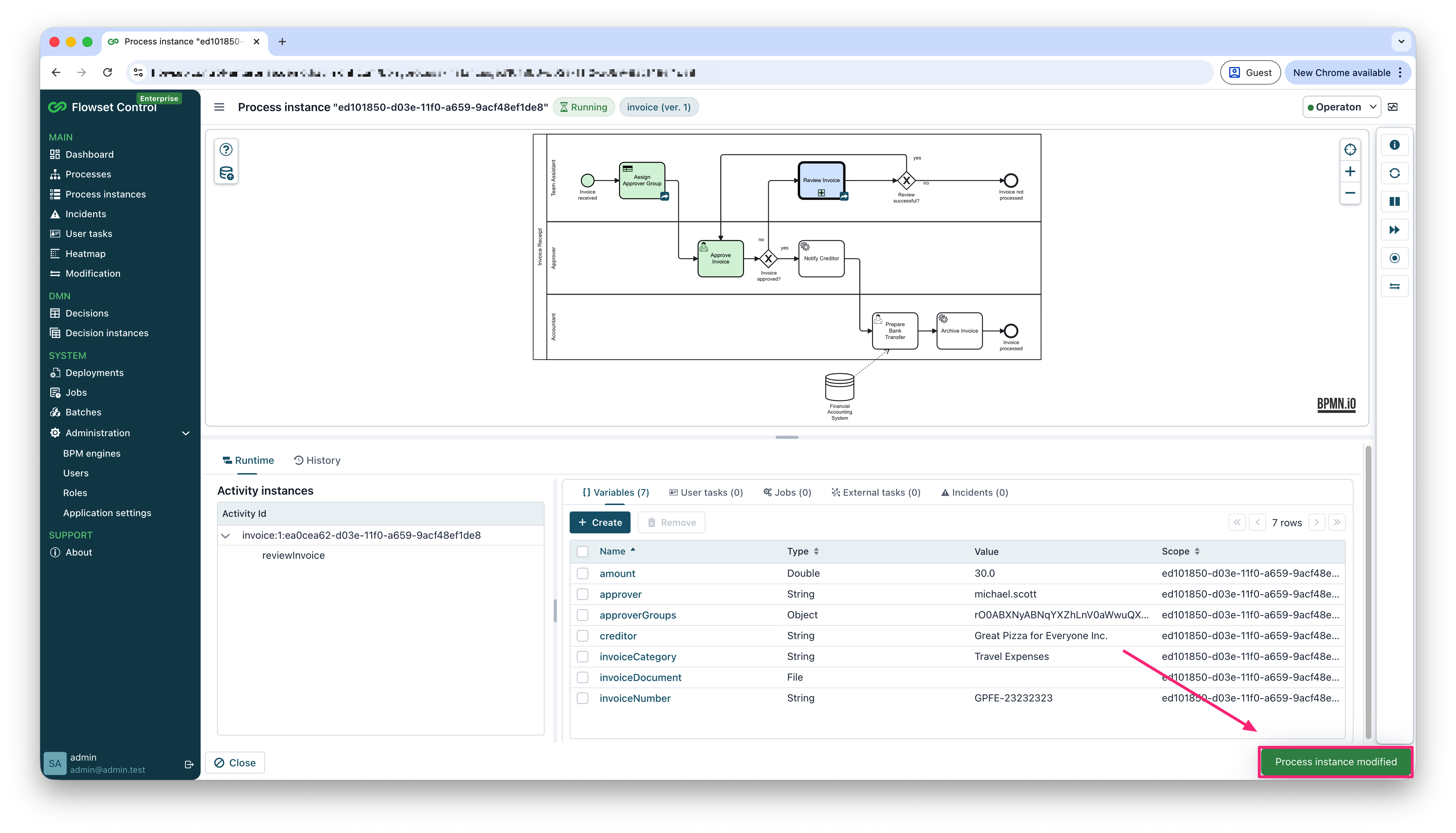
Process Instance Modification
Flowset Control provides tools for moving running process tokens from one activity to another.
Use modification when you need to recover running processes, retest a specific part of a large process, or synchronize process execution after incorrect data was received from an external system. You can modify several process instances at once from the Modification view, or modify a single running instance directly from the process instance detail view.
For background on Camunda process instance modification, see:
|
Process instance modification changes the runtime state of selected process instances. Use it only when you understand the business and technical impact of cancelling the source activity and starting execution at the target activity. |
The modification feature can be disabled with the flowset.control.features.modification-enabled application property.
|
Modifying Multiple Instances
Use the Modification view when the same token movement must be applied to several running process instances.
Opening Mass Modification
Select Modification in the application menu to open the process instance modification wizard.
The wizard has three steps:
-
Process & activities - select the process, version, source activity, and target activity.
-
Filtering instances - select running process instances that should be modified.
-
Confirmation - review the generated modification request and start execution.
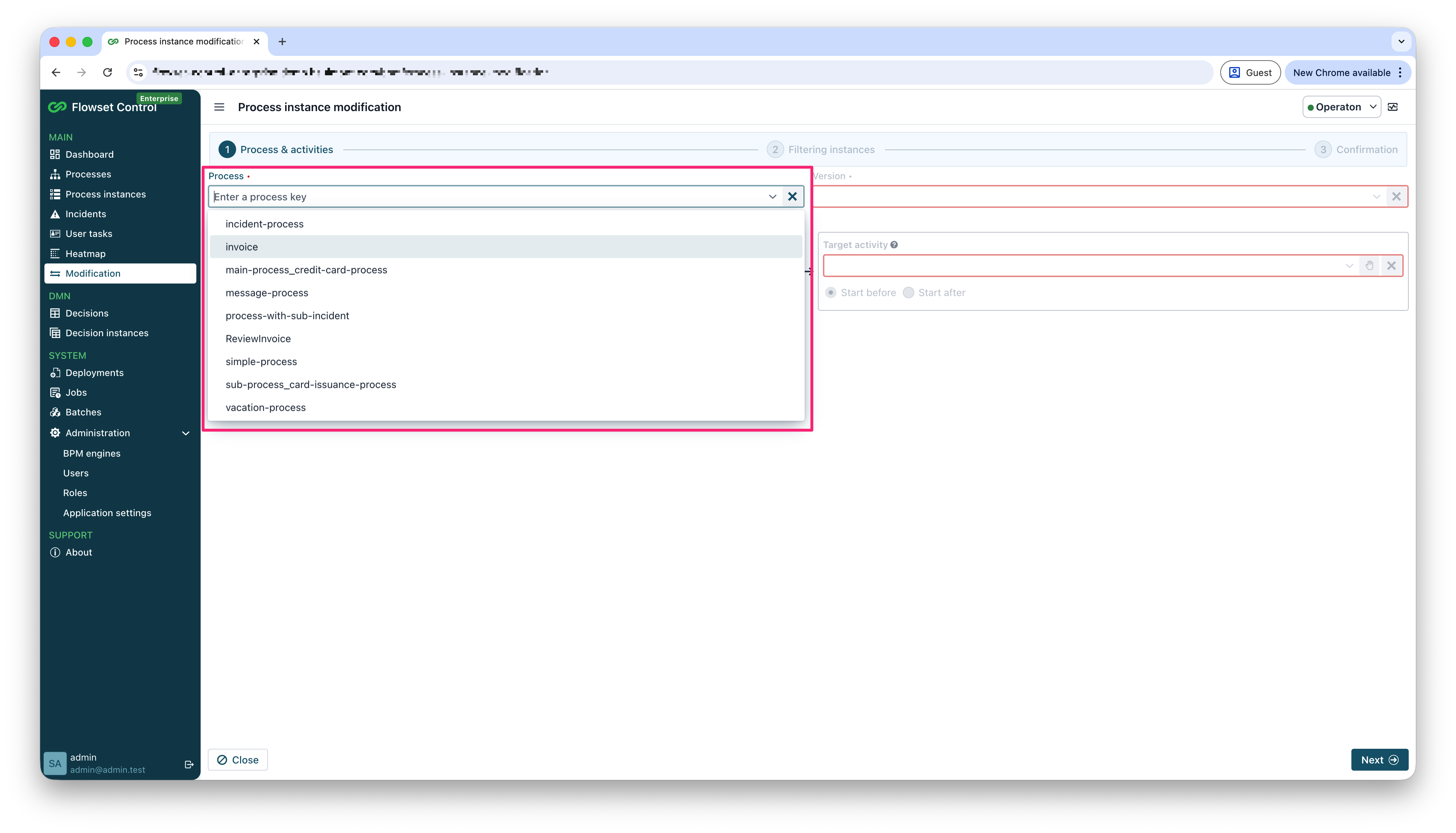
Selecting Process and Version
In the first step, select a process from the Process list.
The process list is sorted to make process lookup easier.
After the process is selected, choose the required process definition version.
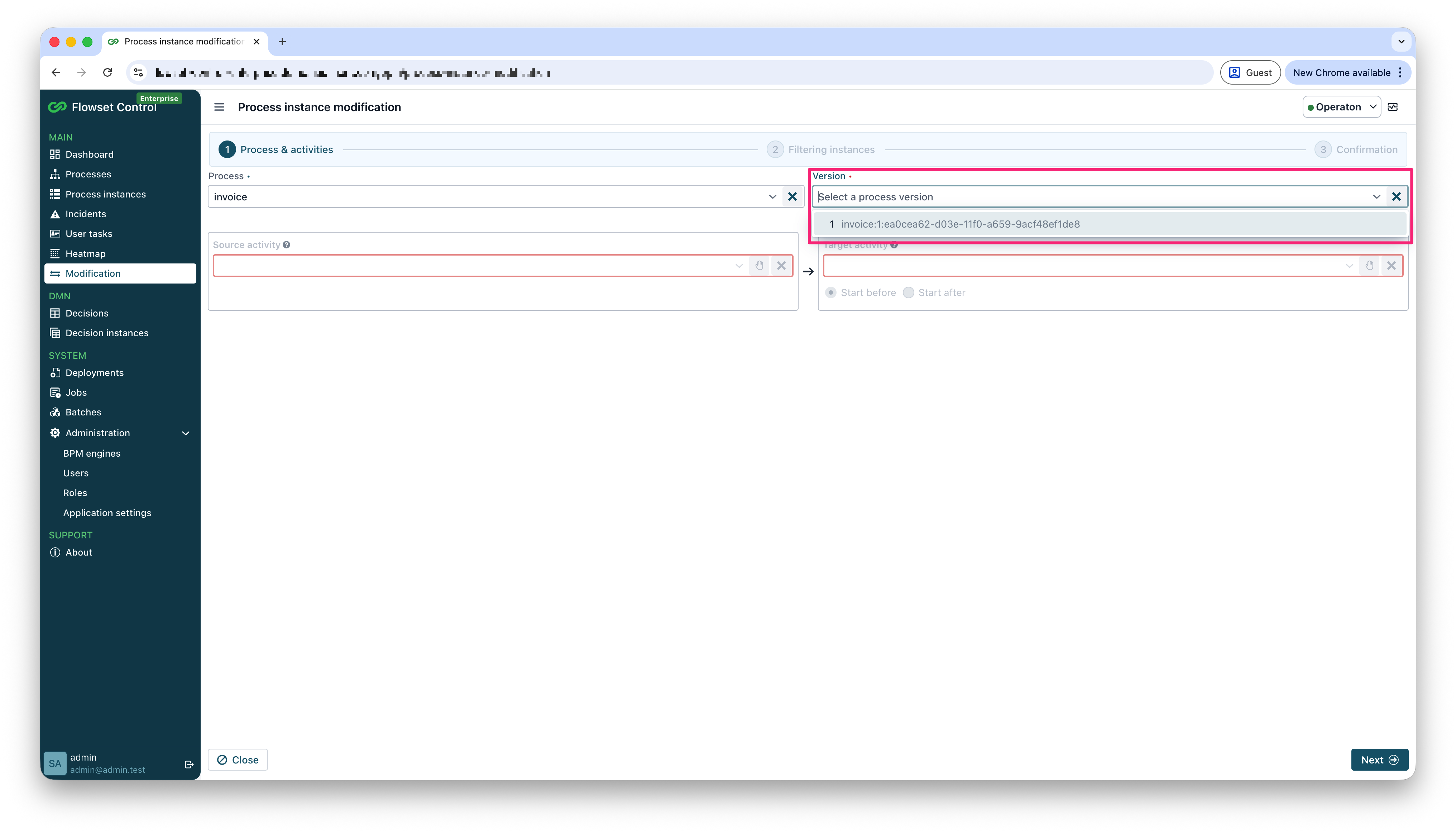
Flowset Control loads the BPMN diagram and enables source and target activity selection.
Selecting Source and Target Activities
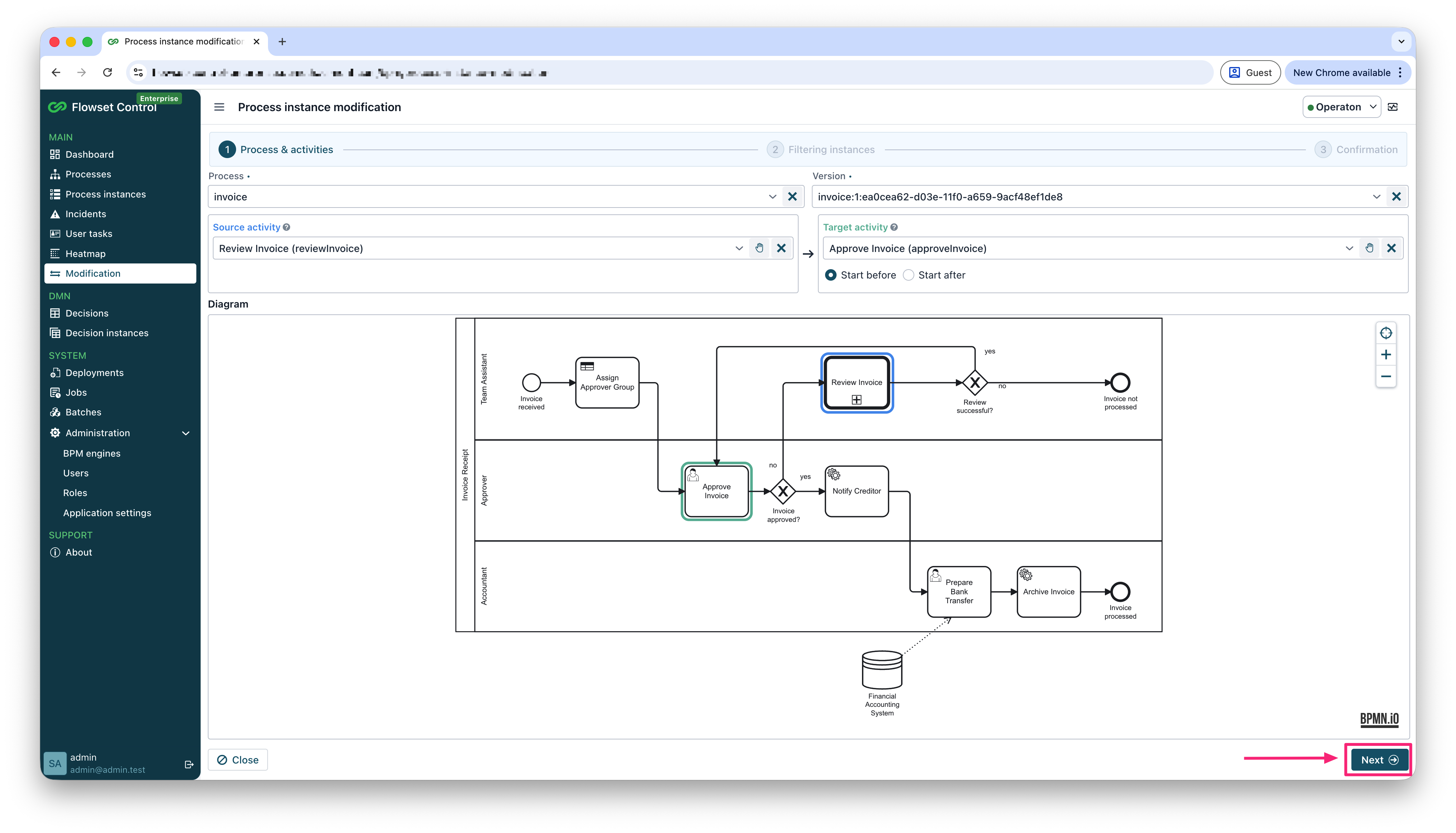
The modification wizard builds a token move from a source activity to a target activity:
-
Source activity - the currently active activity that should be cancelled.
-
Target activity - the activity where a new token should be started.
You can select activities from the sorted dropdown list.
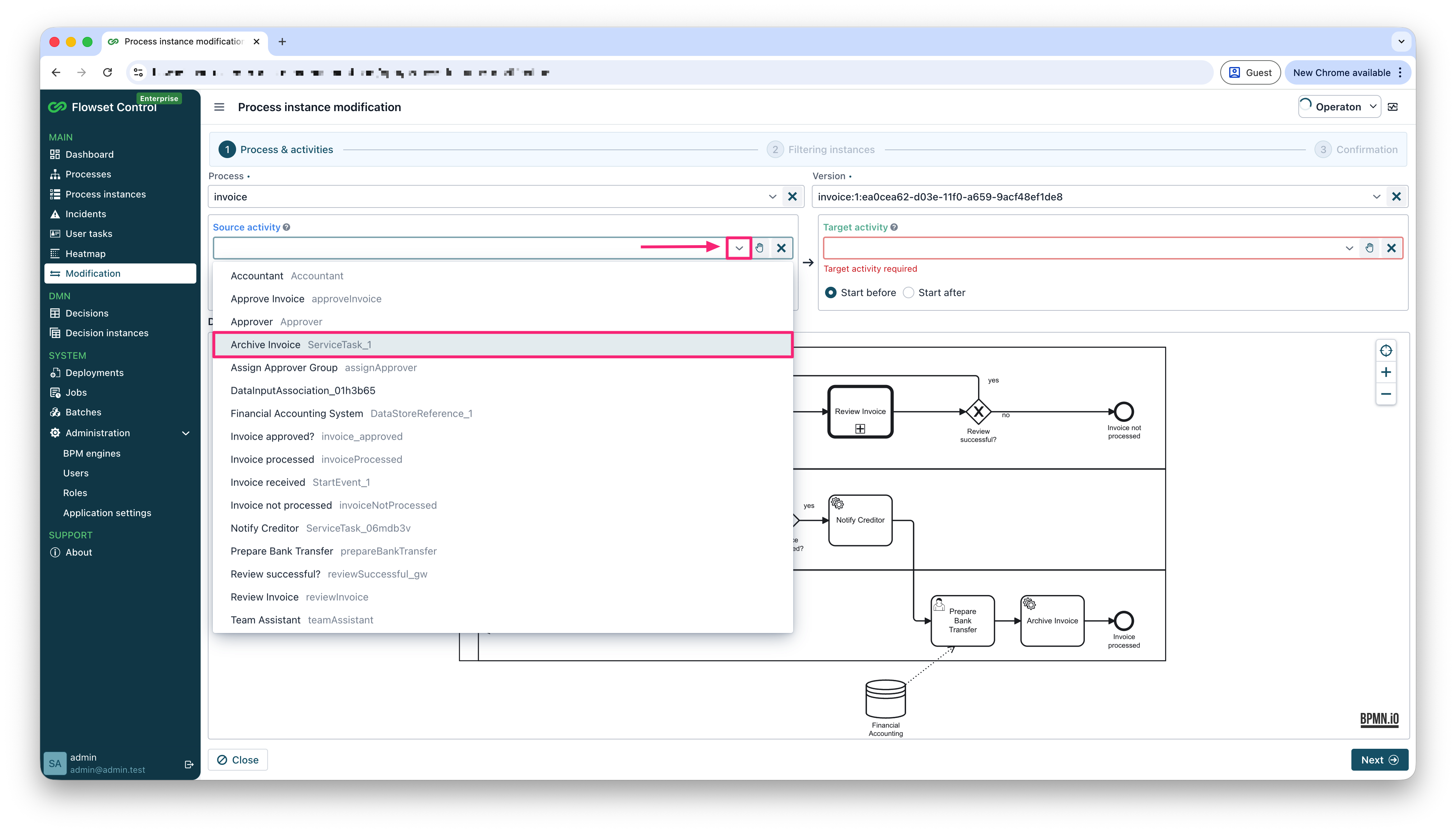
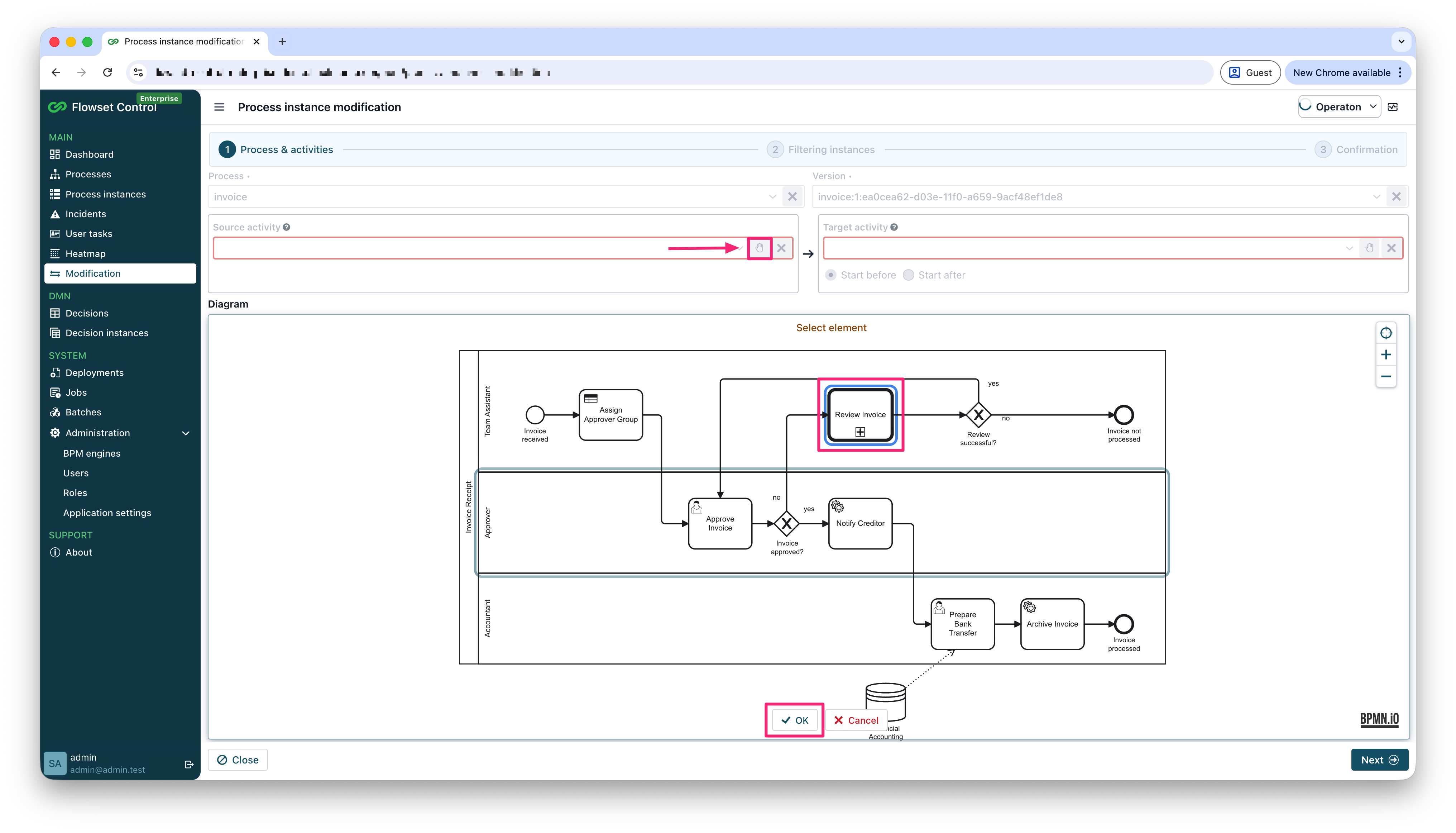
You can also select an activity directly on the BPMN diagram. Click the diagram selection button near the source or target field, select the required BPMN element, and confirm with OK.
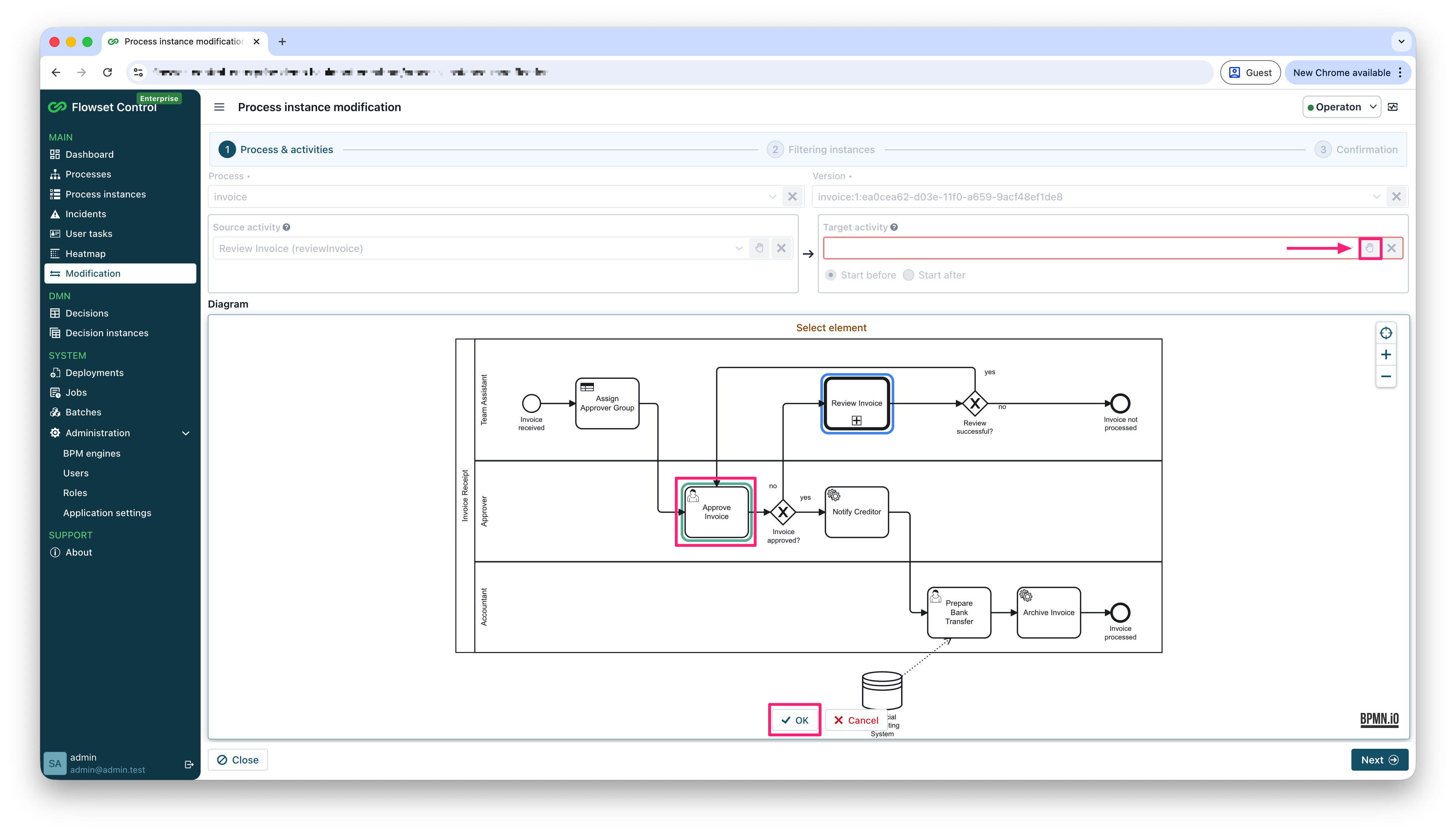
For the target activity, choose how the new token should be created:
-
Start before - starts execution before the selected activity.
-
Start after - starts execution after the selected activity.
When the source and target activities are selected, click Next.
Filtering Instances
The second step shows running process instances that match the selected process definition and source activity.
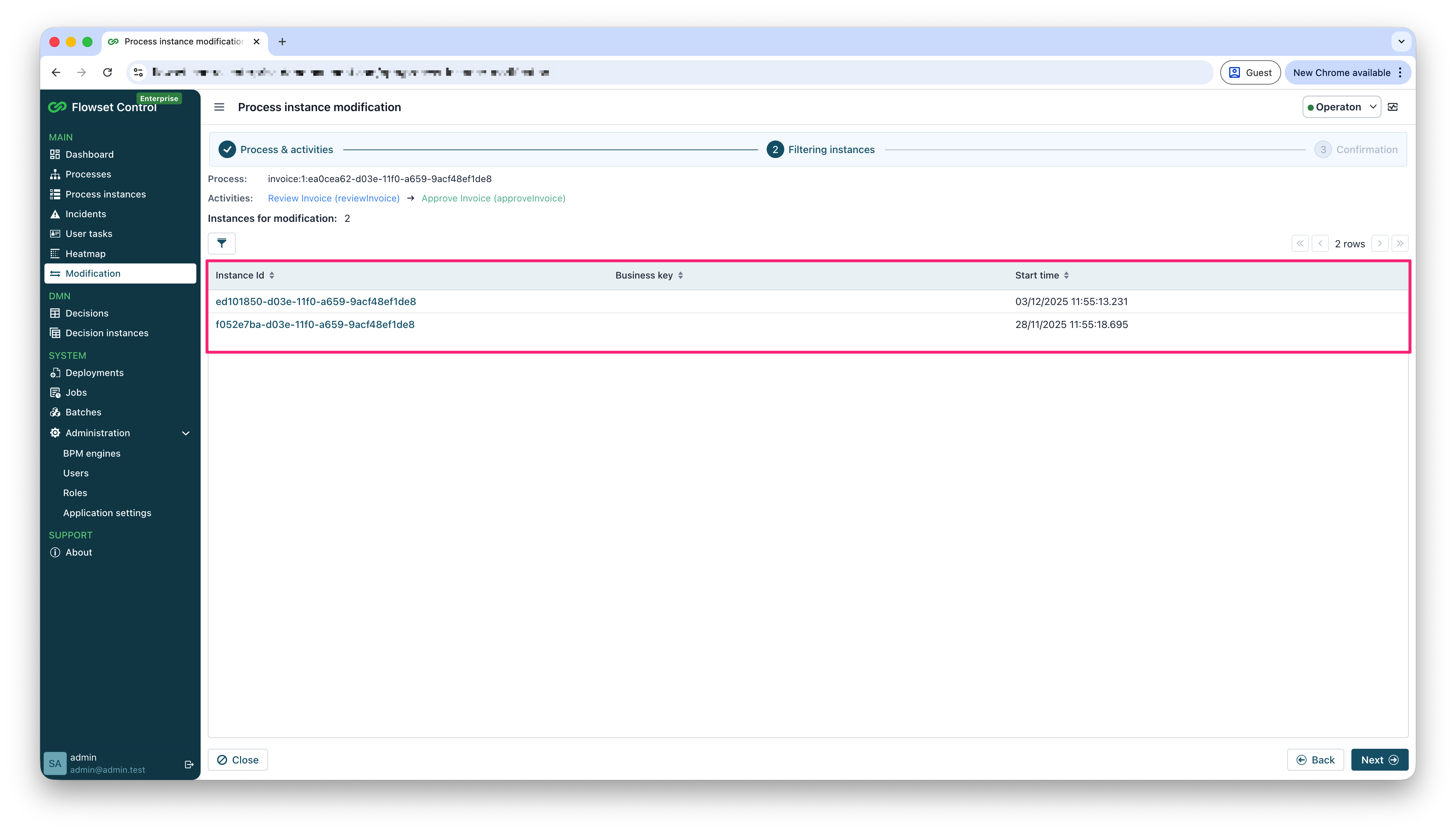
Use the filter dialog to narrow down the set of instances before applying the modification.
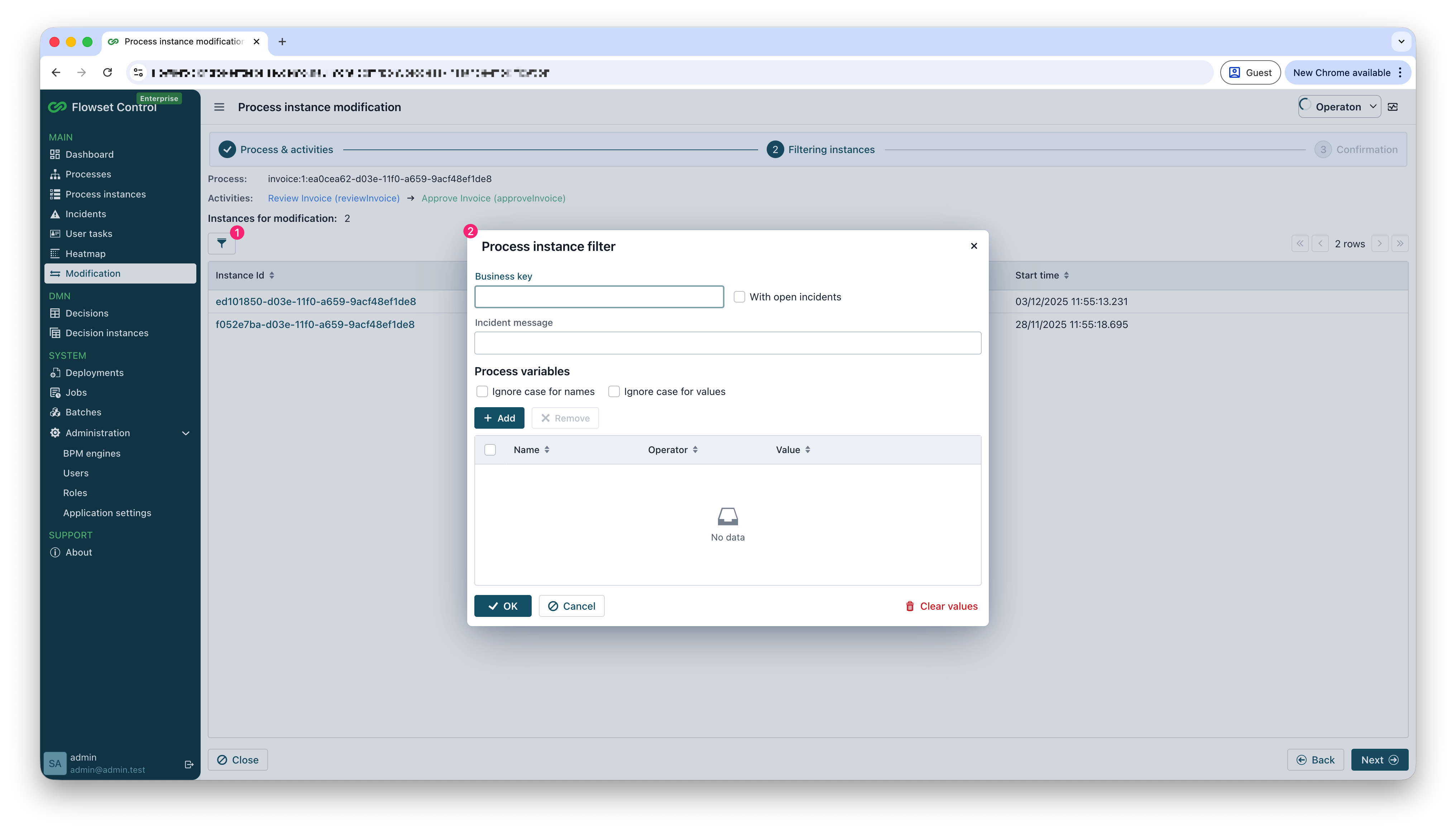
Available filters include:
-
Business key
-
With open incidents
-
Incident message
-
Process variable conditions
-
Case-insensitive matching for variable names and values
The number of instances selected for modification is shown above the table. Review this list carefully, because the modification will be applied to all matching instances.
Confirming Mass Modification
The confirmation step summarizes the selected process, activities, and number of process instances.
You can optionally add a comment before starting the modification.
Click General request to generate and review the modification request that will be sent to the BPM engine.
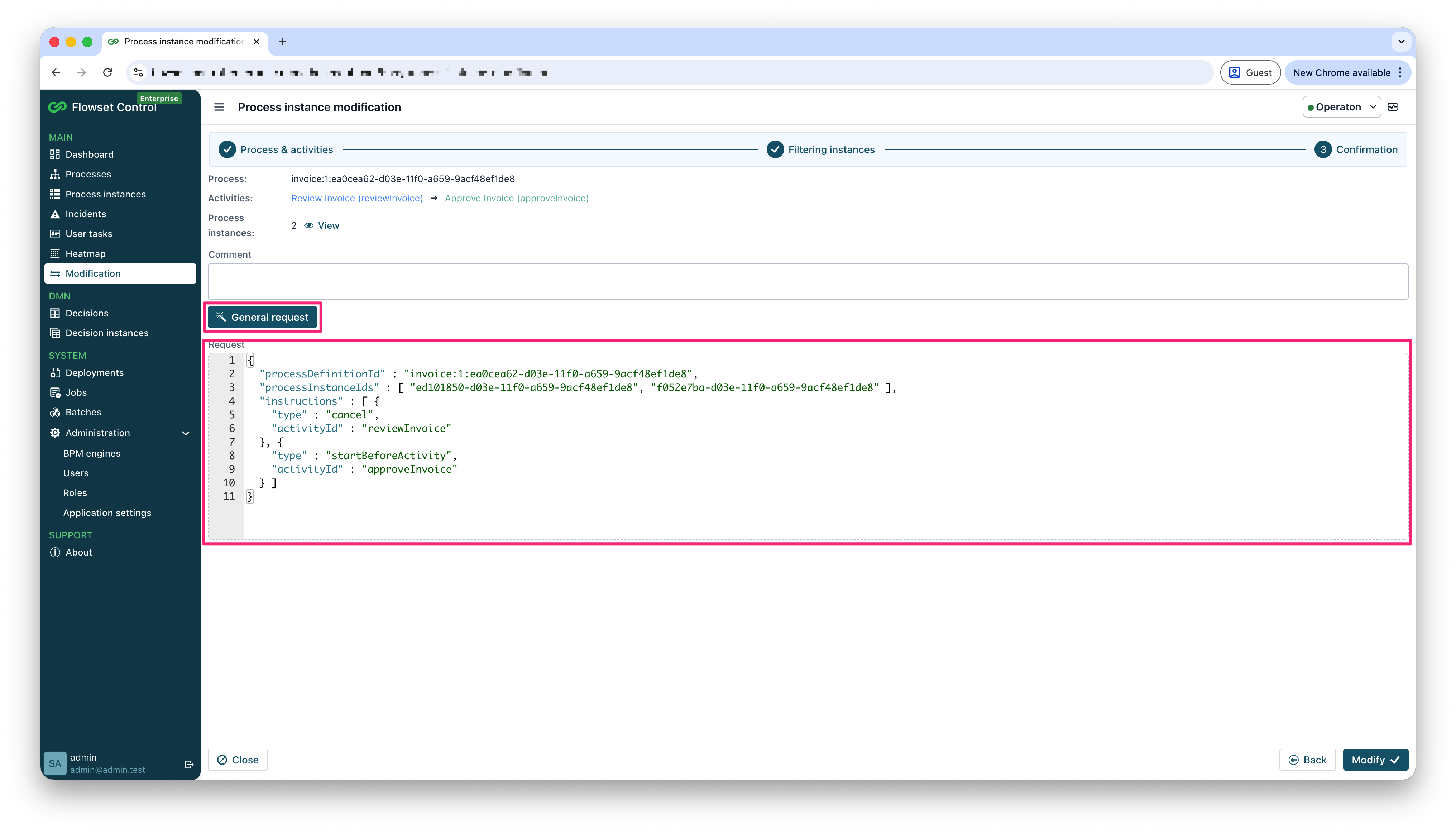
The generated request includes:
-
processDefinitionId -
processInstanceIds -
A
cancelinstruction for the source activity -
A
startBeforeActivityorstartAfterActivityinstruction for the target activity
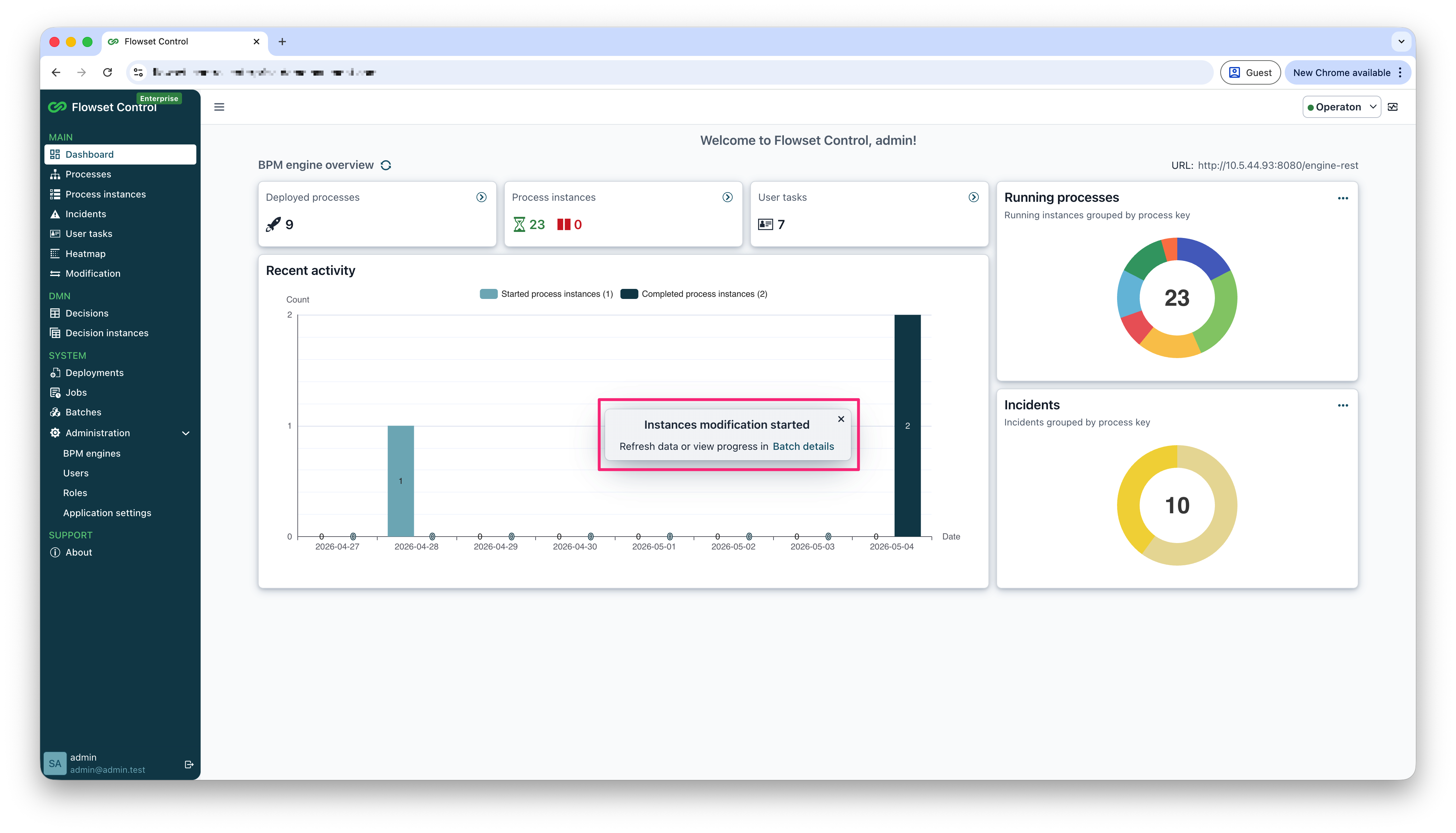
Click Modify to start the modification.
Modifying a Single Instance
Use the Modify instance action when you need to move a token for one running process instance only.
The action is available in the process instance detail actions panel when:
-
The process instance is not completed.
-
The
flowset.control.features.modification-enabledproperty is set totrue.
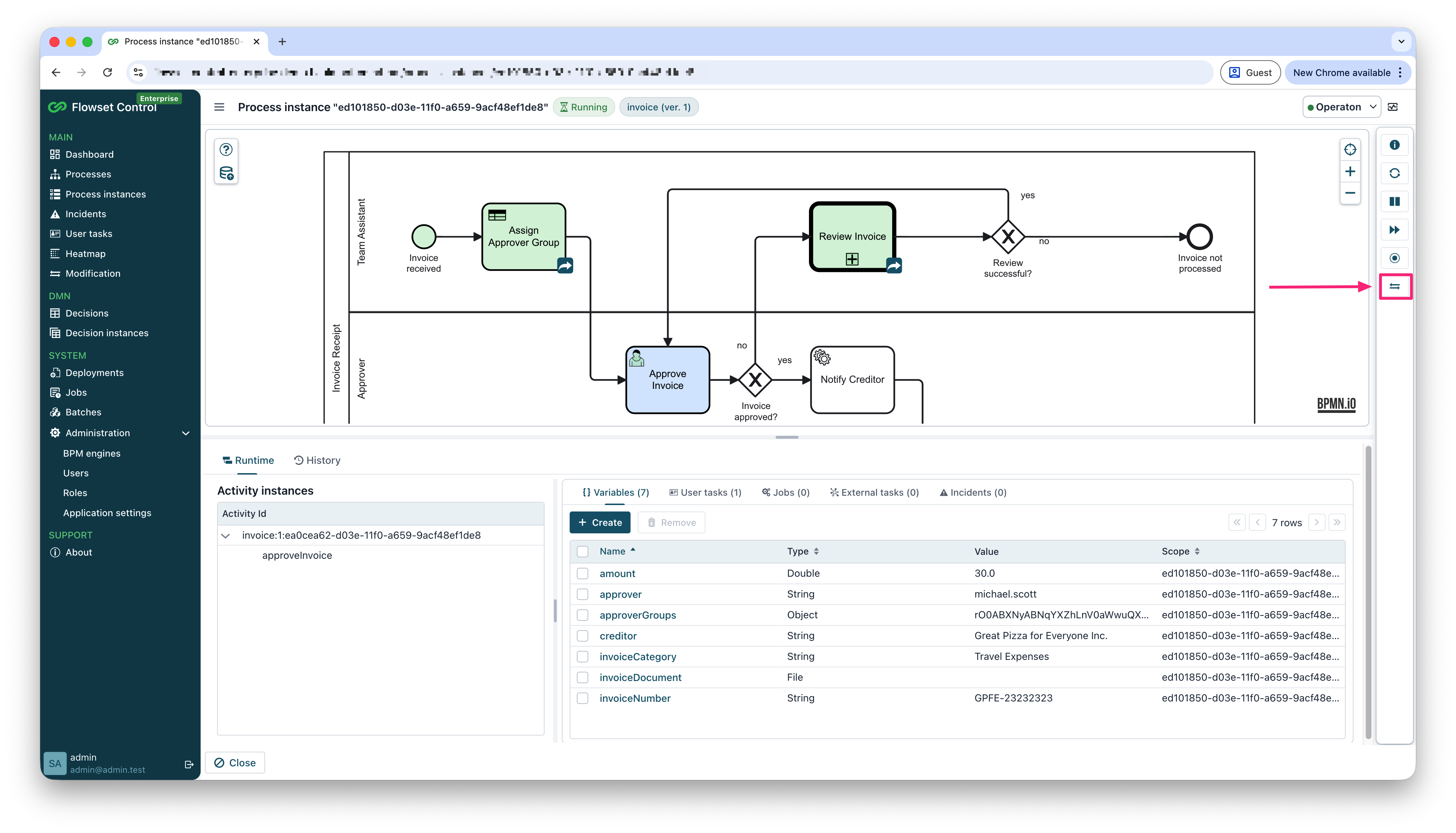
Interactive Diagram Mode
Click Modify instance to switch the process diagram to interactive mode. In this mode, the diagram can be used to select source and target activities, and the OK and Cancel buttons appear below the diagram.
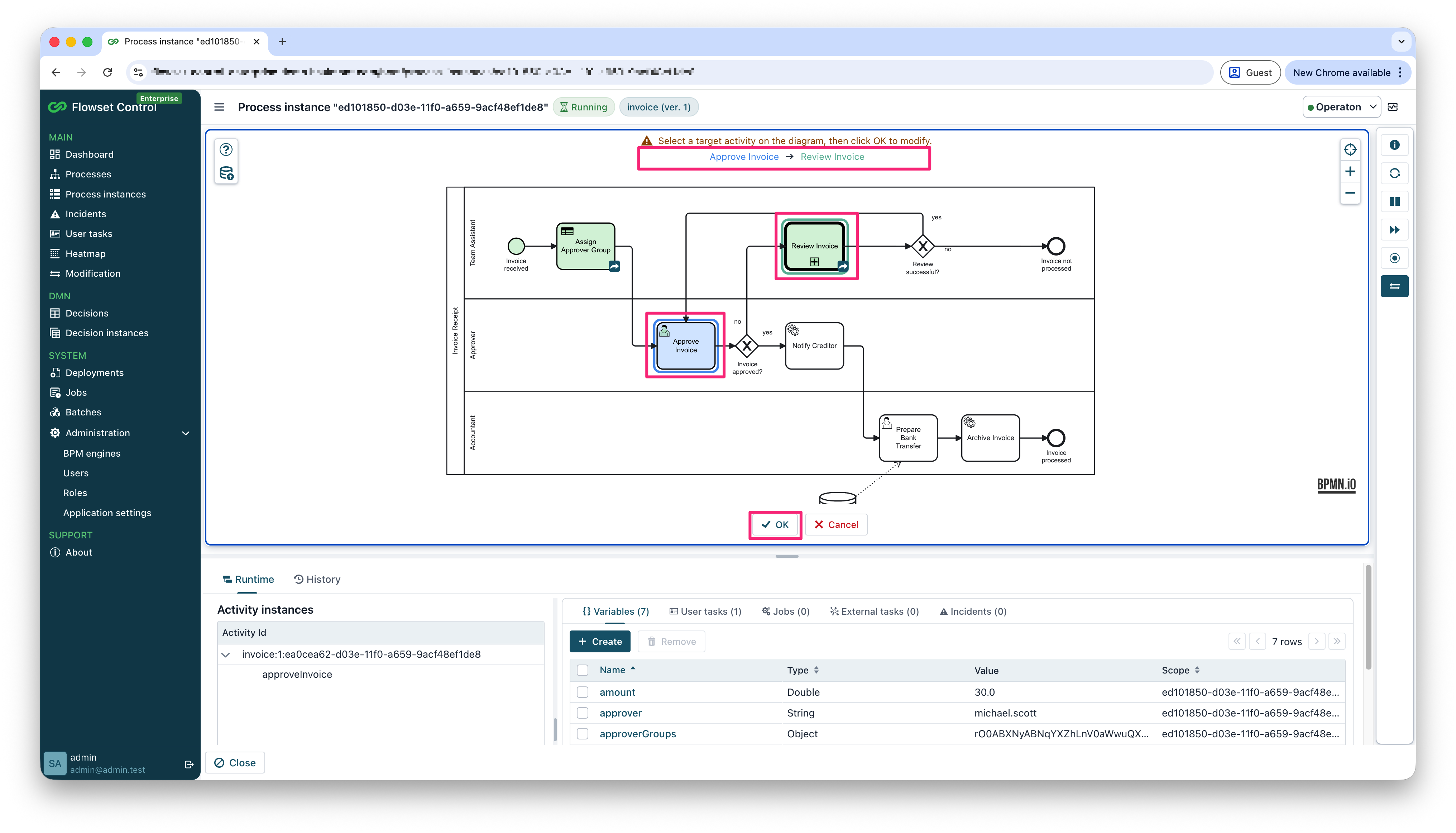
The interactive mode follows these rules:
-
If only one activity, not activity instance, is active in the process instance, it is selected as the source activity automatically. You only need to select the target activity, but the source activity can still be changed.
-
If multiple activities are active, select the source activity or activities first, and then select the target activity.
-
With multiple active activities, selection works in source-target order: after selecting a source activity, the next click selects a target activity. After selecting a target activity, the next click selects a source activity again.
-
To select multiple source activities, hold Ctrl on Windows or Linux, or Cmd on macOS, and click the required diagram elements. After the key is released, the next activity selection is treated as the target.
-
In Source selection mode, only running activities in the process instance are clickable.
-
In Target selection mode, all elements except running activities in the process instance are clickable.
-
Source and target activities must be selected before clicking OK.
Selected elements are shown with a selected border on the diagram.
You can close interactive mode in either of these ways:
-
Click Cancel below the diagram.
-
Click Modify instance in the actions panel again.
Confirming Single Instance Modification
Click OK below the diagram to open the Process instance modification dialog.
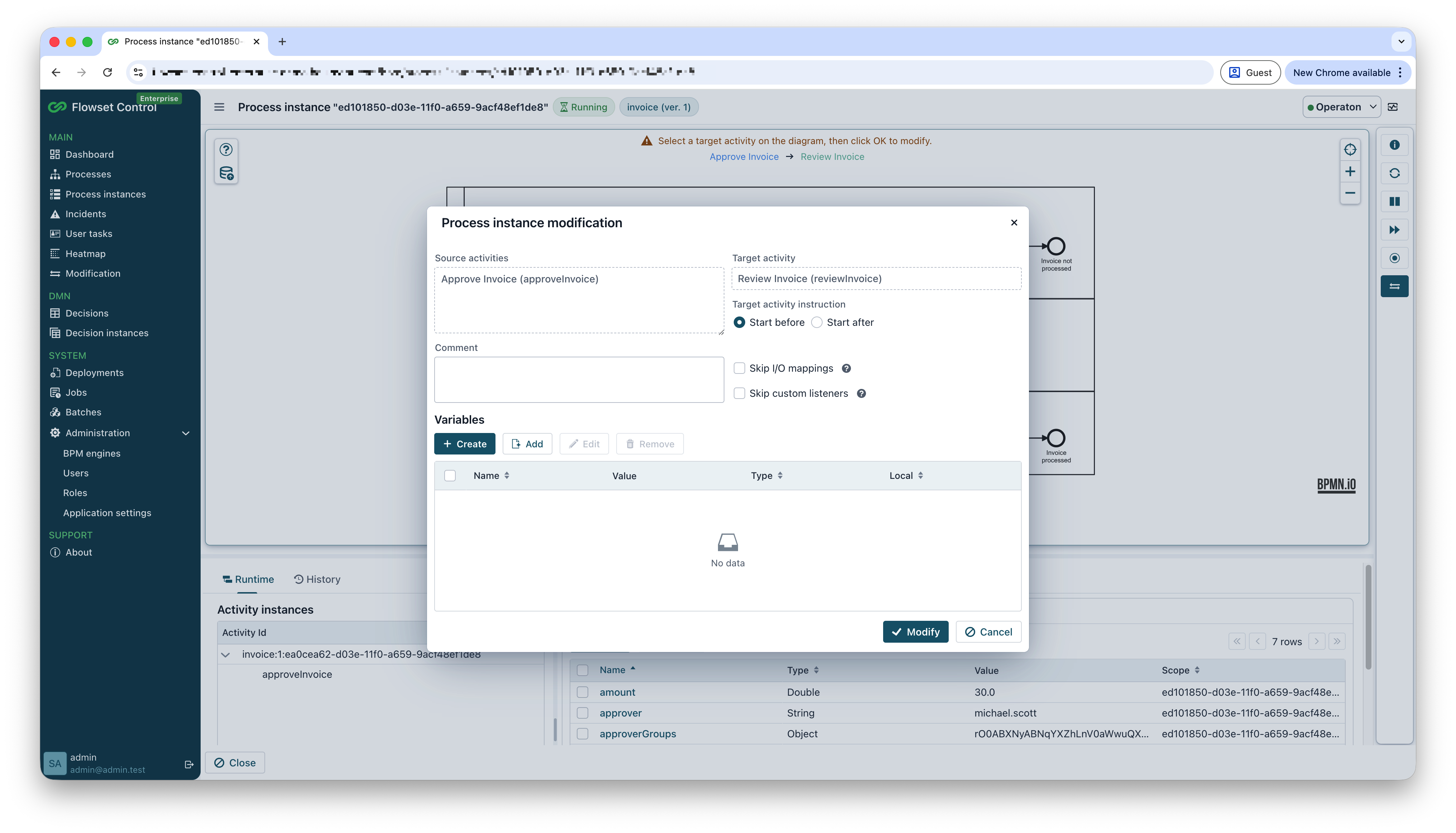
In this dialog, review the selected source activities and target activity, choose Start before or Start after, and optionally add a comment.
You can also configure process variables that will be added or updated during modification:
-
Create opens a dialog for creating a new variable.
-
Add opens a dialog for selecting an existing process instance variable.
-
Edit updates a selected variable before modification.
-
Remove removes a selected variable from the modification request.
| The Local field is visible only when adding or editing a variable for instance modification. It is not displayed when adding a variable directly to the process instance from the regular variable view. |
Click Modify to apply the modification to the current process instance.