Jobs
The Jobs section is used to view and manage the asynchronous jobs of the BPM engine.
A job is an internal execution element that the engine creates for deferred or asynchronous work: firing timers, executing activities asynchronously, and other operations performed in the background by the Job Executor. A detailed description of this mechanism is provided in the Job Executor section.
Jobs can be managed in three places in the application:
-
on the dedicated Jobs screen — across all jobs of the engine;
-
on the Jobs tab in the detailed view of a process instance — for the jobs of a specific instance;
-
on the Job definitions tab in the detailed view of a process definition — for job definitions.
Jobs screen
The Jobs screen is available as a separate application menu item and displays all jobs of the connected BPM engine, regardless of the process instance.
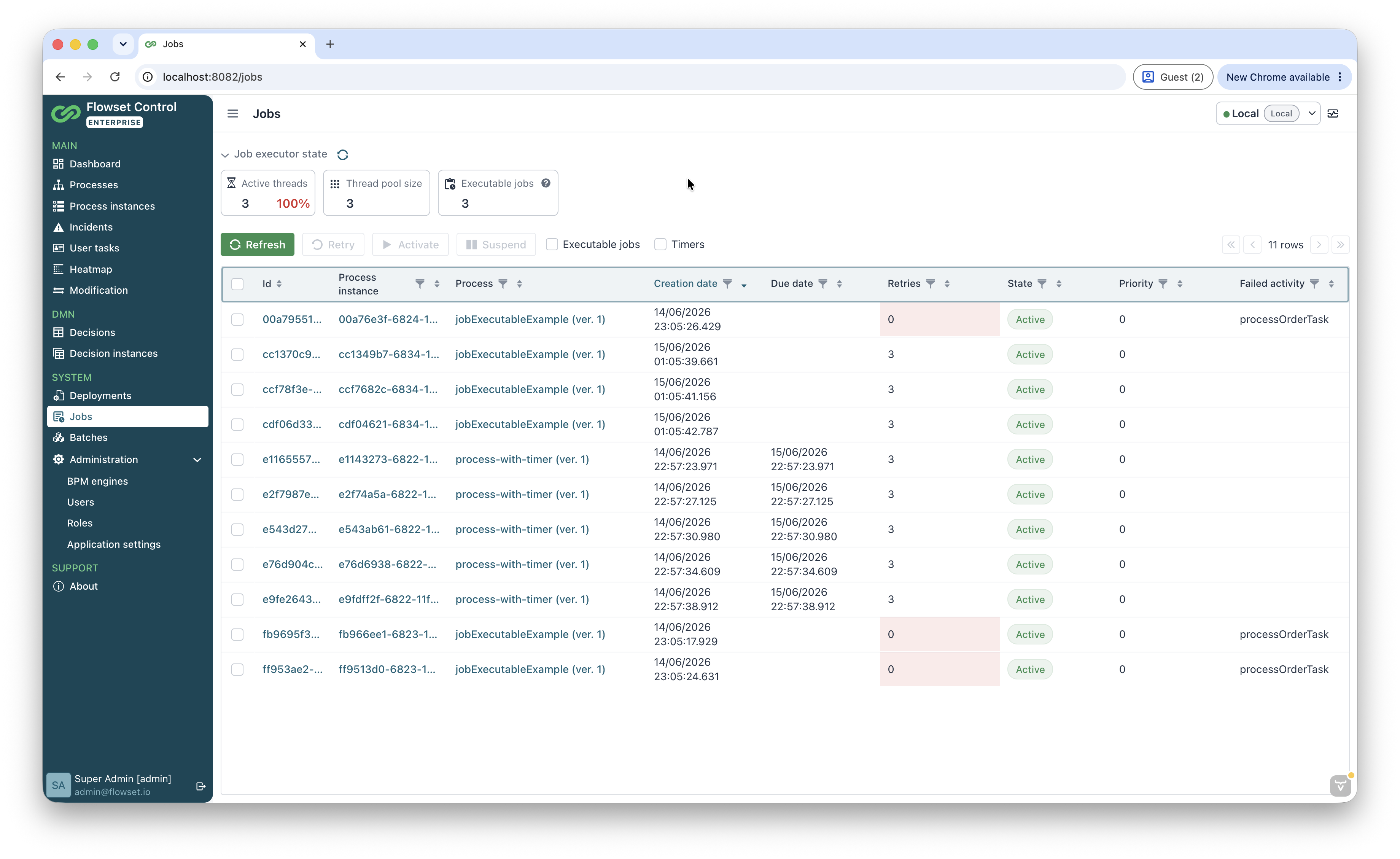
The table supports sorting and filtering; for each job the following is shown:
-
Id — the job identifier (with the option to open the detailed view).
-
Process instance — the process instance the job belongs to.
-
Process — the process definition and its version.
-
Creation date — the date and time the job was created.
-
Due date — the due date (for timer jobs).
-
Retries — the remaining number of execution attempts (a value of
0means the attempts are exhausted). -
State — the job state (Active / Suspended).
-
Priority — the job priority.
-
Failed activity — the activity where the error occurred.
Above the table, filters by job type are available — Executable jobs (ready to be executed) and Timers (timer jobs). Filter values are stored in the URL query parameters, so a filtered list can be bookmarked or shared as a link.
| Screen data is loaded lazily, as on the other list screens of the application. |
Operations on the Jobs screen
The Retry, Activate, and Suspend operations can be applied to several jobs at once by selecting them in the table (bulk operations). For an individual job, the actions View (open the detailed view), Set job priority (change the priority), and Update due date (change the due date) are available.
Job executor state
At the top of the screen there is a Job executor state panel reflecting the current state of the engine’s Job Executor:
| Metric | Description |
|---|---|
Active threads |
The number of threads currently processing executable jobs. The share of active threads relative to the pool size is also shown as a percentage. The value’s color depends on its magnitude: up to 50% — green, 50% to 80% — yellow, over 80% — red. |
Thread pool size |
The maximum number of threads that can process jobs. It is set in an application property whose name depends on the engine: |
Executable jobs |
The number of jobs ready to be executed. |
The Job executor state panel is displayed only when the following conditions are met:
-
The Actuator is configured both on the BPM engine side and on the Flowset Control side.
-
The
executor.activeandexecutor.pool.sizemetrics are enabled for the BPM engine, and a tag is added with the namenameand the valuecamundaTaskExecutor(for Camunda 7) oroperatonTaskExecutor(for Operaton).
Jobs tab in a process instance
The Jobs tab is available on the detailed process instance view screen (the Runtime block) and displays the jobs of the selected instance.
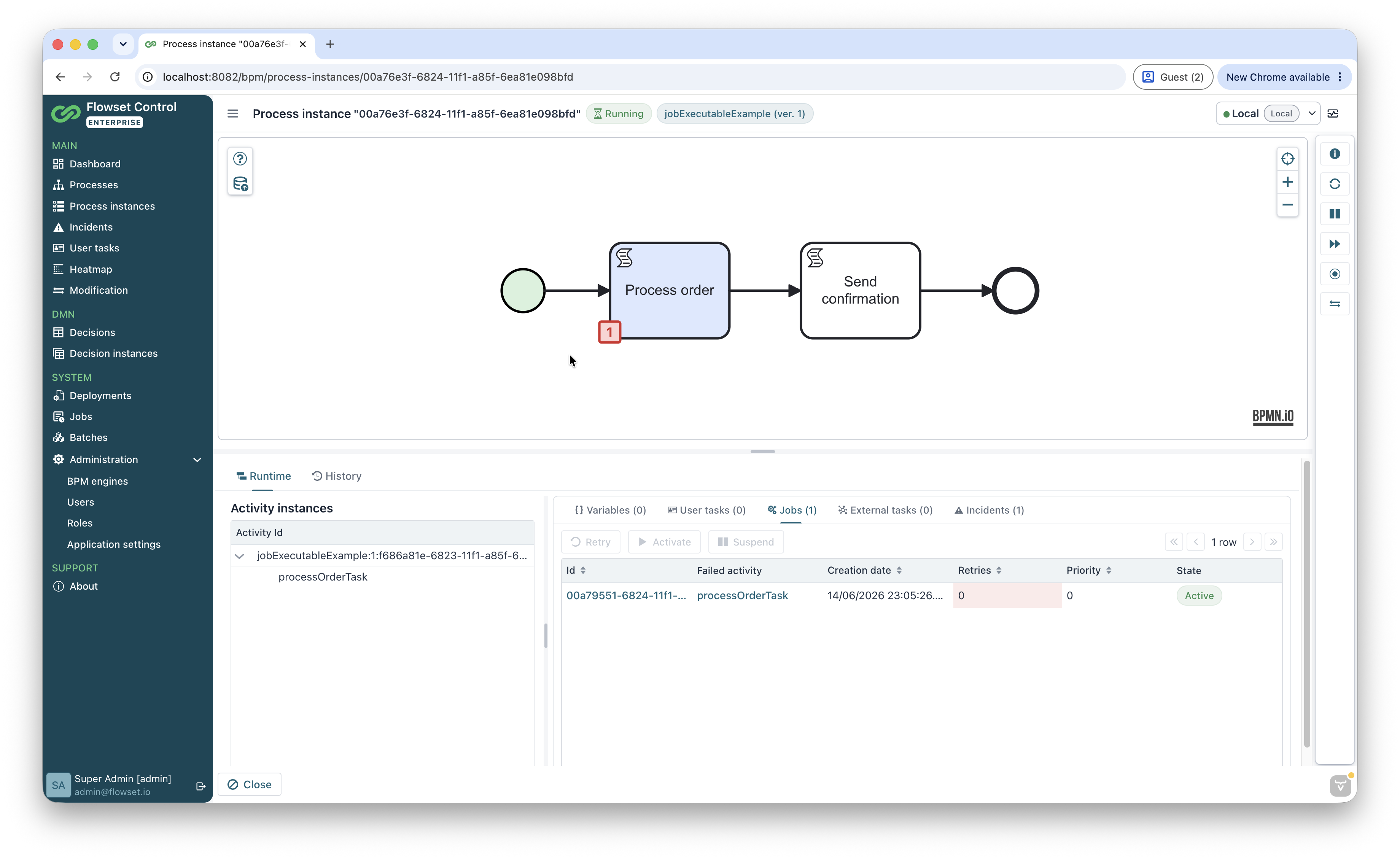
For each job, the columns Job, Failed activity, Create time, Retries, Priority, and State are shown; the actions Retry, Activate, and Suspend are available.
| Clicking the value in the Failed activity column highlights the corresponding element on the process instance diagram, which helps quickly locate where the error occurred. |
Job operations
| Action | Description |
|---|---|
Retry |
Sets a new number of execution attempts, after which the Job Executor will be able to pick up and execute the job again. Available only for jobs whose number of attempts is |
Activate |
Resumes execution of a previously suspended job. Available only for jobs in the Suspended state. |
Suspend |
Suspends execution of an active job. Available only for jobs in the Active state. |
Set job priority |
Changes the priority of job execution. |
Update due date |
Changes the due date of the job. |
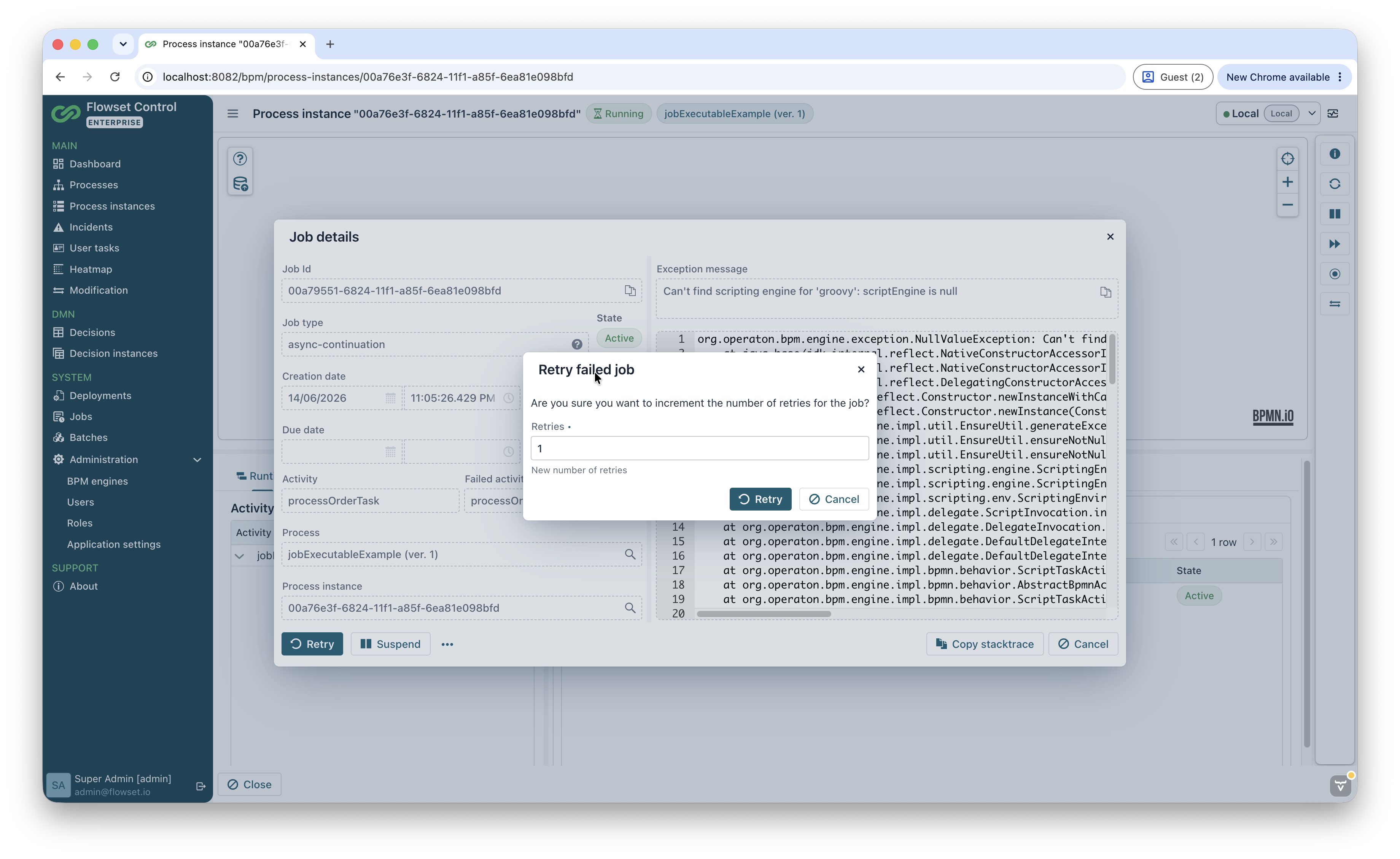
Detailed job view
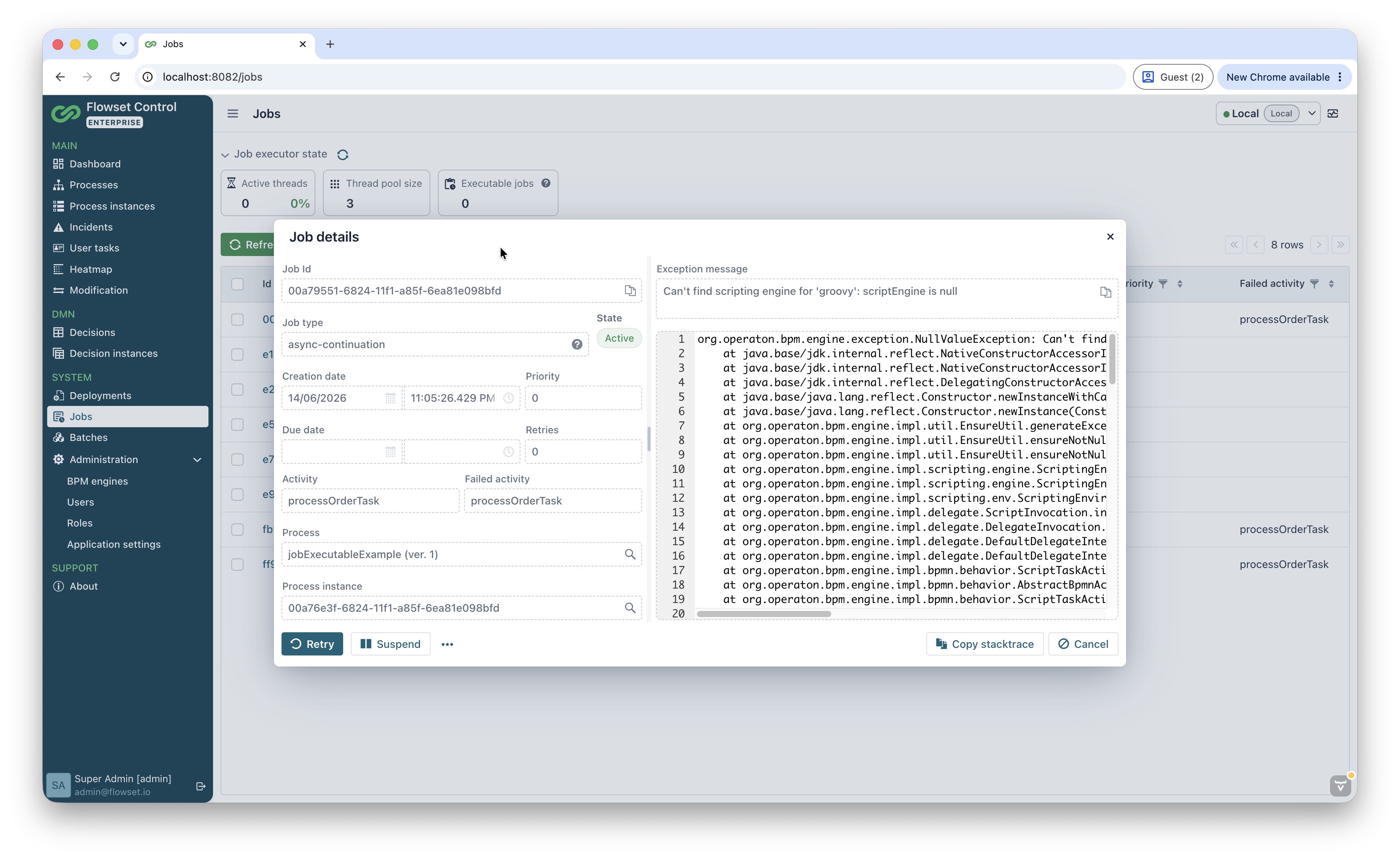
To open detailed information about a job, click its identifier or use the View action.
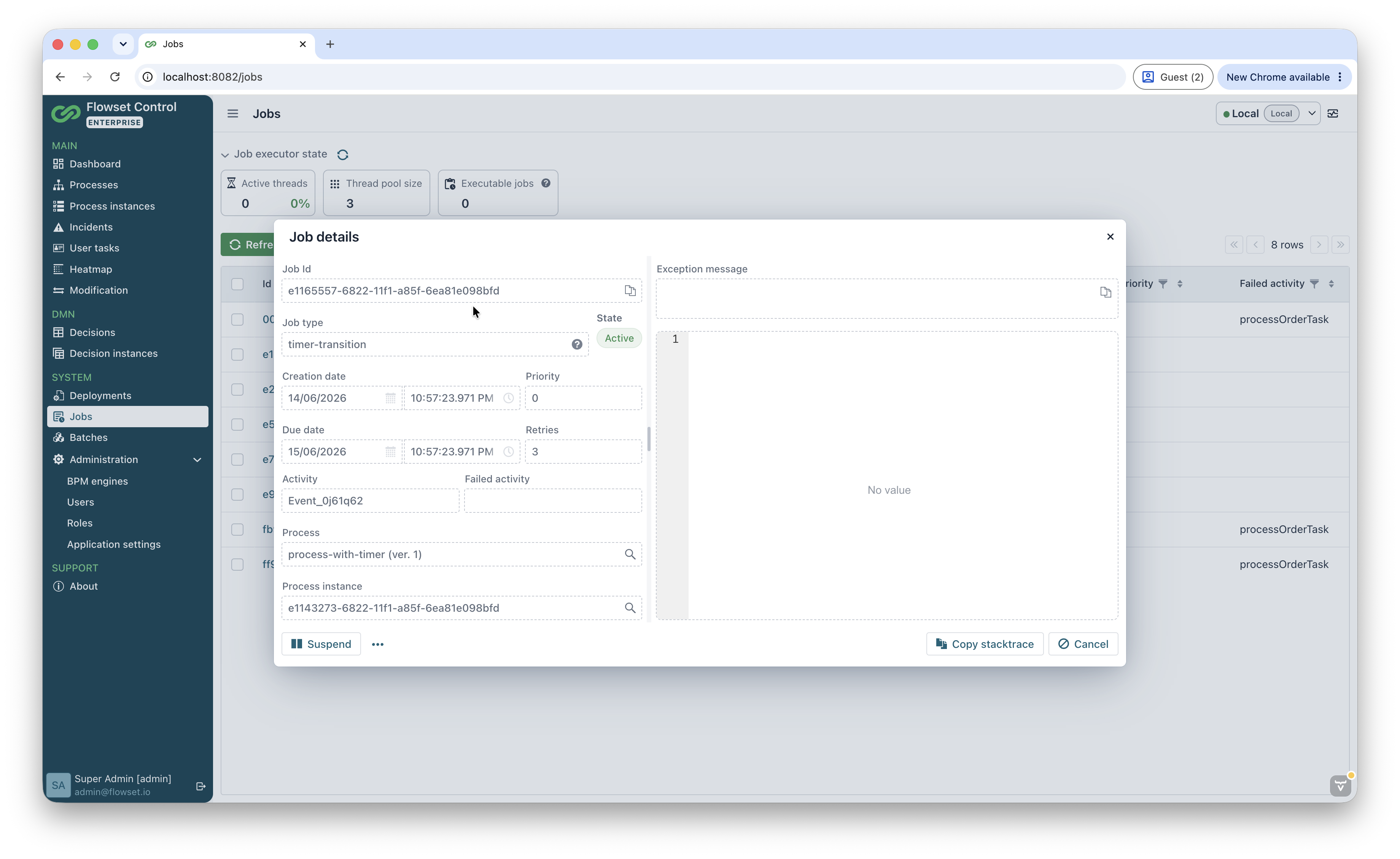
The screen contains detailed information about the job:
-
Job Id — the job identifier, with the option to copy it.
-
Job type — the job type, for example
timer-intermediate-transition(a timer event) orasync-continuation(asynchronous continuation). A localized tooltip explaining the type is shown for the field. -
State — the current job state (Active / Suspended).
-
Creation date and Due date — the creation time and due date of the job.
-
Priority — the job priority.
-
Retries — the remaining number of execution attempts.
-
Activity and Failed activity — the job’s activity and the activity where the error occurred.
-
Process — the process definition; the navigation button opens the process definition.
-
Process instance — the process instance; the navigation button opens the detailed instance view.
-
Exception message and stack trace — the text and full call stack of the execution error.
For a job that ended with an error (Retries = 0), the Exception message and stack trace fields show the cause of the failure, and the Retry action allows the job to be run again.
Actions in the detailed view
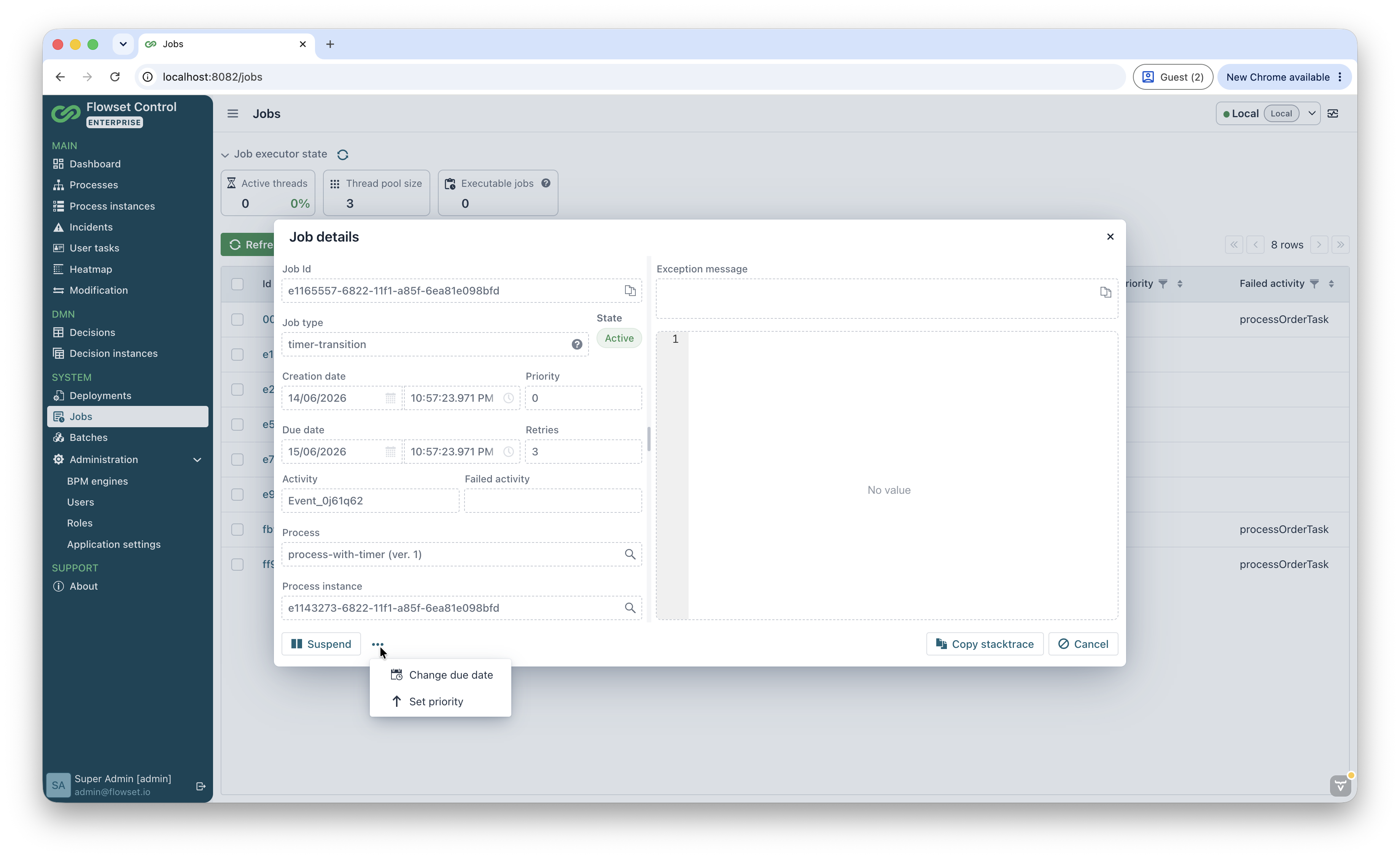
At the bottom of the screen, the actions Retry, Activate / Suspend, Copy stacktrace (copy the call stack), and Copy error message (copy the error text) are available. The … button opens additional actions — Set priority and Update due date.
Changing the priority
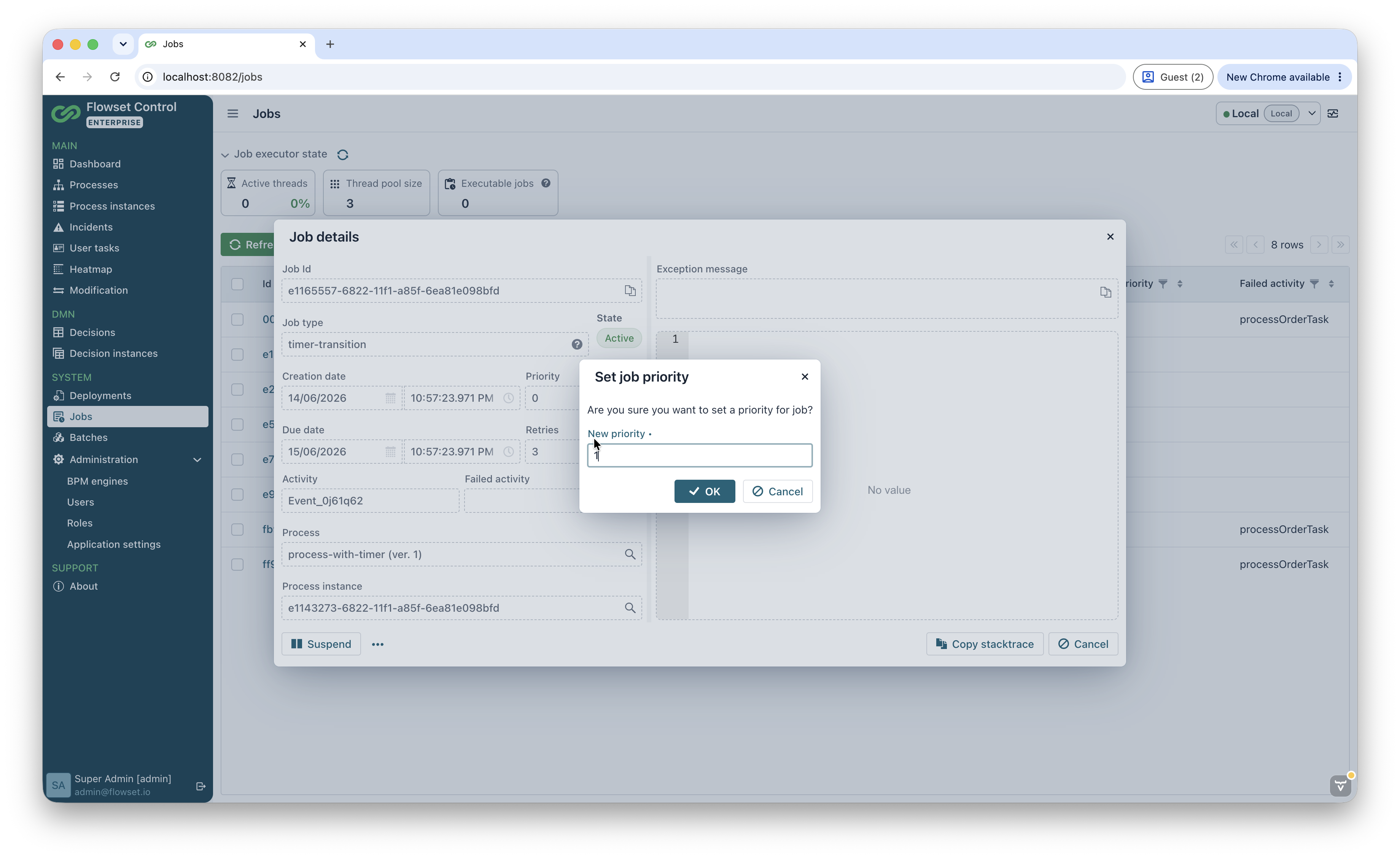
The Set priority action lets you set a new execution priority for the job in the New priority field. The priority affects the order in which jobs are picked up by the Job Executor.
Changing the due date
The Update due date action changes the due date (Due date) of the job. The set of parameters depends on the job type.
For a timer job, you can choose the operation (Operation):
-
Set — set the due date to a user-specified date and time. When this operation is selected, an Update recurring timers checkbox appears; if it is checked, the due date is also updated for recurring timers.
-
Recalculate — recalculate the due date using the engine. When this operation is selected, you can specify the base date for the recalculation — the current time or the job’s creation time.
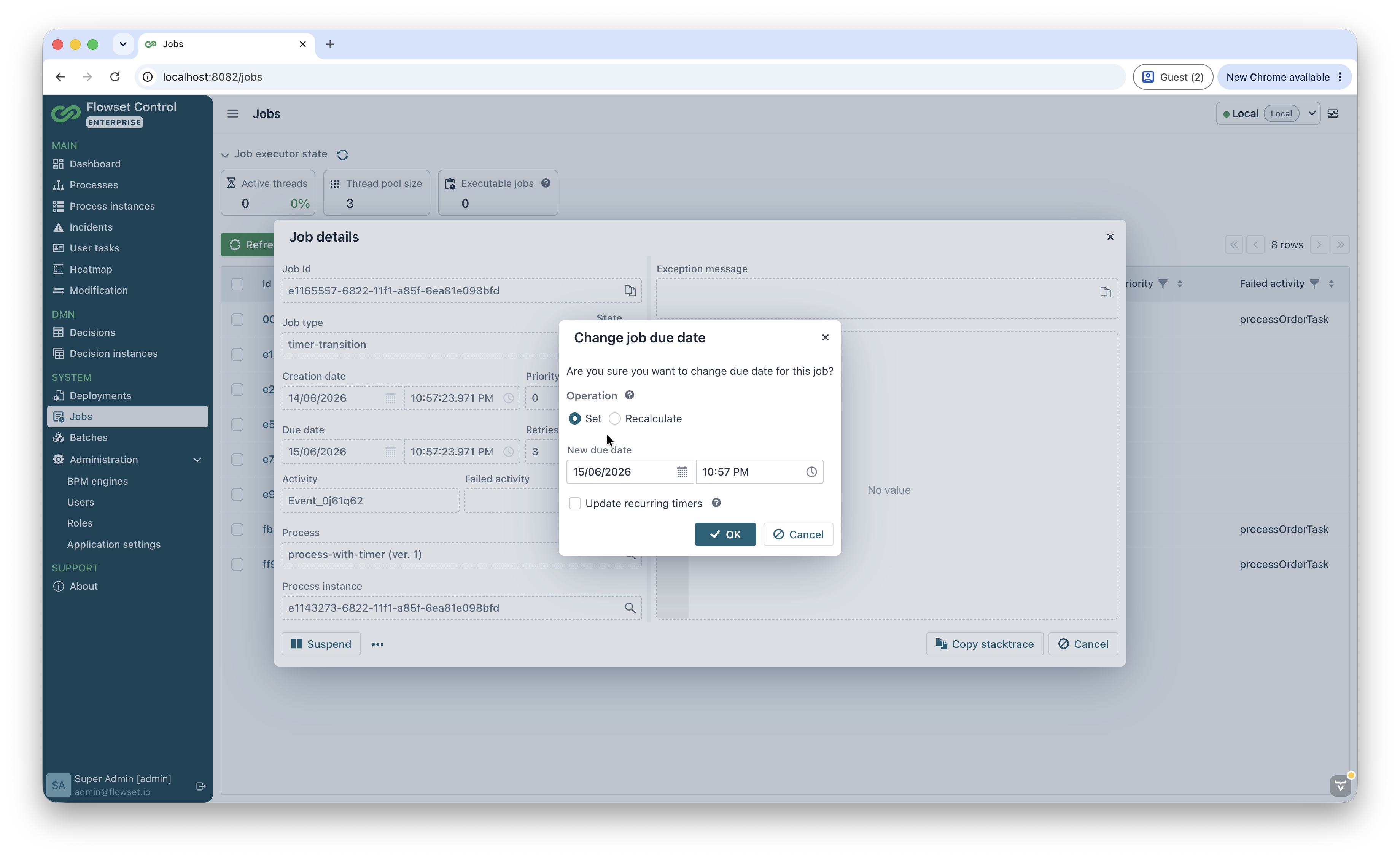
For non-timer jobs, it is enough to specify the new execution date and time without additional parameters.
|
For system jobs of type If the job has already completed by the time the action is performed, a corresponding warning is shown. |
Job definitions tab in a process definition
The Job definitions tab is available on the detailed process definition view screen and displays the Job Definitions of the selected process version.
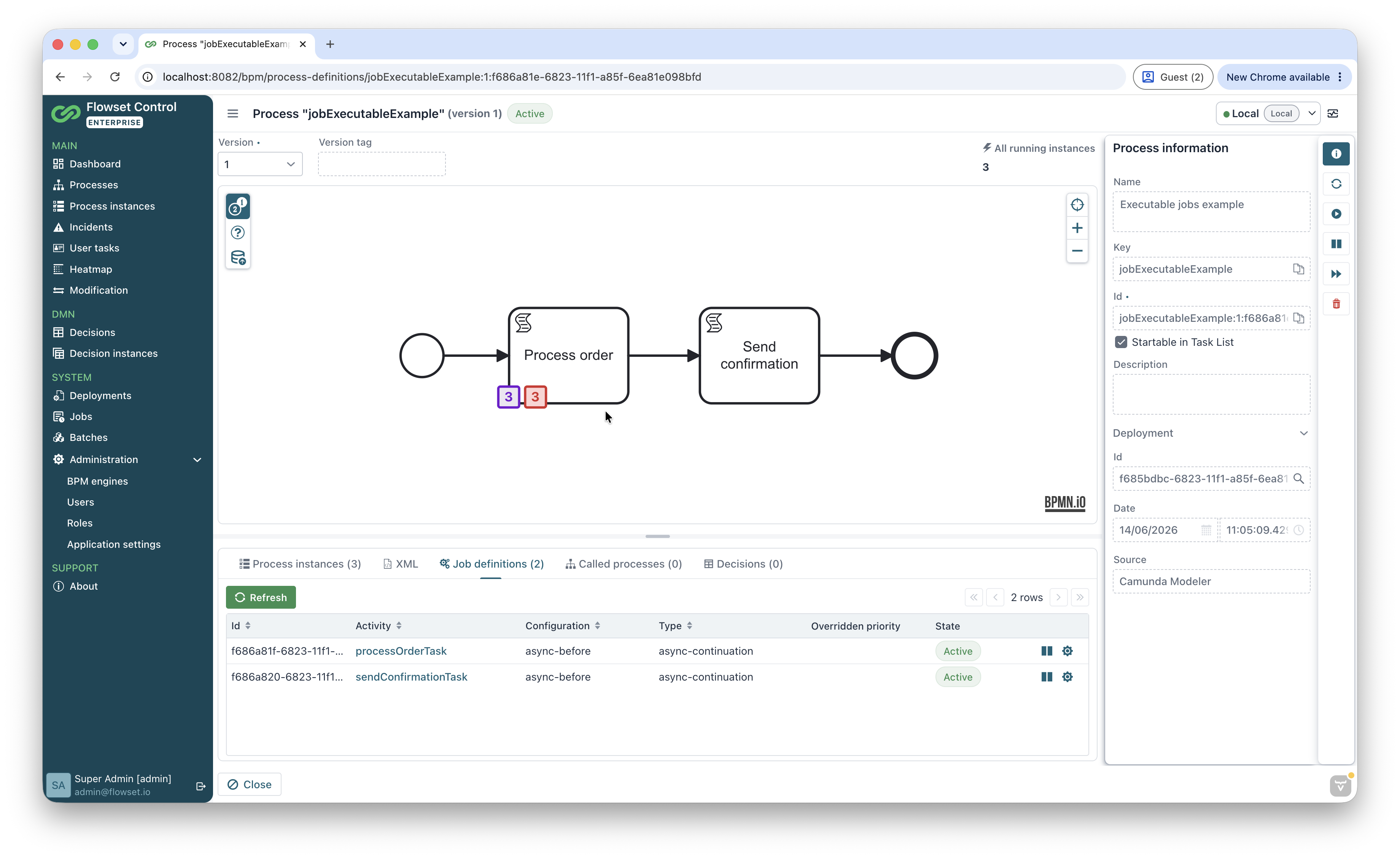
Tab features:
-
the data is refreshed when the selected process definition version changes;
-
clicking the value in the Activity column highlights the corresponding element on the process diagram;
-
for a job definition, activation and suspension actions are available (depending on the current state), as well as changing the overriding priority.