AI Assistant
The AI assistant helps operators understand what is happening in their processes and decide what to do next. It can summarize open incidents, explain how a deployed process works, diagnose why a process instance is stuck, and answer free-form questions about the data visible in Flowset Control. The assistant only reads data — every action (retrying a job, completing a task, terminating an instance) stays with the standard Control screens and buttons.
Opening the Assistant
The assistant is available from two places:
-
The AI button in the application header opens a side panel on the right. The panel stays open while you navigate between screens, so you can keep the conversation next to the data you are working with.
-
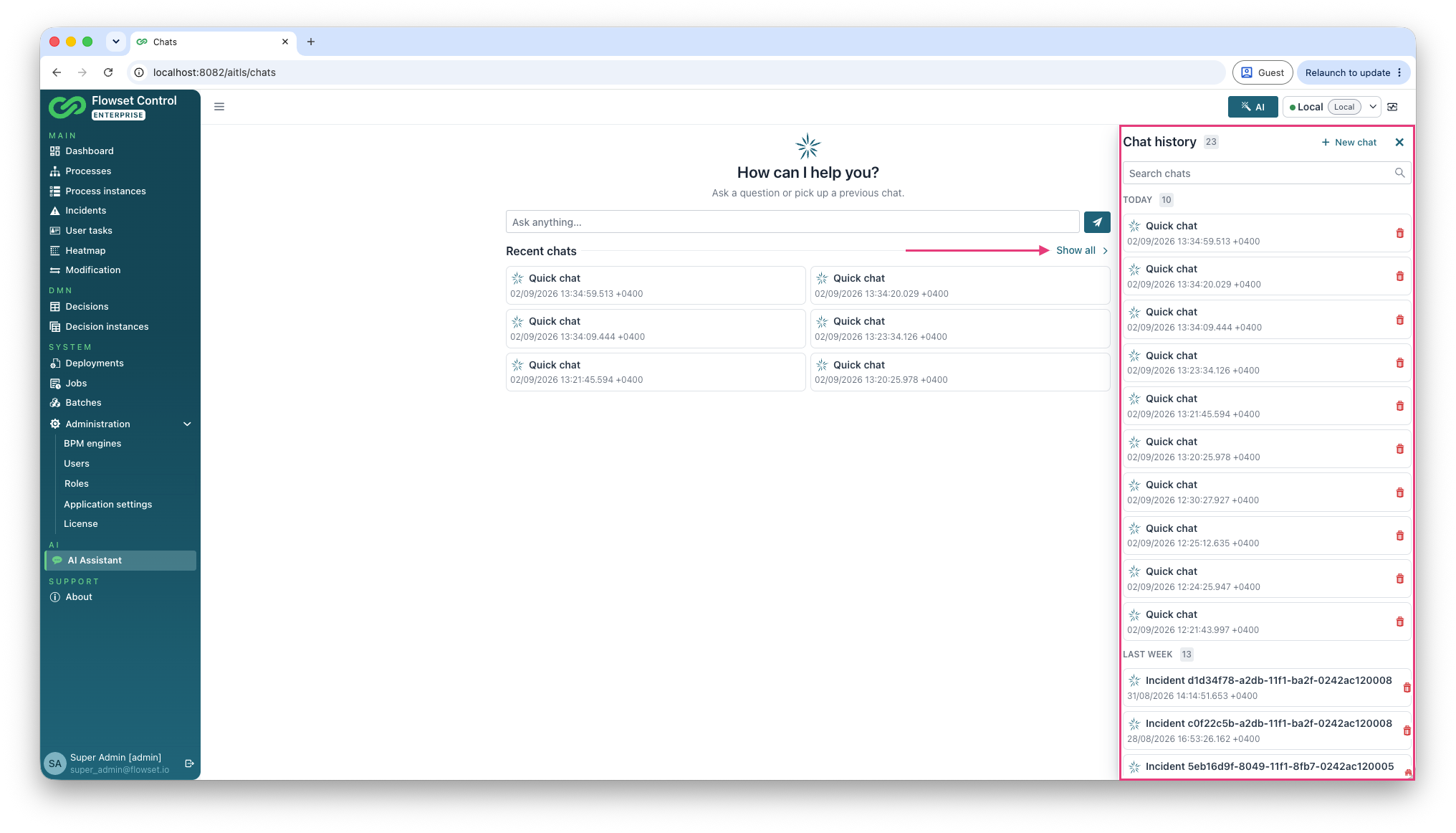
The AI assistant menu item opens the chat hub — a full page with all your conversations, where you can search, rename, continue or delete them.
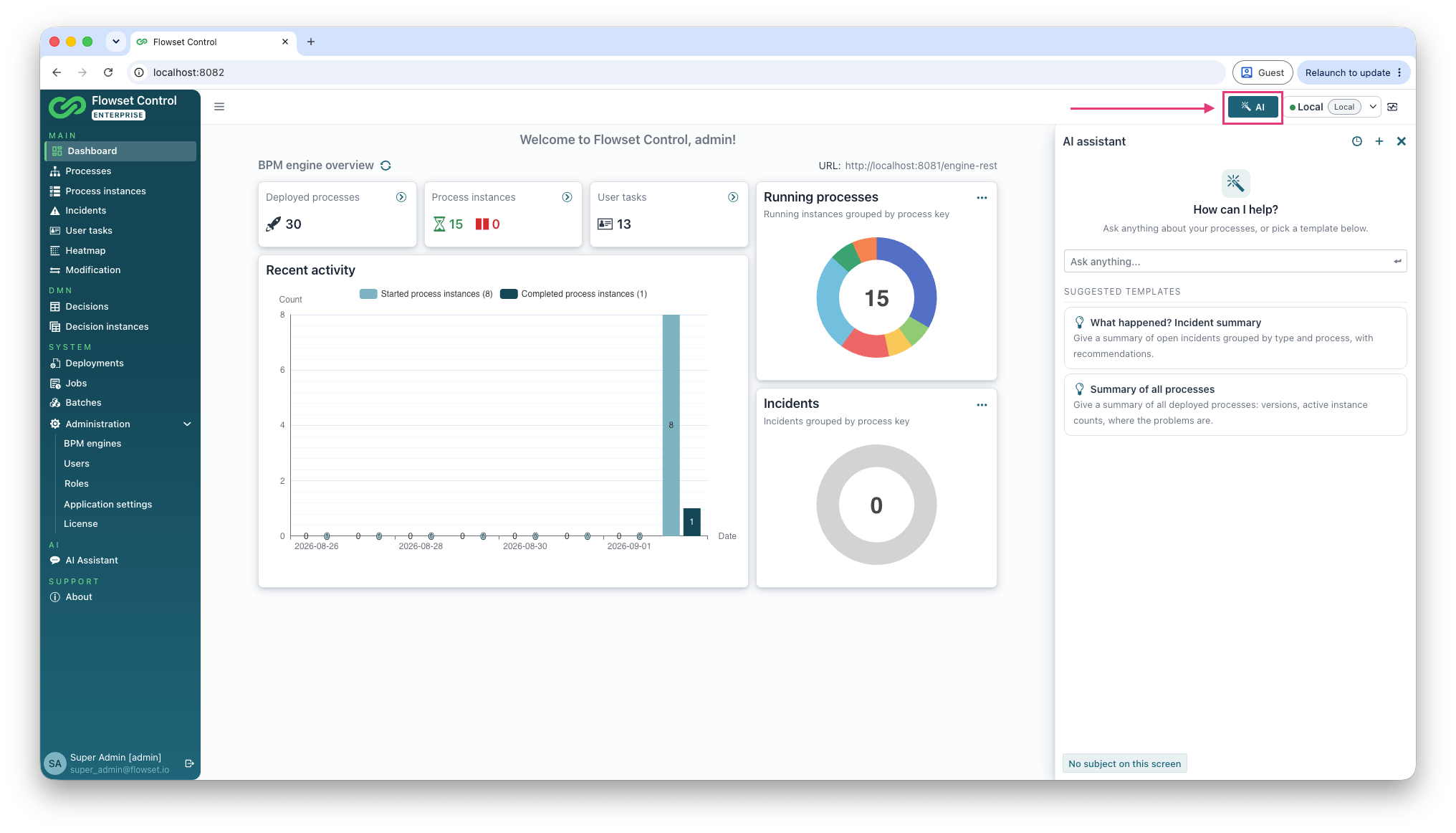
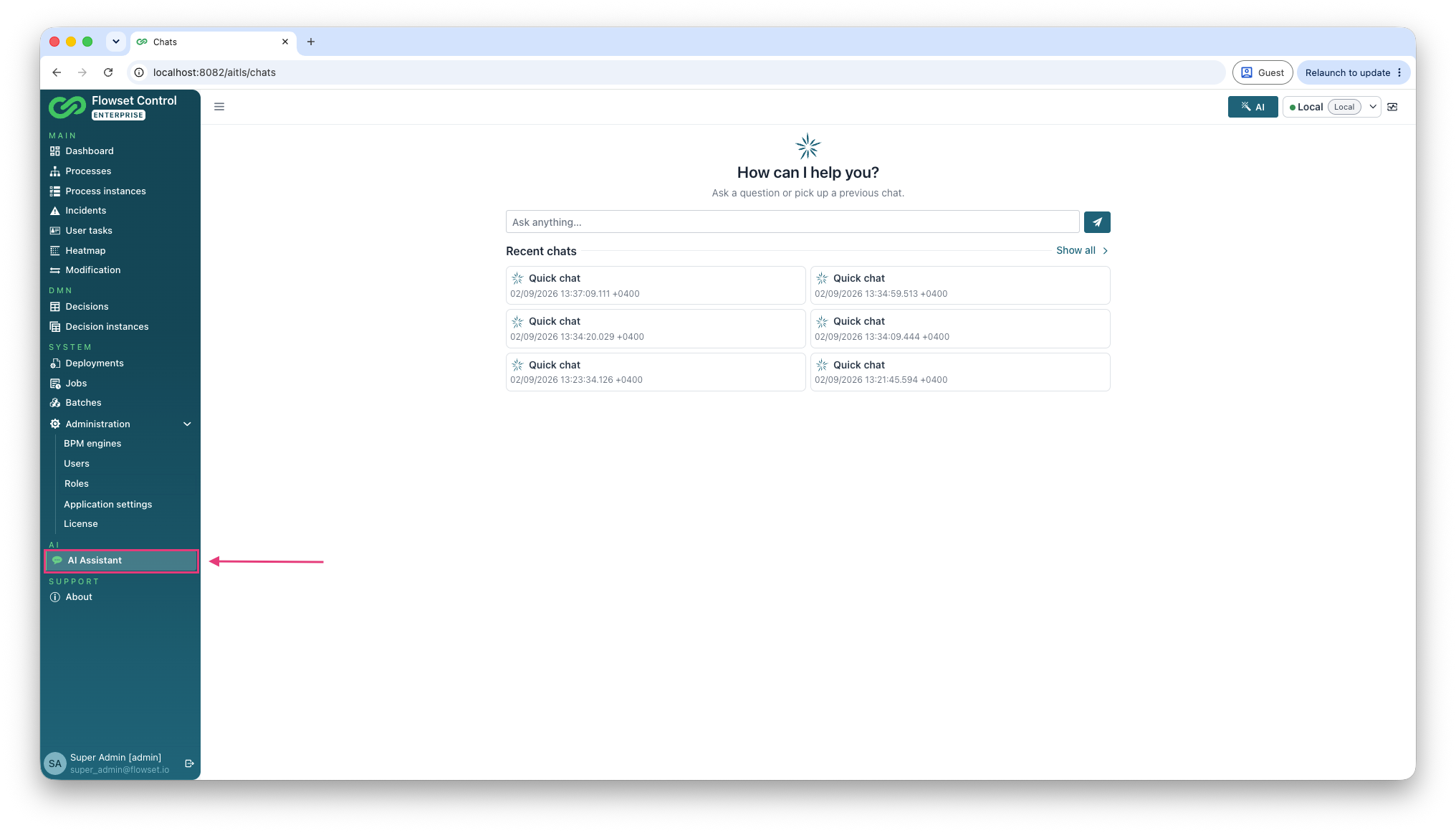
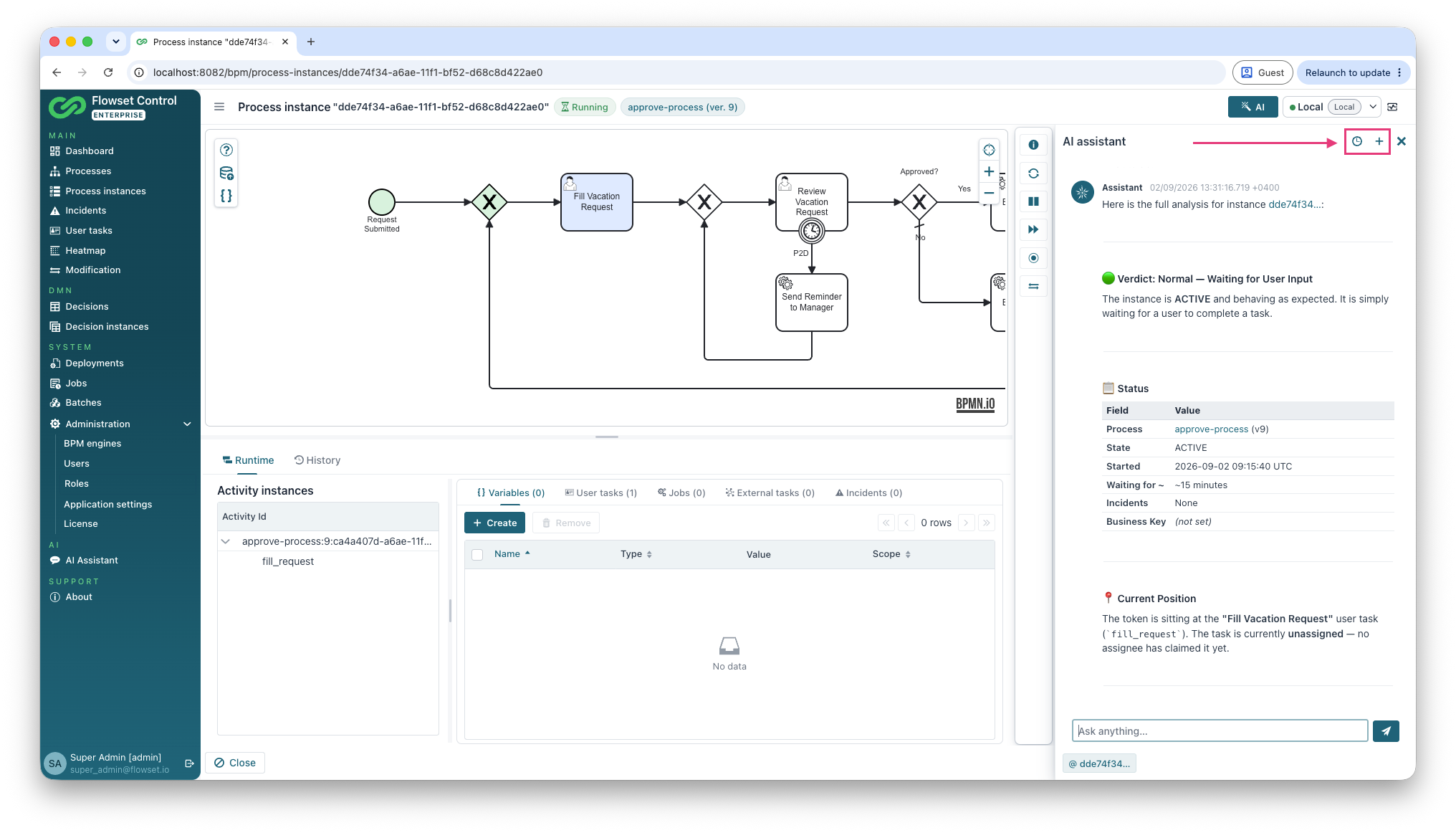
The side panel header contains three controls: the clock icon opens the chat hub with all conversations, the plus icon starts a new chat, and the cross closes the panel. The panel width can be adjusted by dragging its left edge.
Configuration
The assistant connects to a large language model through an OpenAI-compatible API. The connection is defined with the standard Spring AI properties — like any other application property.
| Property | Environment variable | Purpose |
|---|---|---|
|
|
API key of the LLM provider. Required for the assistant to answer. |
|
|
Base URL of an OpenAI-compatible endpoint. Optional; without the |
|
|
Model name as expected by the provider. Optional. |
Portable Distribution
Uncomment and fill in the AI Assistant block in config/application.properties next to the JAR:
spring.ai.openai.api-key=<your API key>
spring.ai.openai.base-url=https://api.openai.com
spring.ai.openai.chat.model=gpt-4o-mini
The file is read automatically when the application is started with run.sh / run.bat; restart the application after changing it.
Docker
Pass the settings to the container as environment variables:
services:
  flowset-control:
    image: <Flowset Control Enterprise image>
    environment:
      SPRING_AI_OPENAI_API_KEY: "<your API key>"
      SPRING_AI_OPENAI_BASE_URL: "https://api.openai.com"
      SPRING_AI_OPENAI_CHAT_MODEL: "gpt-4o-mini"
Keep the API key out of docker-compose.yml: put it into an .env file next to it or into the orchestrator’s secret store.
Local Models
Any OpenAI-compatible provider can be used, including locally hosted models (for example, via Ollama) — in that case the entire AI loop, including the model, stays inside your network perimeter:
spring.ai.openai.base-url=http://localhost:11434
spring.ai.openai.chat.model=qwen2.5:14b|
The smallest locally hosted model the assistant works reliably with is |
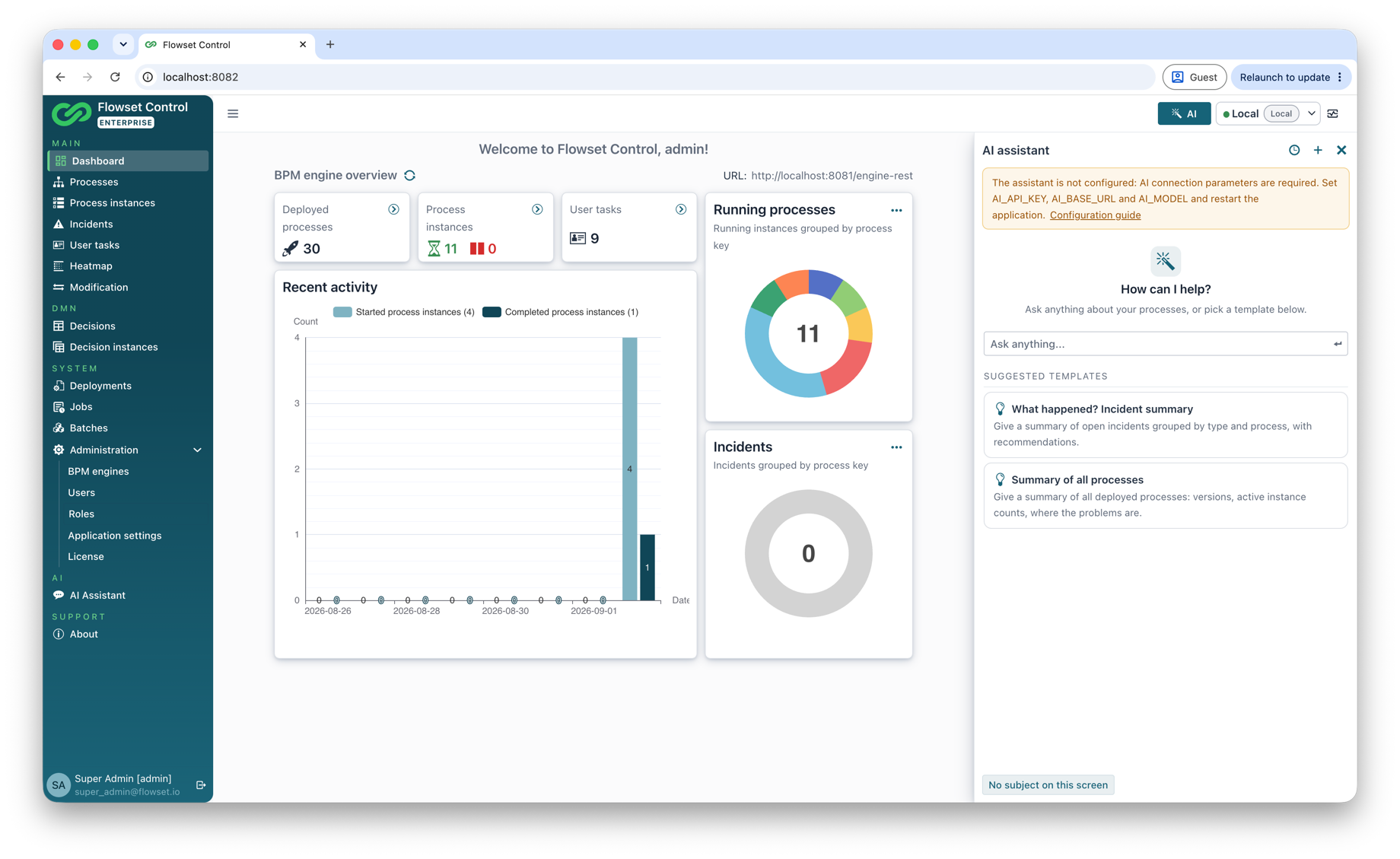
The application starts and works normally without these settings. In that case the assistant UI stays available, but clearly indicates that it is not configured: the AI button tooltip explains what is missing, and an information banner is shown in the side panel and on the chat hub page.
Starting a Conversation
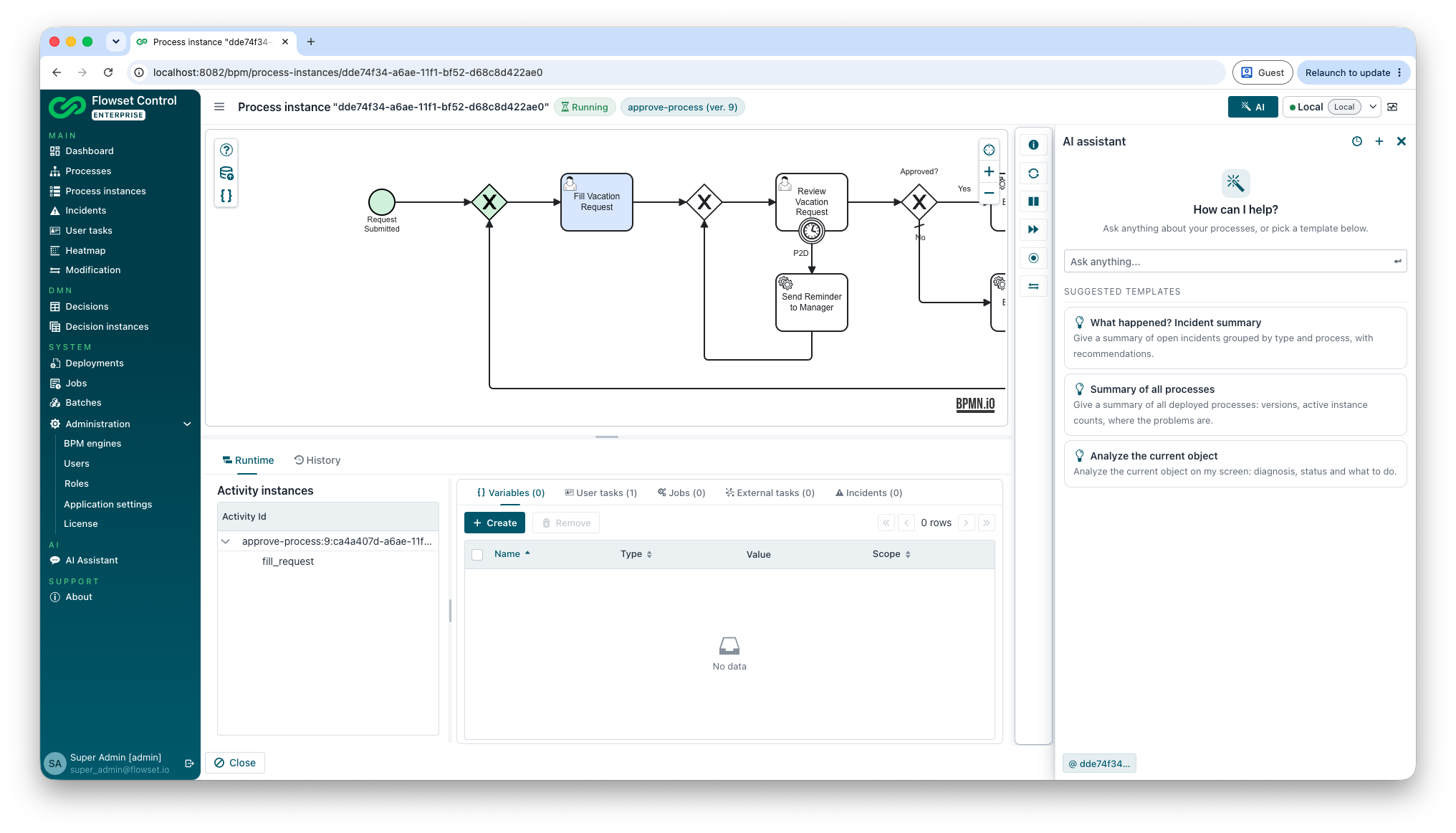
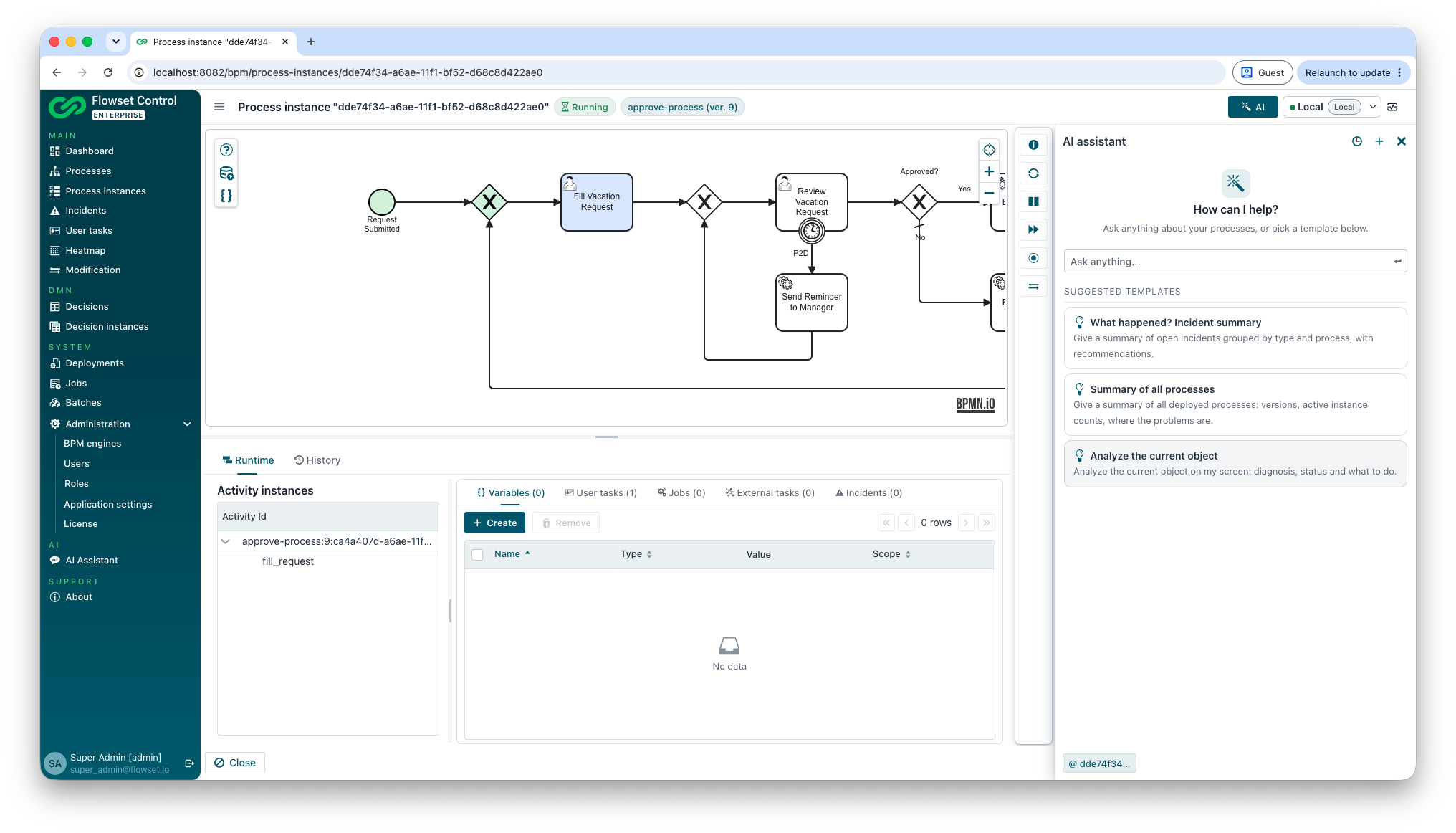
A new, empty conversation opens with a starter screen: an input field and suggested templates for the most common questions.
-
What happened? Incident summary — an overview of open incidents grouped by type and process, with recommendations.
-
Summary of all processes — deployed processes, their versions, active instance counts and problem areas.
-
Analyze the current object — appears when the open screen shows a single object (a process instance, an incident, a process definition or a user task); the assistant analyzes exactly that object.
You can also simply type a question. The assistant answers in the language of your question.
Screen Context
The assistant knows what you are looking at. The chip below the message input shows the object of the current screen — for example, the business key of a process instance:
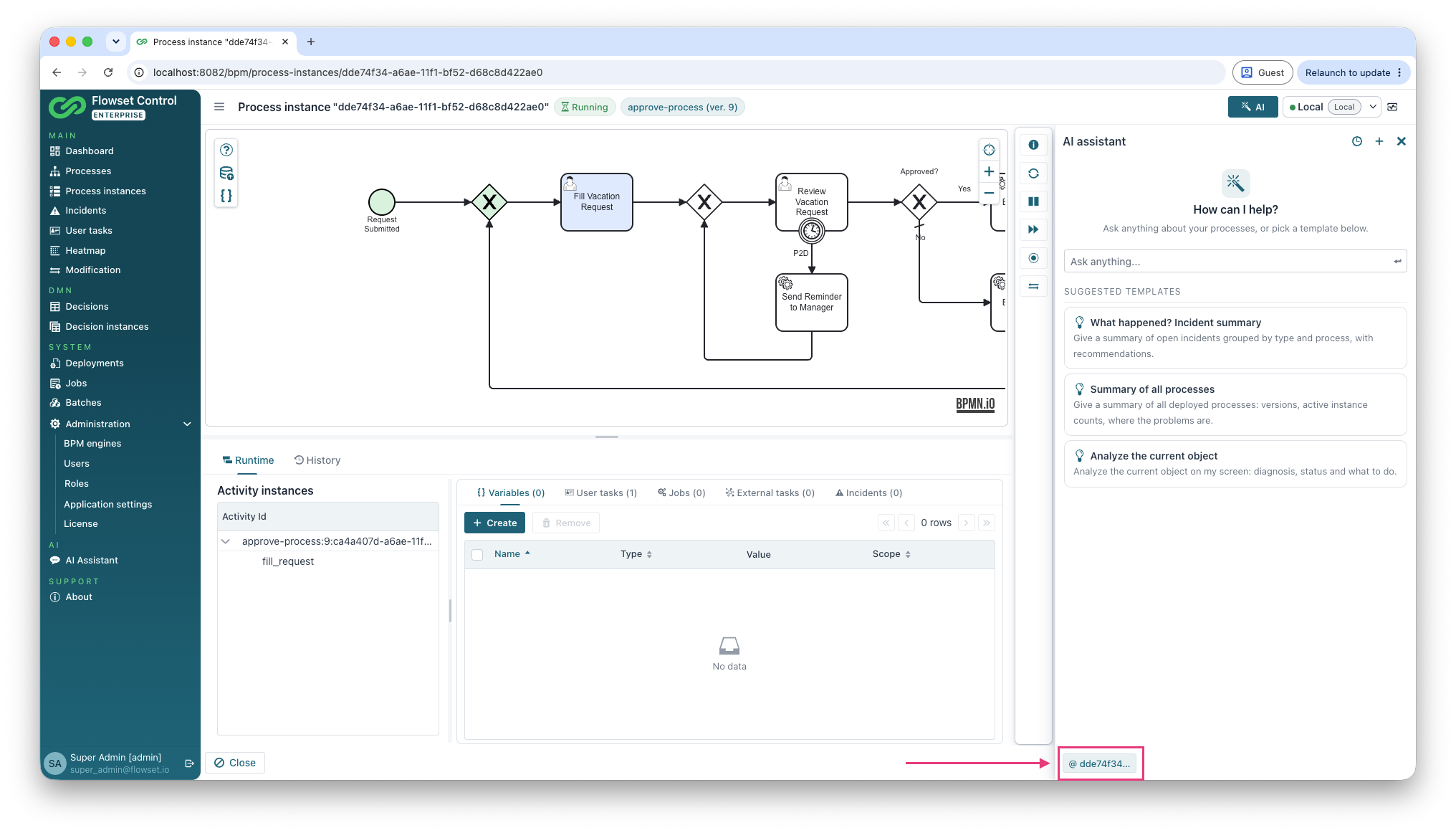
When you refer to "the current process", "this instance" or similar, the assistant resolves it to the object on your screen and loads its data itself. On screens without a single object (lists, the dashboard) the chip shows No subject on this screen, and the assistant asks which object you mean instead of guessing.
Only a reference to the object (its type and identifier) is shared with the assistant — the data itself is loaded through the same access-controlled services that power the Control screens.
What the Assistant Can Do
-
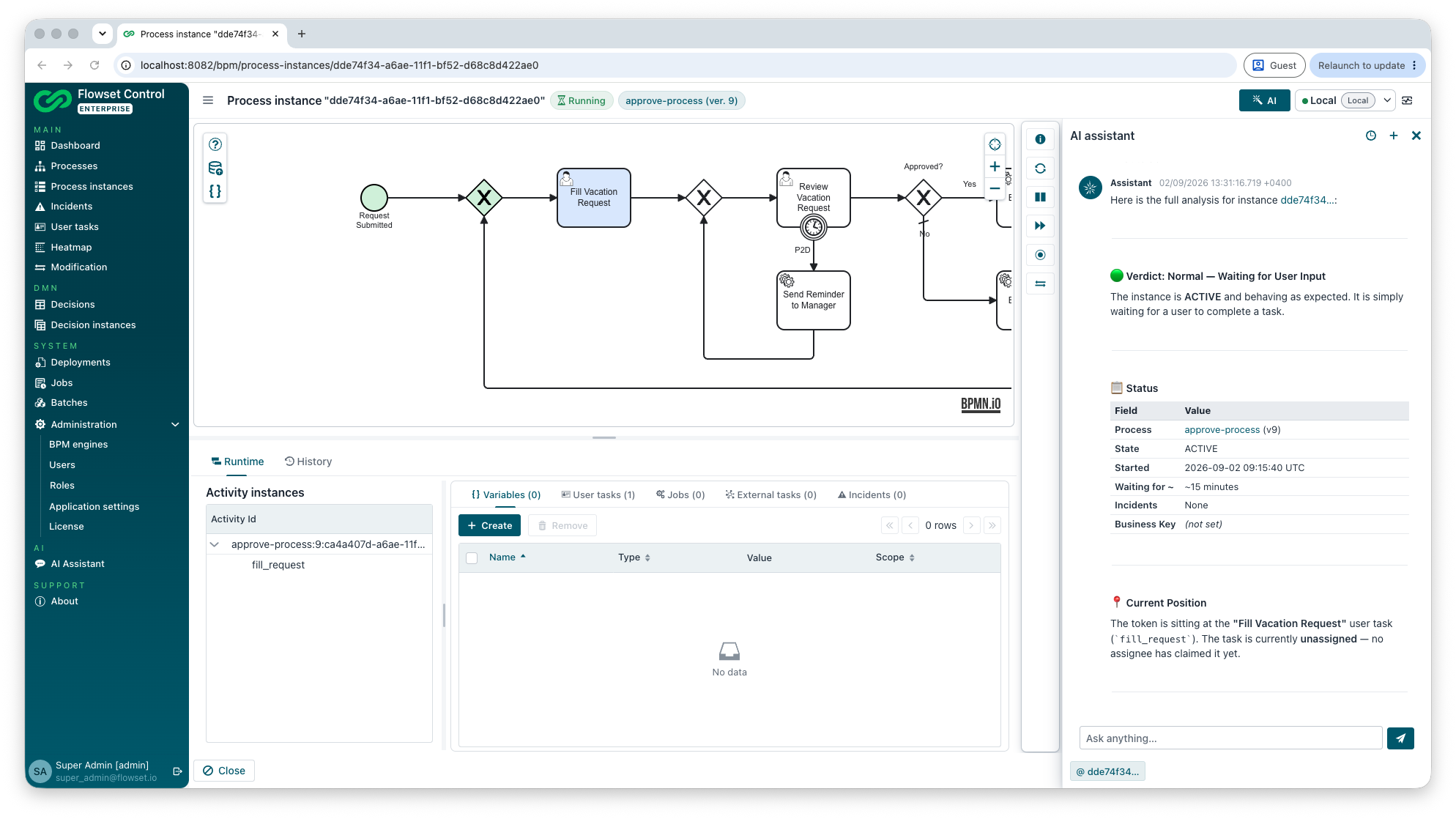
Diagnose a stuck process instance. The assistant determines where the instance currently is, why it is waiting — a failed job, an external task without a worker, an unassigned or overdue user task, a timer that is not due yet, a suspended instance — and recommends a next step. When waiting is normal process behavior (for example, a timer that fires tomorrow), the assistant says so explicitly instead of recommending an intervention.
-
Analyze incidents. Summaries of open incidents by type and process, root-cause analysis of a specific incident with a recommended action from the Control toolset (retry, change a variable, terminate the instance, escalate to developers).
-
Explain a process. A step-by-step explanation of a deployed process based on its BPMN model: what it does, who participates, what happens on timers, errors and messages.
-
Answer with links. Objects mentioned in answers — process instances, incidents, definitions, user tasks — are rendered as links that open the corresponding Control screens.
Conversations
Conversations are persistent. The side panel continues your latest conversation; the New chat button starts a fresh one. The chat hub page lists all conversations of the current user.
Data Access and Security
-
The assistant works strictly through the Flowset Control service layer: it sees only the data the current user is allowed to see, on the currently selected engine.
-
All assistant tools are read-only. The assistant recommends actions but never executes them.
-
Sensitive application entities (users, engine connections, license data) are excluded from the assistant’s data access.
-
Without an API key no data leaves the application — the assistant simply reports that it is not configured.