Sending a Message
Flowset Control lets you send a Message to a connected BPM engine directly from the process instance diagram.
This is useful when a process is waiting for an external event and an administrator needs to continue execution without manually calling the REST API through Postman or curl.
A message can be used to continue the execution of a process that is waiting at an Intermediate Message Catch Event or a Boundary Message Event. If a process is started by a Message Start Event, the message can also create a new process instance.
When to Use a Message
Use a Message when an event must be delivered to a specific process instance or a specific waiting point in the diagram. For example, a process may be waiting for a payment, confirmation from an external system, or a manual operational event.
Unlike a Message, a Signal is intended to broadcast an event to all processes that are waiting for the corresponding signal. For scenarios where you need to "push this specific process instance forward", a Message is usually used.
Sending a Message from the Diagram
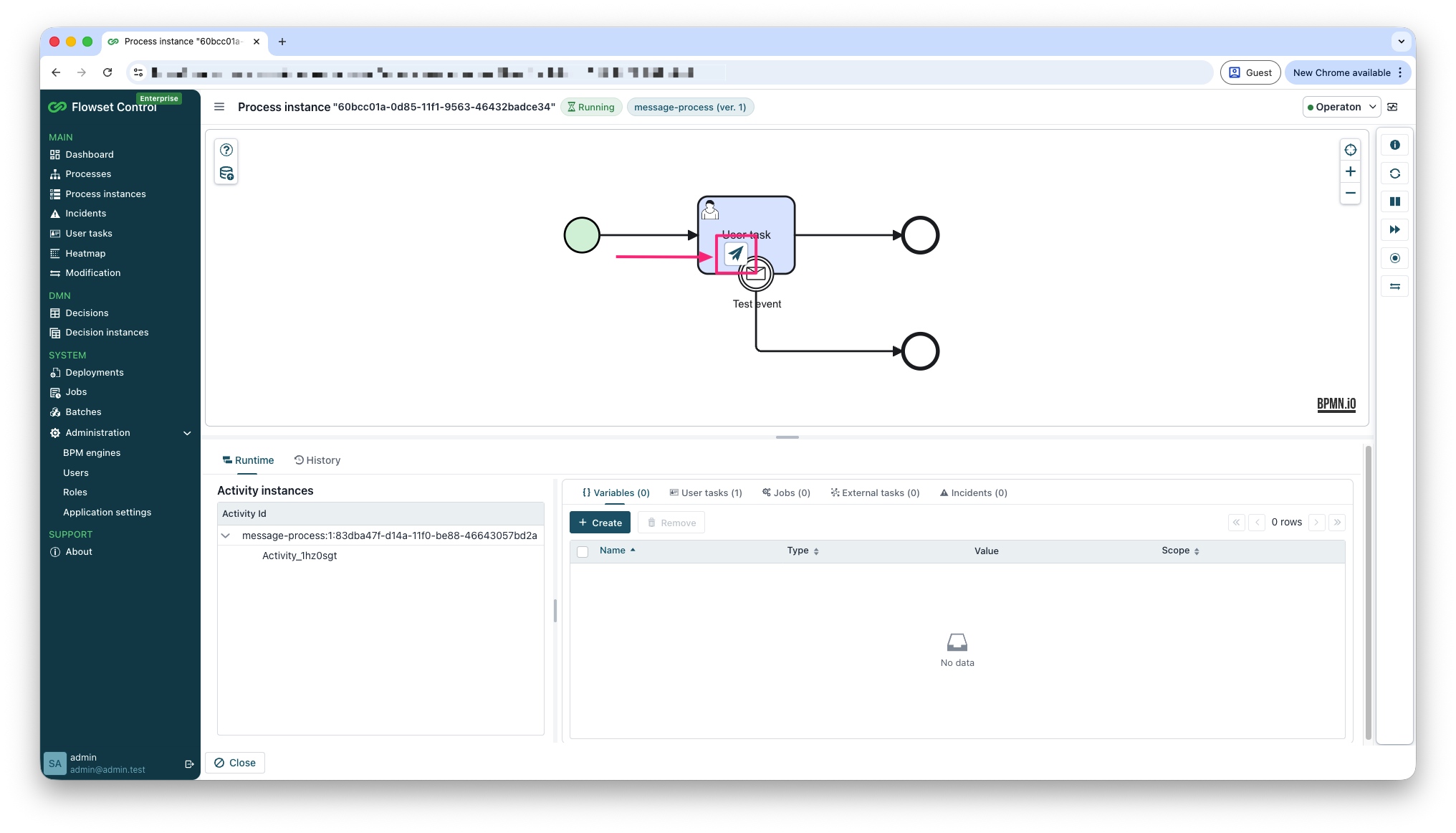
If an active process instance is waiting for a Message, Control displays a send overlay next to the Message Event on the diagram.
To send a message:
-
Open the Process instances screen.
-
Find the required process instance and click View.
-
On the diagram, find the active Message Event.
-
Click the send message icon on the overlay.
-
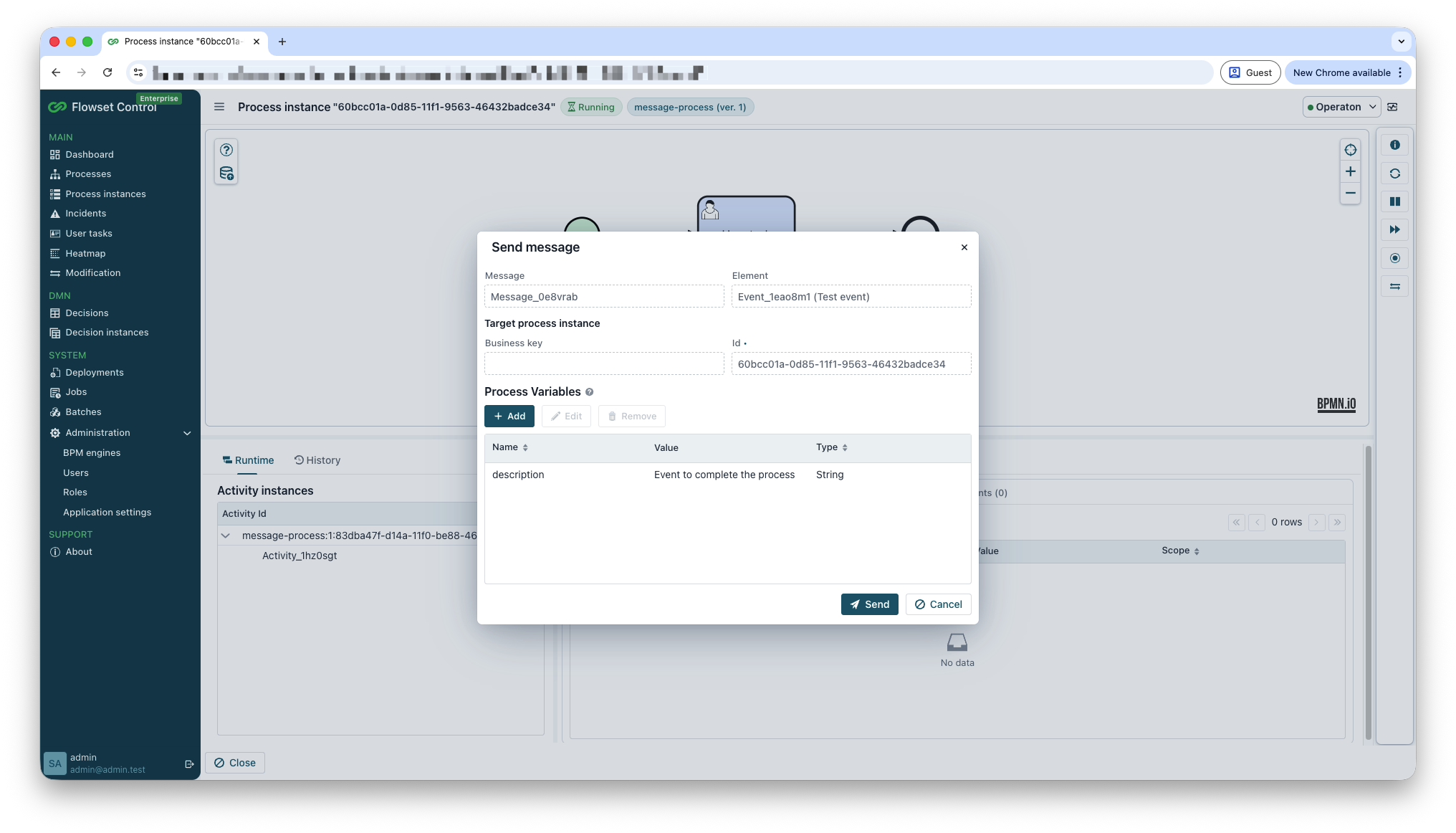
In the Send message dialog, check the message parameters.
-
If necessary, add variables to the Process Variables table.
-
Click Send.
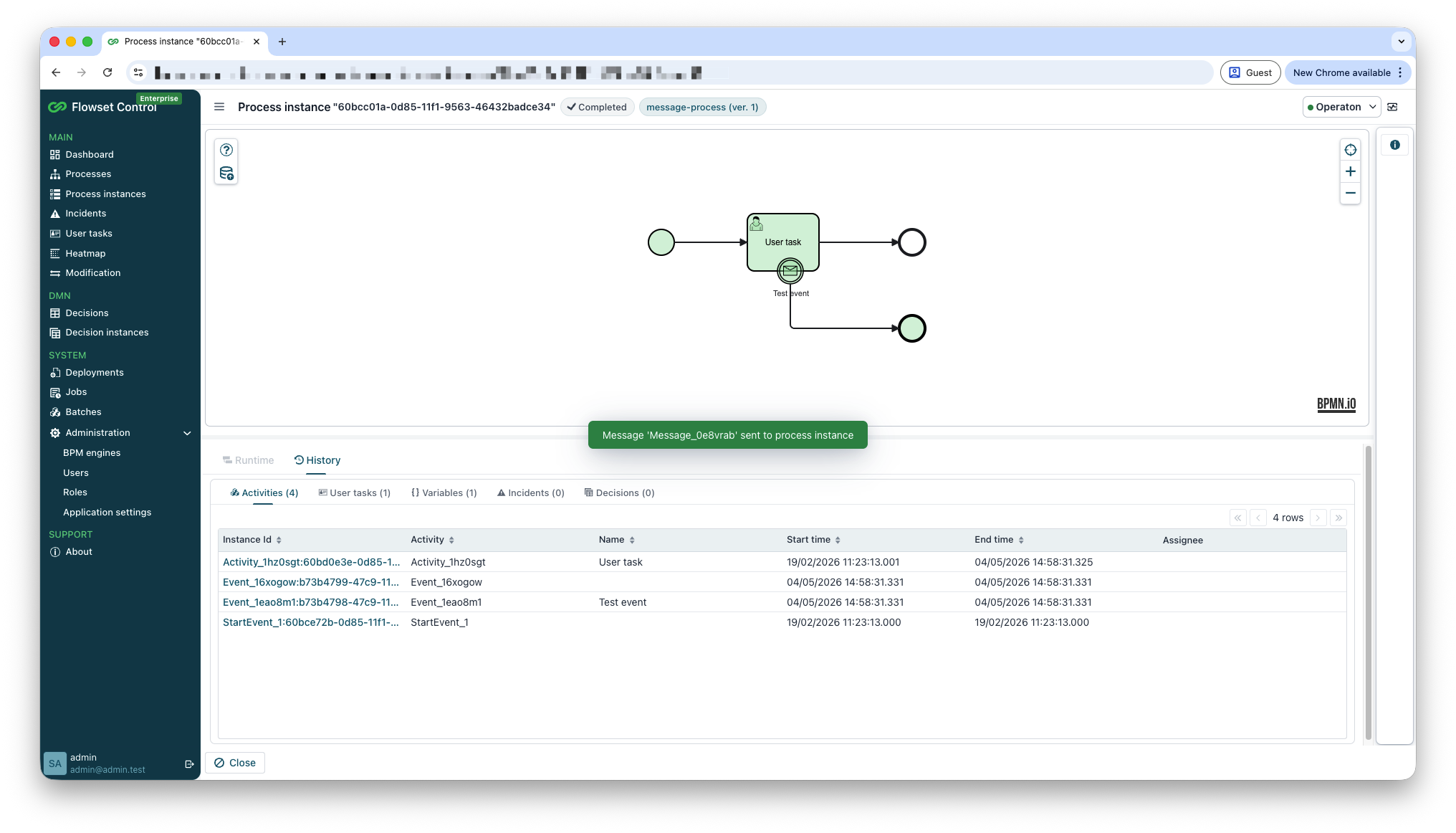
After the message is sent successfully, Control shows a notification and refreshes the process instance state.
Dialog Fields
| Field | Description |
|---|---|
Message |
The name of the Message that will be sent to the engine. Control fills this value from the selected Message Event. |
Element |
The BPMN element from which the dialog was opened. This field helps you verify that the message is being sent to the correct place in the diagram. |
Business key |
The business key of the target process instance, if it is set. The business key can be used to find and verify the required process. |
Id |
The identifier of the target process instance. When sending from the diagram, Control fills in the current instance identifier automatically. |
Process Variables |
Variables that will be passed to the process together with the message. Variables can be added, changed, or removed before sending. |