Batch Operations
Flowset Control lets you create and execute a new batch operation that applies the same action to many running process instances at once. Instead of repeating the same change instance by instance, you select an operation, choose the target process instances with a filter, provide the operation parameters, and start a single asynchronous batch.
A batch is executed asynchronously by the BPM engine: it is split into smaller jobs that the Job Executor processes in the background, so the application stays responsive while large numbers of instances are processed.
For background on batch operations, see:
|
A batch operation changes the runtime state of all selected process instances. Review the operation type, the parameters, and the list of matching instances on the confirmation step before starting the batch. |
Supported Operations
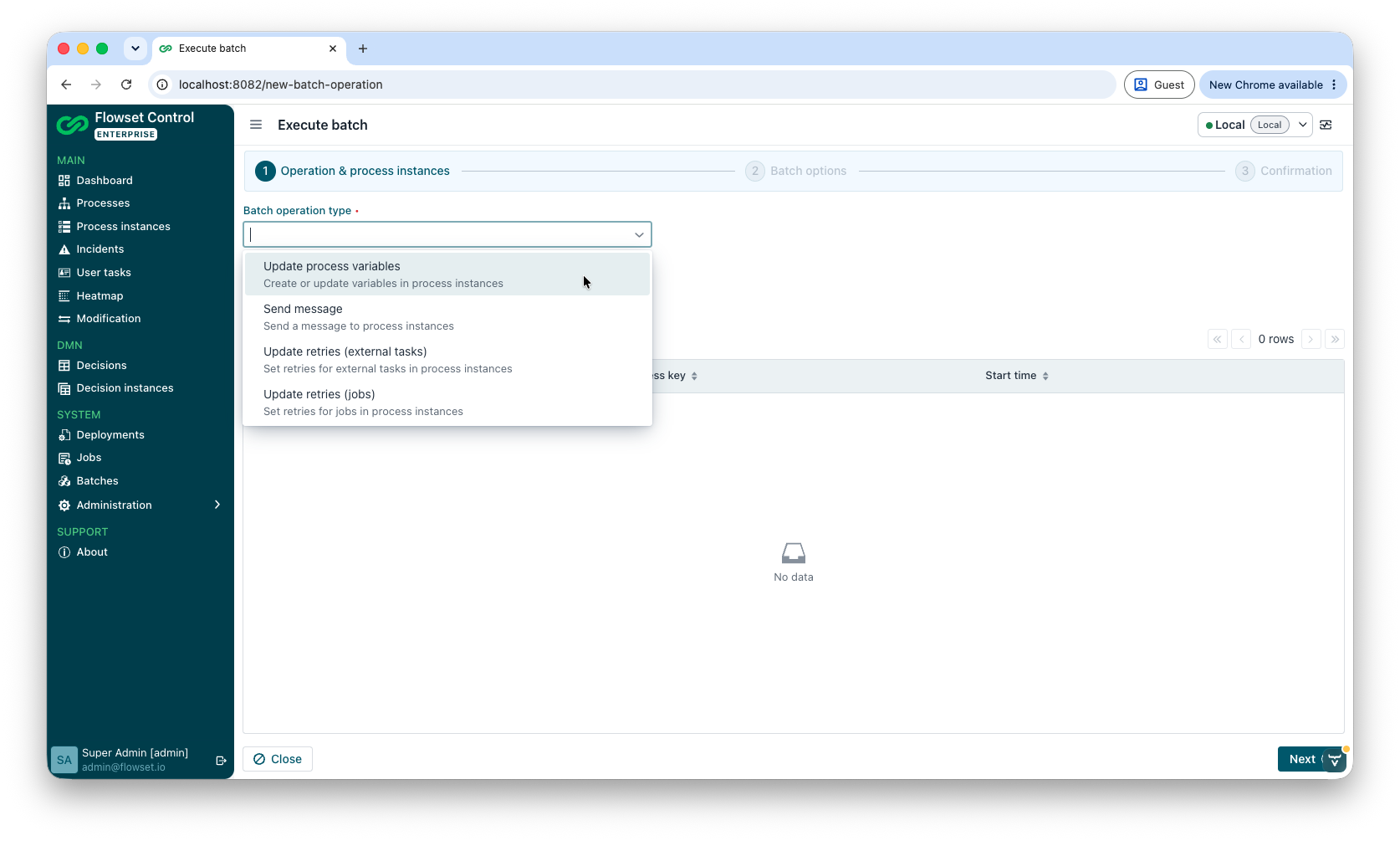
The Execute batch wizard supports four operation types:
-
Update process variables - create or update variables in the selected process instances.
-
Send message - correlate a message to the selected process instances, optionally passing variables.
-
Update retries (external tasks) - set the number of retries for the external tasks of the selected process instances.
-
Update retries (jobs) - set the number of retries for the jobs of the selected process instances, optionally with a job due date.
Opening the Wizard
You can start a new batch from two places:
-
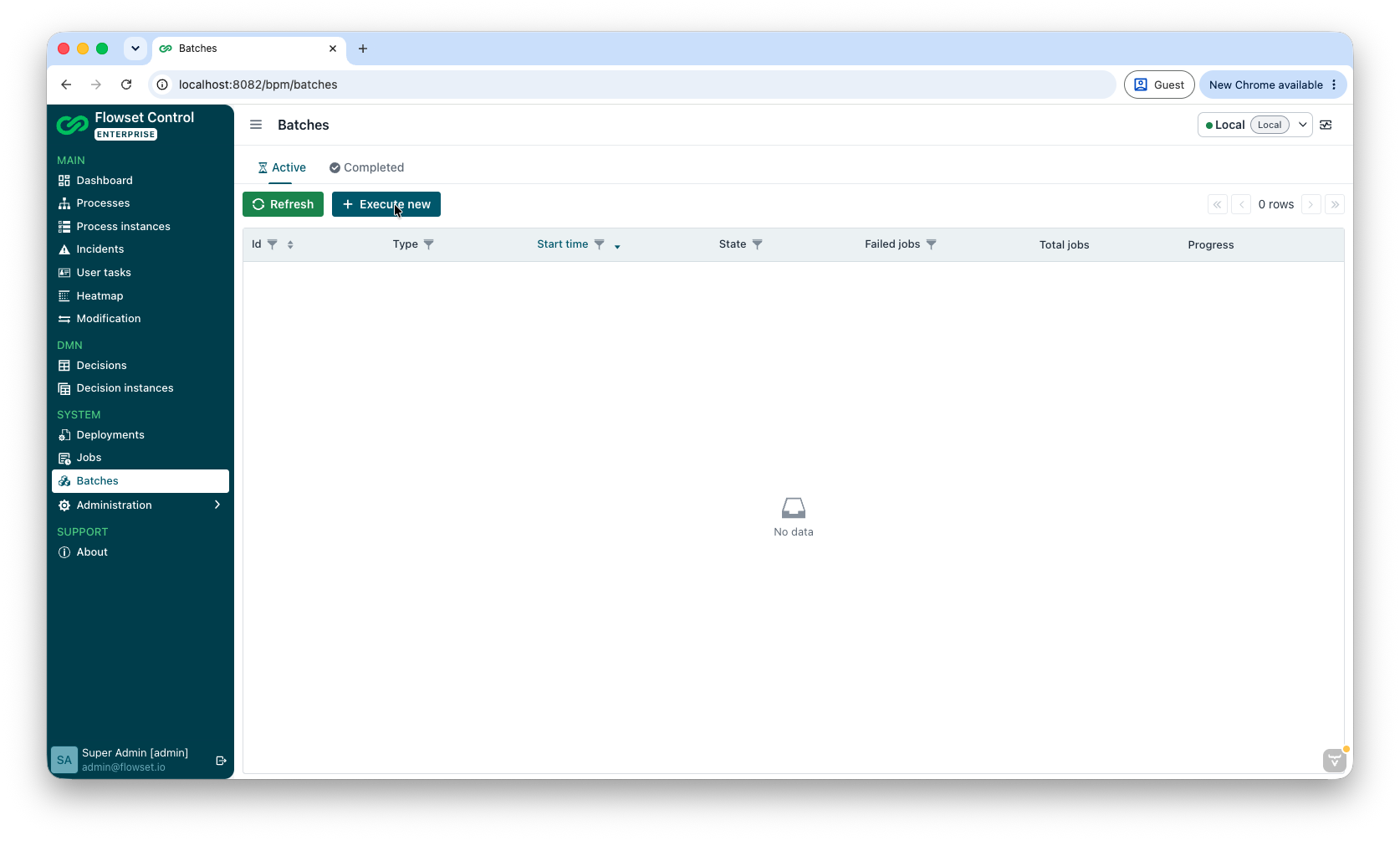
Batches view → Active tab → Execute new.
-
Process instances view → dropdown button → Execute batch.
The Execute batch wizard has three steps:
-
Operation & process instances - select the operation type and the process instances the batch should be applied to.
-
Batch options - provide the parameters required for the selected operation.
-
Confirmation - review the parameters and the generated request, then start the batch.
Step 1: Operation and Process Instances
Select the operation in the Batch operation type list.
By default, no filter is applied and all process instances are searched. Use the filter dialog to narrow down the instances the batch should be applied to.
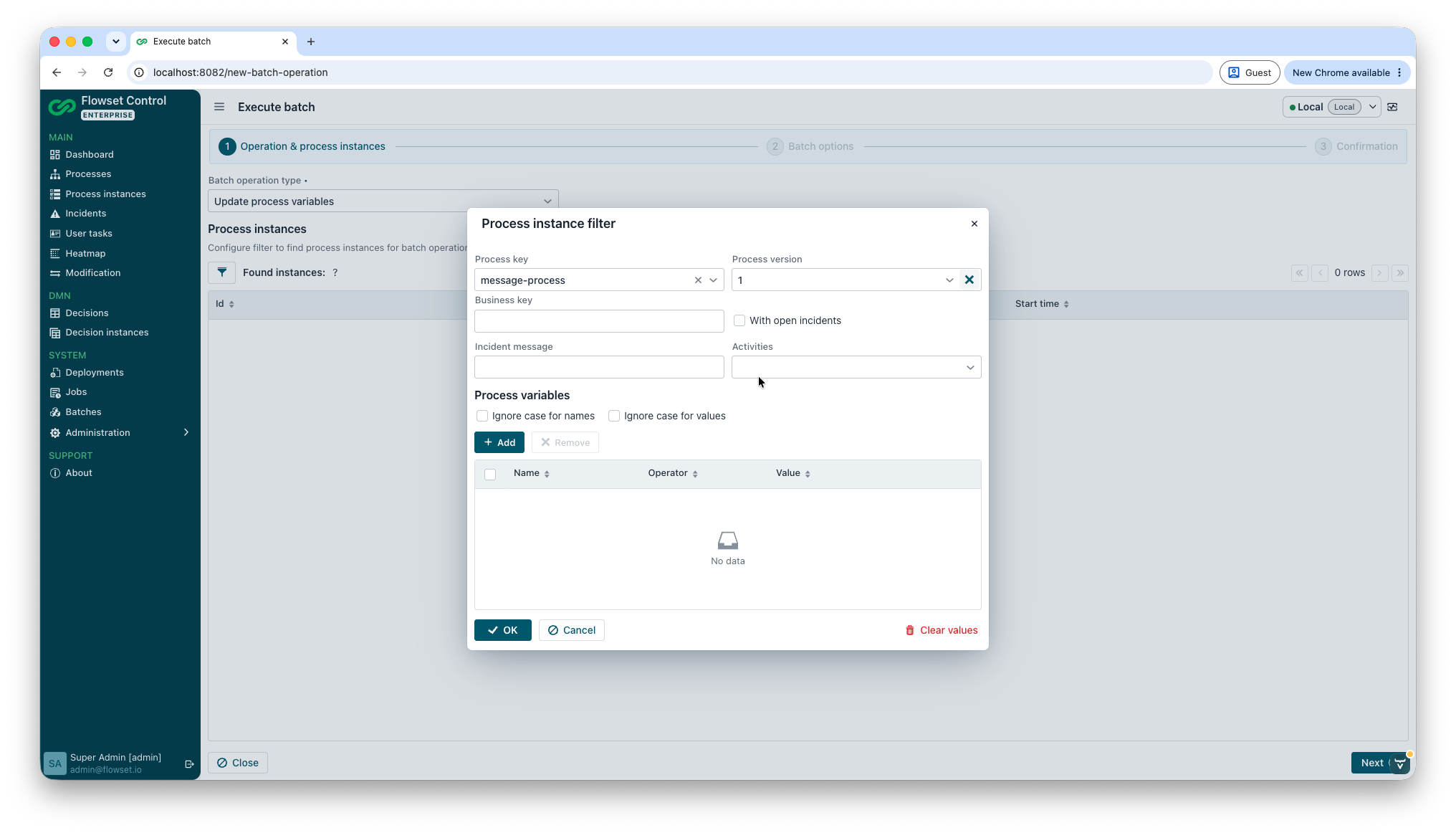
The following filters are available in the wizard:
-
Process key
-
Process version
-
Business key
-
With open incidents
-
Incident message
-
Activities
-
Process variable conditions, with optional case-insensitive matching for variable names and values
|
The Process key, Process version, and Activities filters are available in the new batch wizard. They are not shown when the process instance filter is opened from the process instance modification wizard. |
The number of matching instances is shown above the table as Found instances, and the instances are listed below.
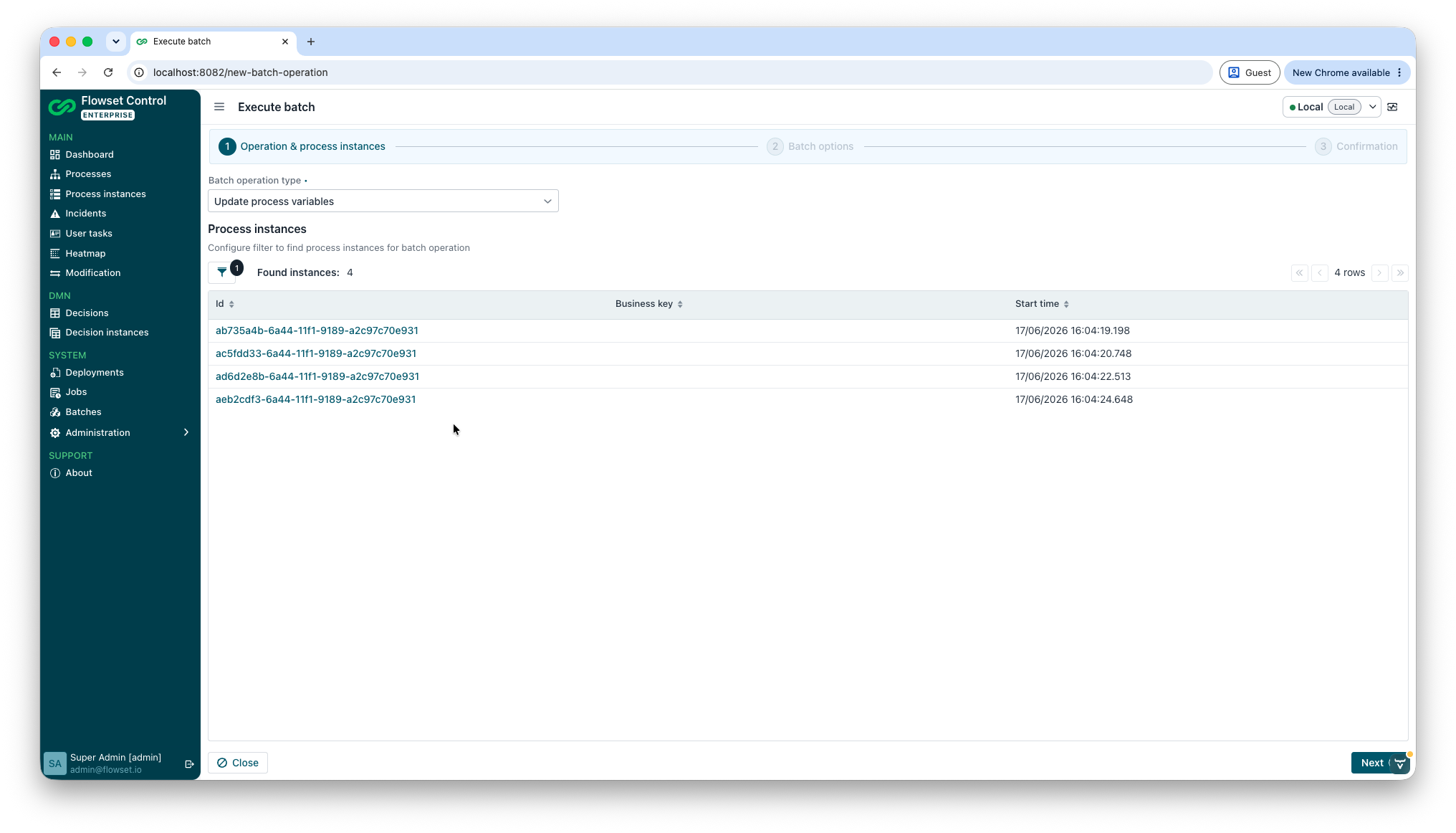
The maximum number of instances a batch can be applied to is controlled by Max modified instances count in Administration → Application settings → Bulk operation settings. If the filter matches more instances than allowed, a warning is shown.
You cannot continue to the next step until an operation type is selected and at least one process instance is found. Click Next to continue.
Step 2: Batch Options
The fields on this step depend on the operation selected in the first step:
| Parameter | Supported operations | Required |
|---|---|---|
Variables (grid) |
Update process variables, Send message |
Required for Update process variables, optional for Send message |
Message name (text field) |
Send message |
Required |
Retries |
Update retries (jobs), Update retries (external tasks) |
Required |
Job due date |
Update retries (jobs) |
Optional |
For operations that use variables, click Add to open the Variable instance detail dialog and provide a variable name, type, and value. Use Edit and Remove to manage existing variables.
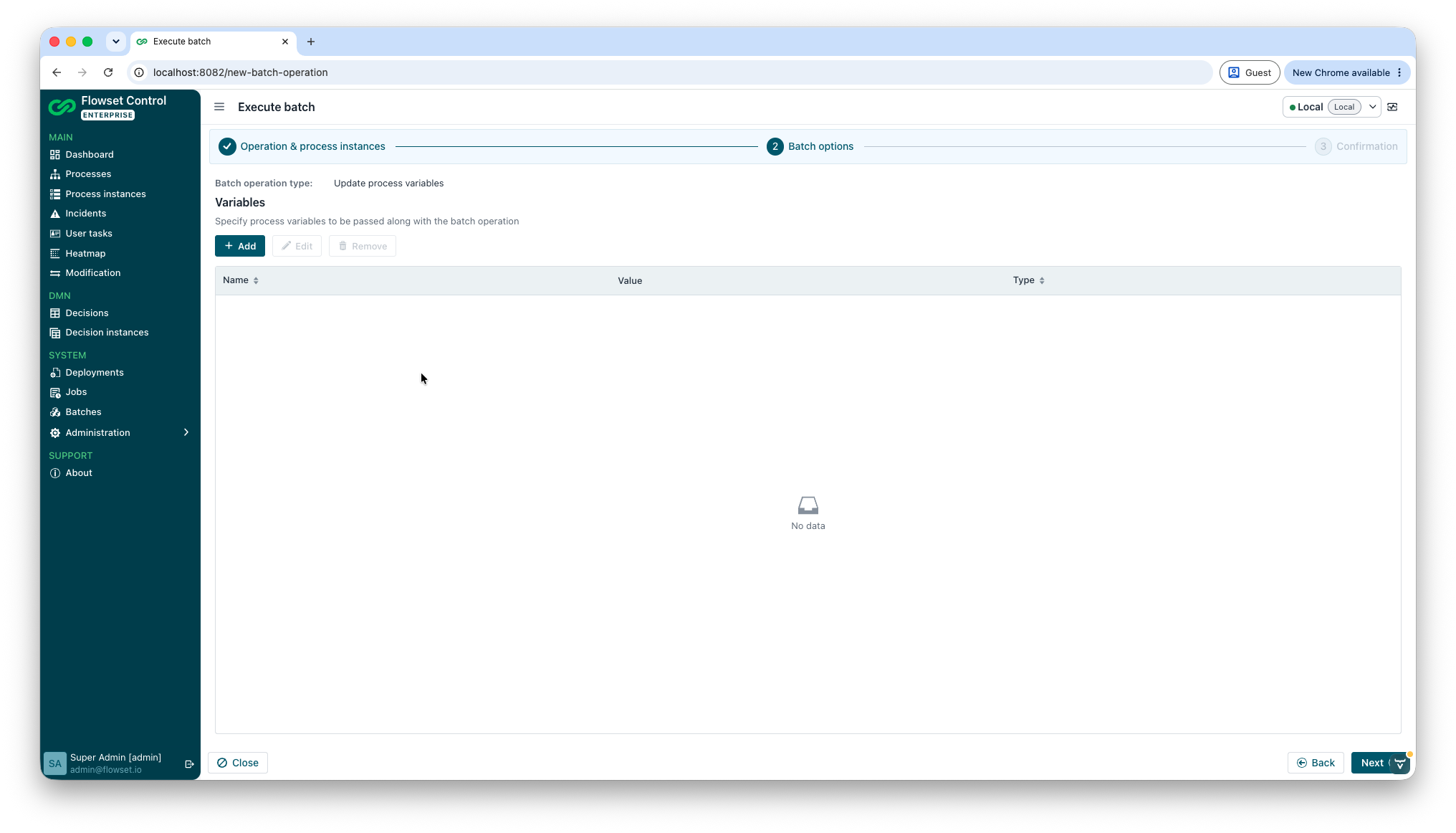
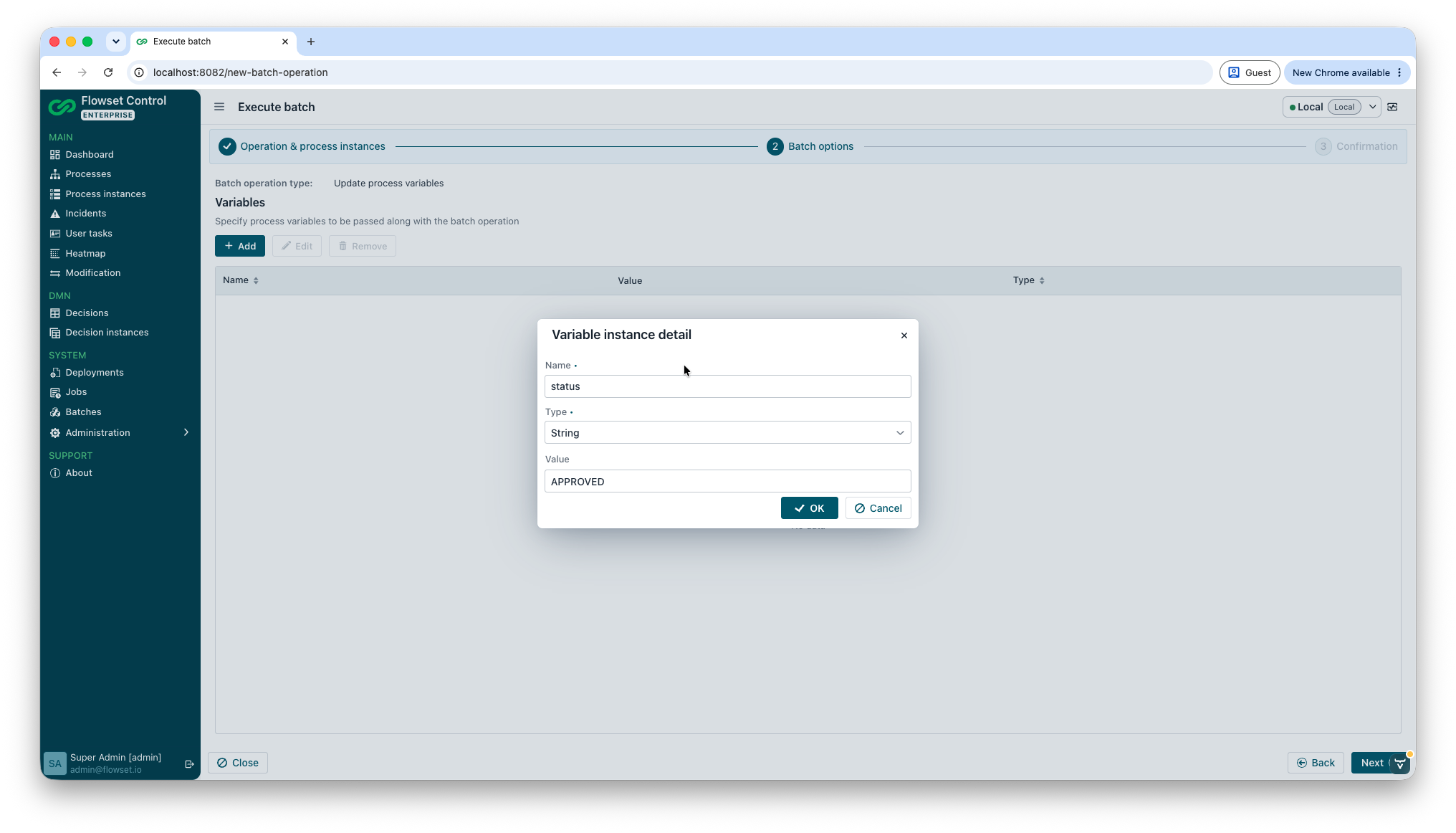
Added variables are shown in the variables grid.
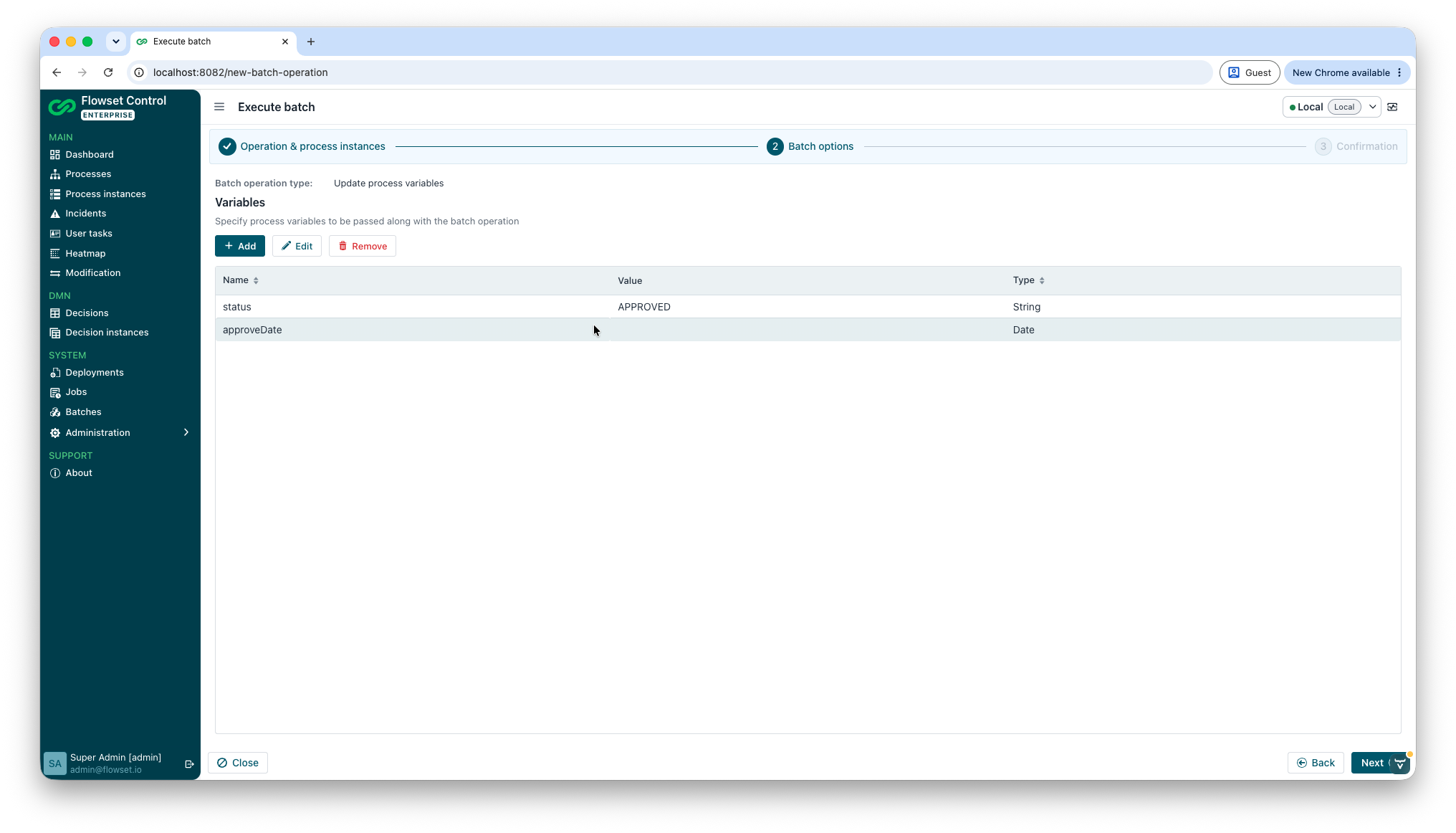
You cannot continue to the next step until the required parameters for the selected operation are set. For example, Update process variables requires at least one variable, Send message requires a message name, and the retries operations require a retries value. Click Next to continue.
Step 3: Confirmation
The confirmation step summarizes the selected operation type, the batch options, and the number of process instances.
Click Generate request to generate and review the JSON request that will be sent to the BPM engine.
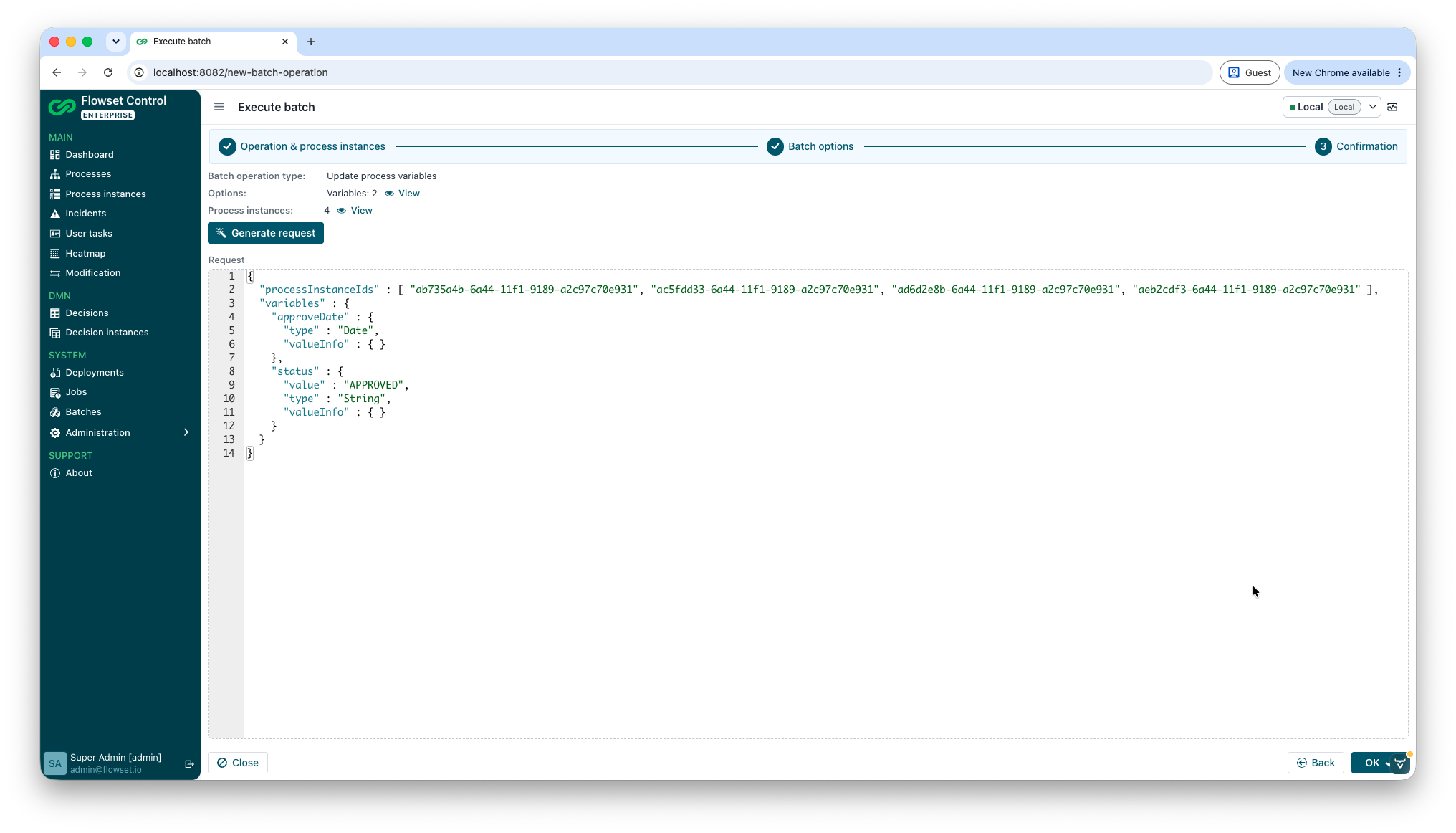
Click View next to Process instances to preview the full list of instances the batch will be applied to.
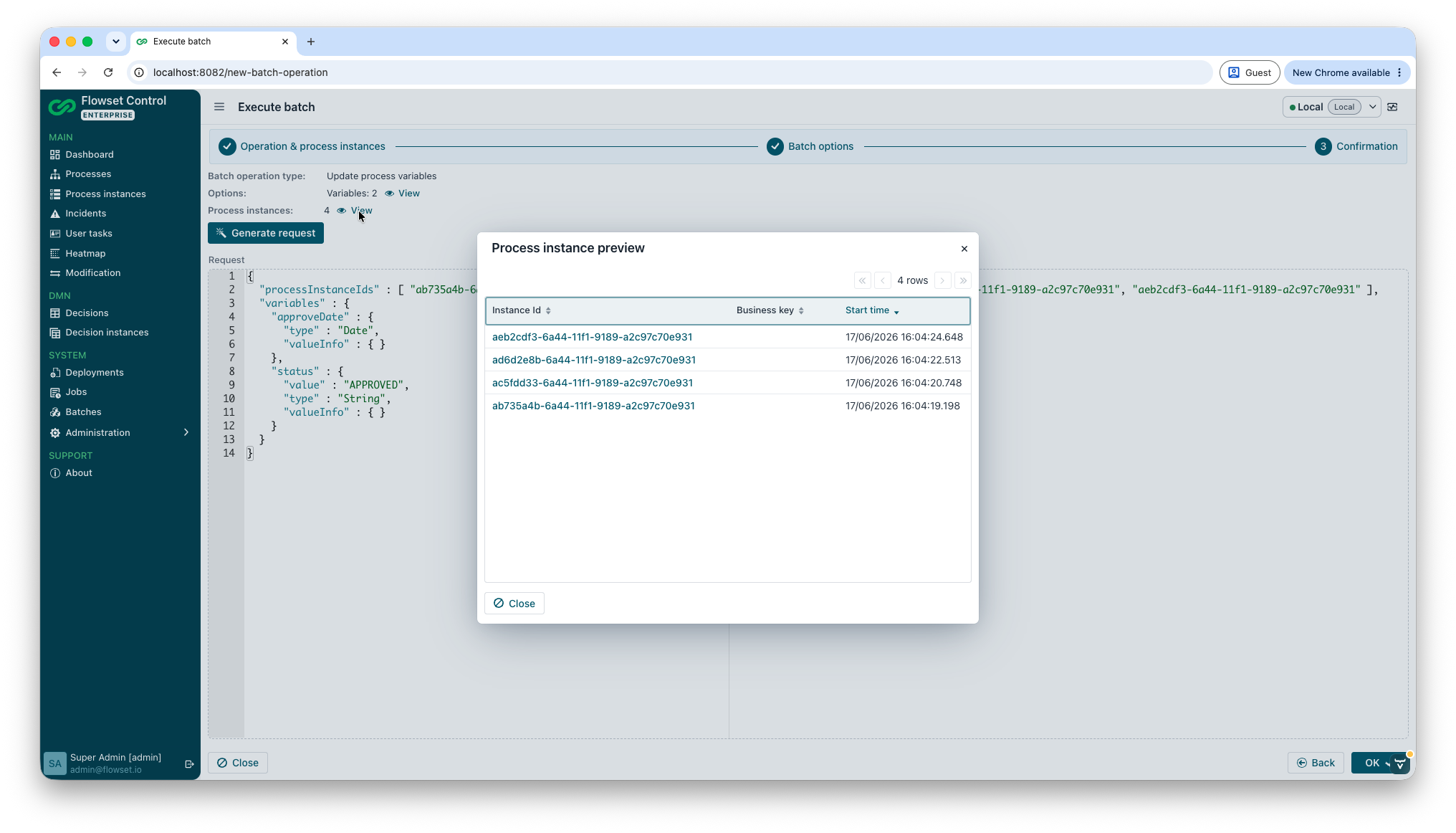
|
A warning can be shown if the batch may have no effect for some instances - for example, when setting retries for process instances that have no active jobs or external tasks. |
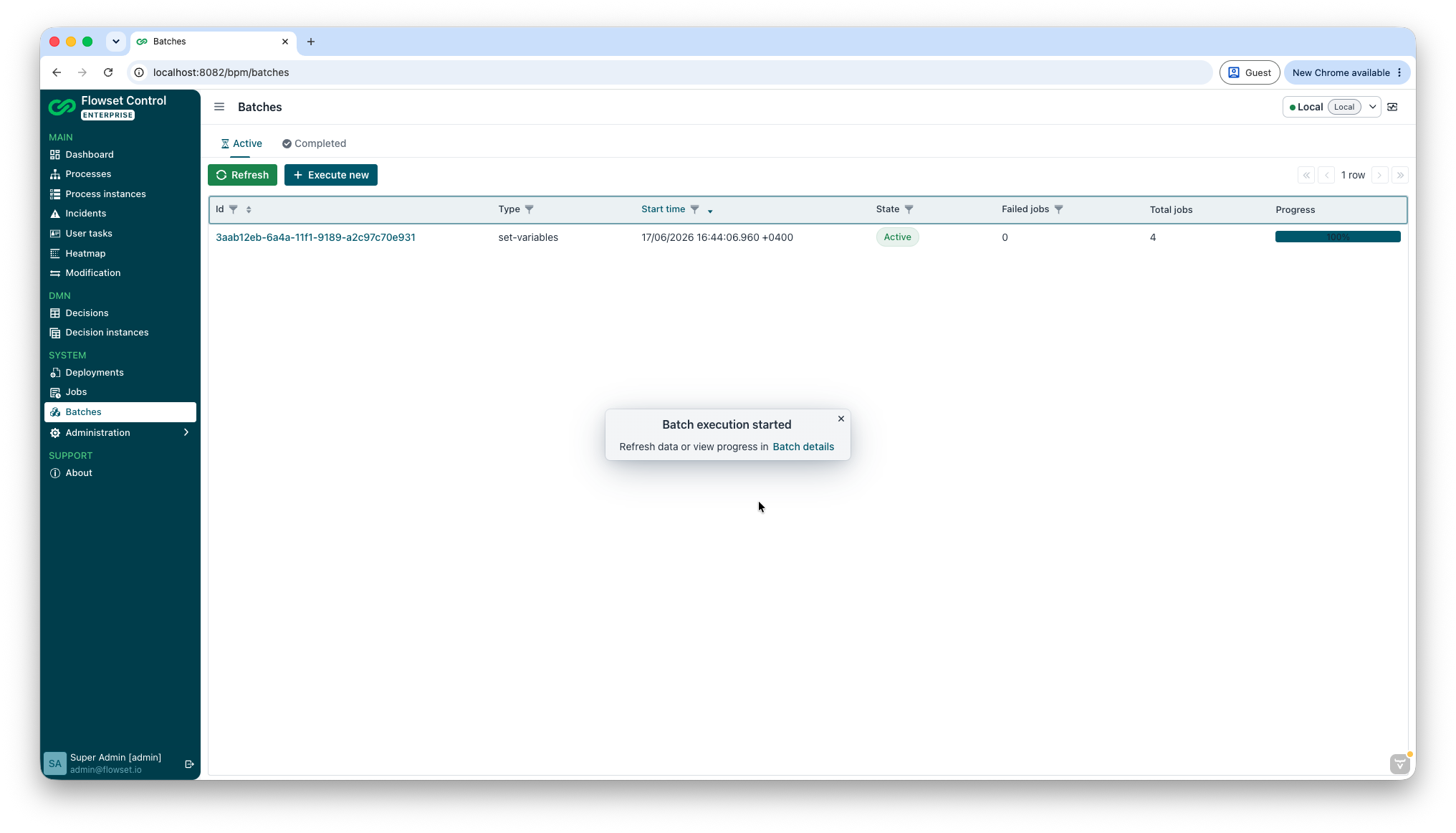
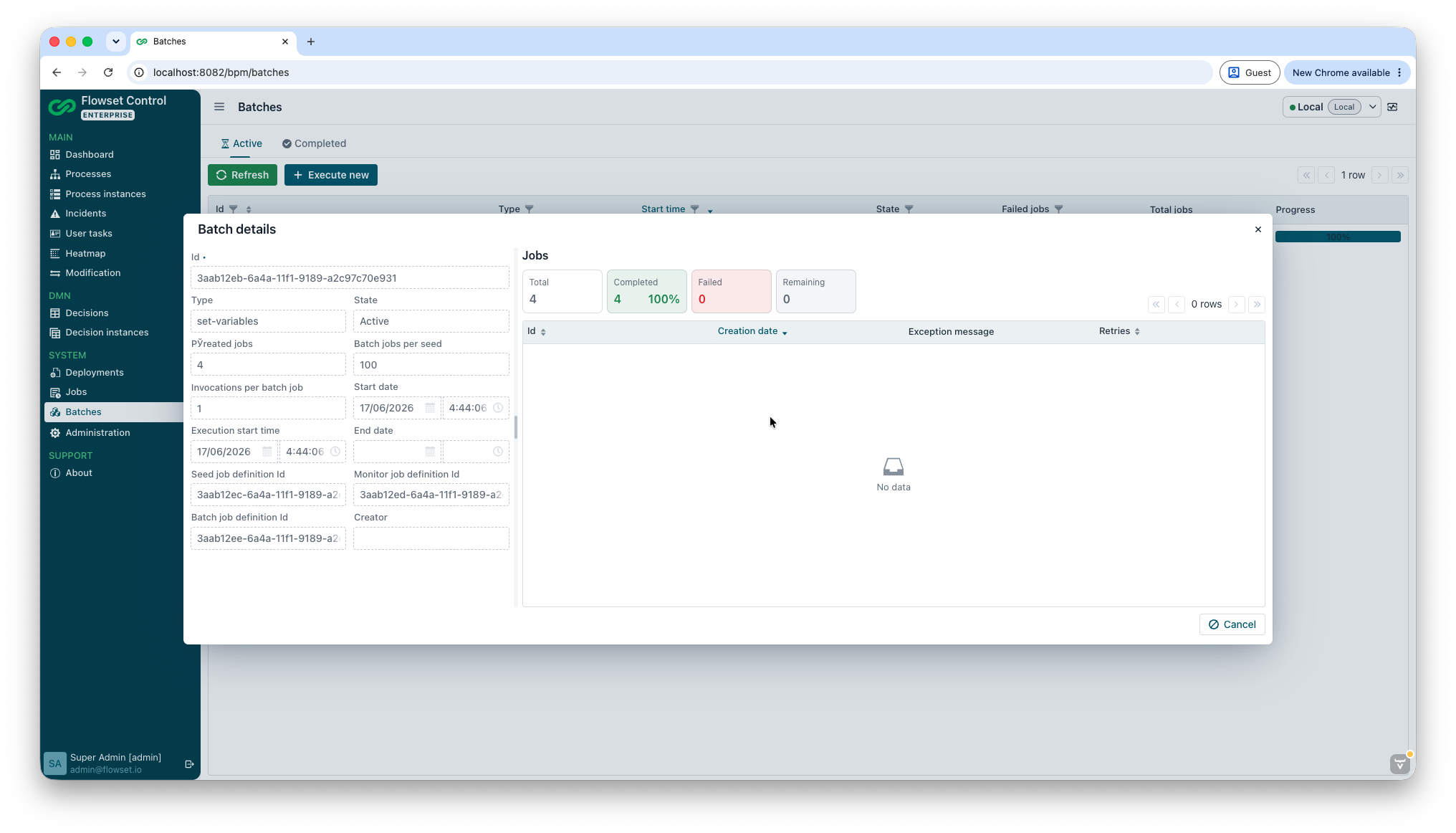
Click OK to start the batch. After the request is accepted, a notification with a Batch details button is shown. Use Batch details to open the batch and track its progress, or open the Batches view to monitor active and completed batches.