License
Without an installed license, Flowset Control Enterprise runs with the Community edition feature set: Enterprise features are marked with a lock icon in the menu and are not available. To enable them, install a license key.
A license is issued to a company and defines the validity period, the number of BPM engines that can be connected and the set of available features. Renewals and subscription changes are applied to the installed license automatically when the license server is reachable; no restart is required.
Running Without a License
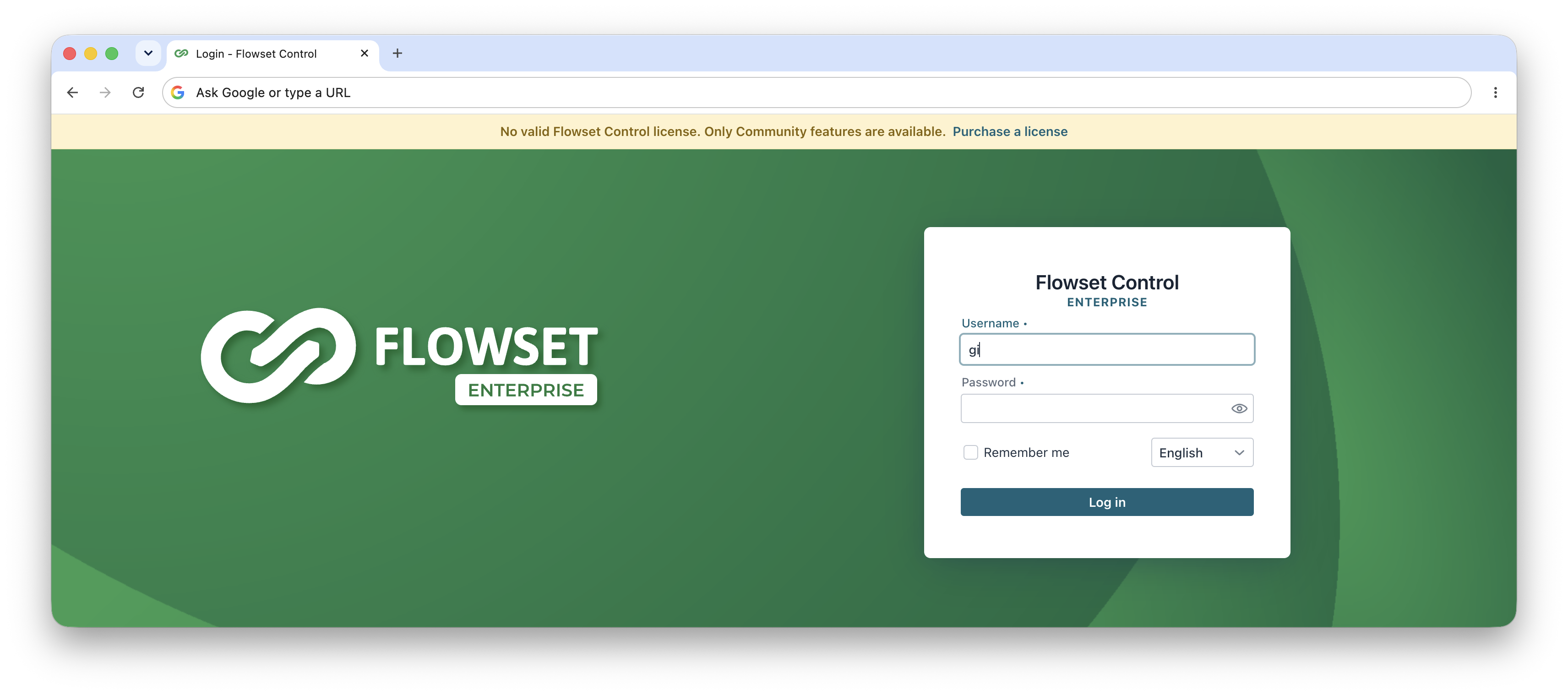
When no valid license is installed, a banner is shown at the top of every screen — including the login page — and Enterprise features are locked in the menu.
Activation by License Key
The primary way to install a license is activation by the license key (SID) received from the vendor. The application contacts the license server, downloads the license and installs it.
-
Log in to Flowset Control as a user with administrator rights.
-
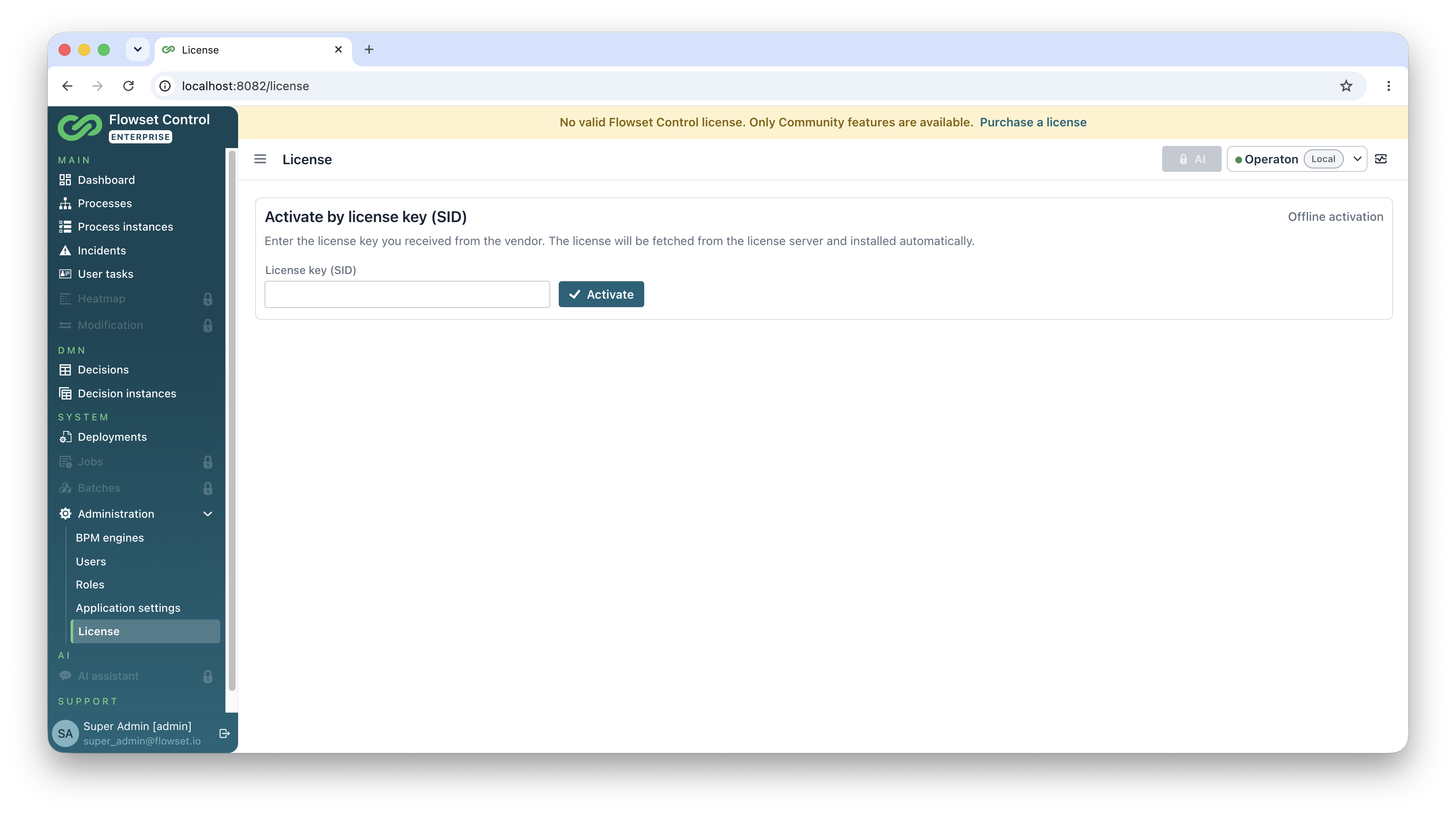
Open Administration → License.
-
Enter the key in the License key (SID) field and click Activate.
-
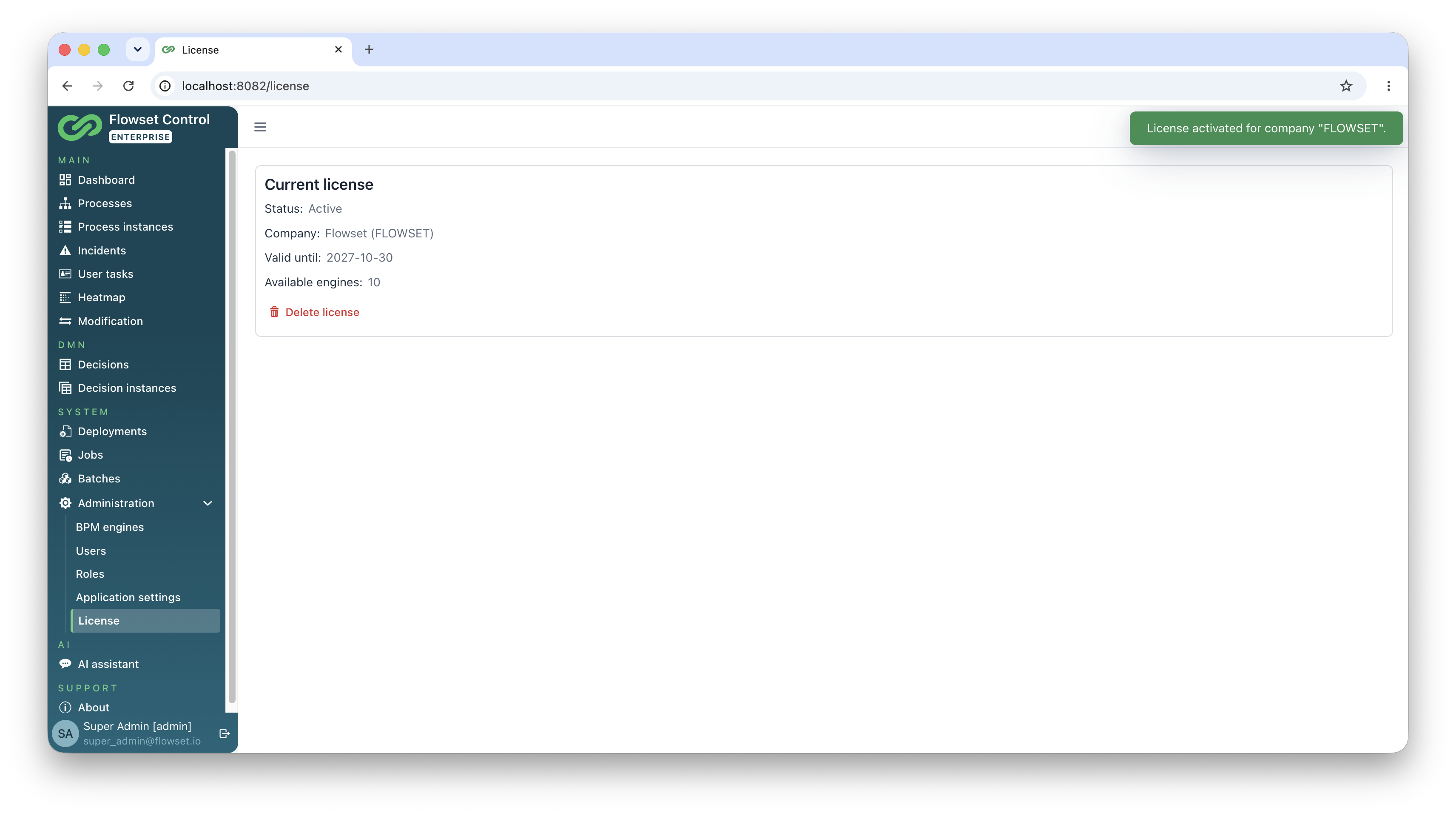
After successful activation a notification appears and the Current license block is shown: status, company, validity period and the number of available engines. Enterprise features are unlocked immediately; no restart is needed.
|
The license server is contacted by the application server, not by the user’s browser. If the application is deployed in a network without internet access, see Offline Activation. |
Possible activation messages:
| Message | What to do |
|---|---|
License key not found |
Check that the key is entered correctly, or contact the vendor. |
Activation denied |
The license server refused to issue the license — for example, the license is blocked. If the server reported a reason, it is included in the message; contact the vendor. |
License server unavailable |
The application could not reach the license server. Check network access from the application server; if there is none, see Offline Activation. |
Offline Activation
|
If the application server cannot reach the license server, contact support at info@flowset.io to activate your subscription offline. |
License Statuses
The status is displayed in the Current license block; states that require attention are additionally reported by a banner at the top of the screen.
| Status | Description |
|---|---|
Active |
The license is valid and Enterprise features are available. A renewal reminder banner appears 30 days before the expiry date. |
Expired (grace period) |
The license has expired, but Enterprise features remain available during the grace period defined in the license. The banner shows how many days are left. |
Expired |
Both the license and the grace period have expired. Enterprise features are disabled until a new license is installed. |
Blocked by vendor |
The license has been revoked. Enterprise features are disabled; contact support. |
No license (base edition) |
No license is installed or it failed verification. Only Community features are available. |
Integrity violation |
The license data is damaged or has been modified. Enterprise features are disabled; contact support at info@flowset.io. |
A separate case is exceeding the engine limit: when more BPM engines are connected than the license allows, Enterprise features are disabled until the number of engines is brought within the limit. The application reports this with a banner, and an attempt to add an engine beyond the limit fails with an error message.
Removing the License
To remove the installed license — for example, before transferring it to another installation — click Delete license in the Current license block and confirm the action.
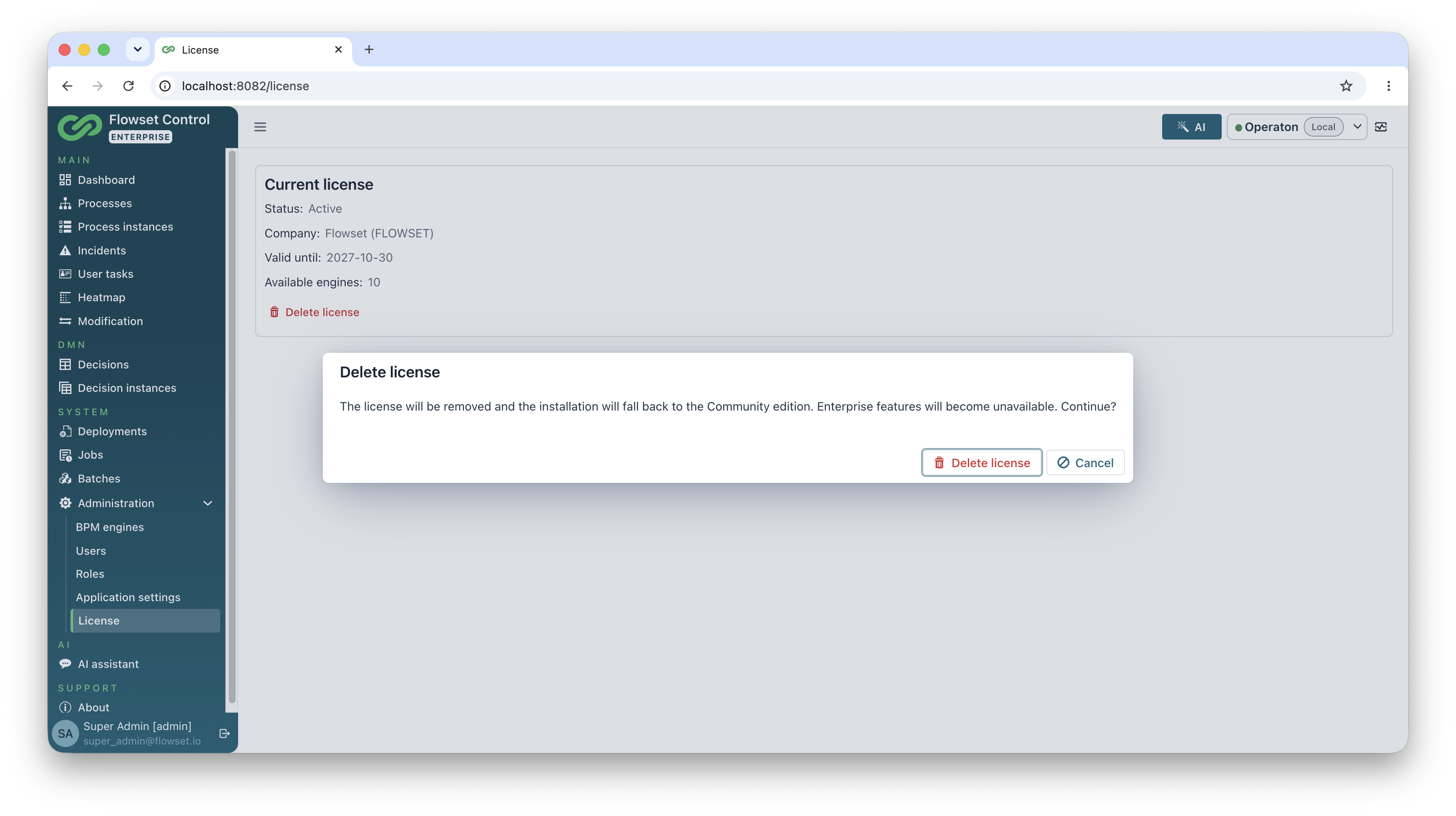
After removal the installation switches to the Community edition; a new license is installed as described above.