Process Variable History
The History → Variables tab of a process instance shows only the latest value of each process variable. Process variable history shows every change of a variable: when it happened, in which activity, what value the variable received, and whether the variable was created, updated, or deleted.
The feature helps operators and analysts to:
-
find out at which step of the process a variable received an unexpected value;
-
see which variables a particular activity has changed;
-
trace the full lifecycle of a single variable directly on the BPMN diagram;
-
choose the activity from which to restart the process before a process instance modification.
The feature is available in the Process Instance Details view and supports two approaches to analyzing changes:
-
by activity — select an activity on the diagram and see which variables were changed in it;
-
by variable — select a variable and see all its changes on the diagram.
Prerequisites
-
License. The Flowset Control Enterprise license must include the
PROCESS_VARIABLE_HISTORYfeature. If the feature is not licensed, the Variable log tab and the Show process variable changes button on the diagram are visible but disabled, and the Variable changes action is not shown in the context menu of a diagram element. -
BPM engine history level. Variable changes are read from the historic details stored by the BPM engine. The engine records them only when the history level is set to
full, for example, for an engine running on Spring Boot:# Camunda 7 camunda.bpm.history-level=full # Operaton operaton.bpm.history-level=fullWith a lower history level, the variable log is empty.
-
Permissions. The user must have read access to process variables, for example, the
Variables: read(variables-read) resource role. For users without this permission, the button, the tab, and the context menu actions related to variable changes are hidden. See Access Management.
Variable Log
To view all variable changes of a process instance in one list:
-
Navigate to Process instances and open the desired process instance.
-
Go to the History tab and select the Variable log tab. The tab caption shows the total number of changes, for example, Variable log (7).
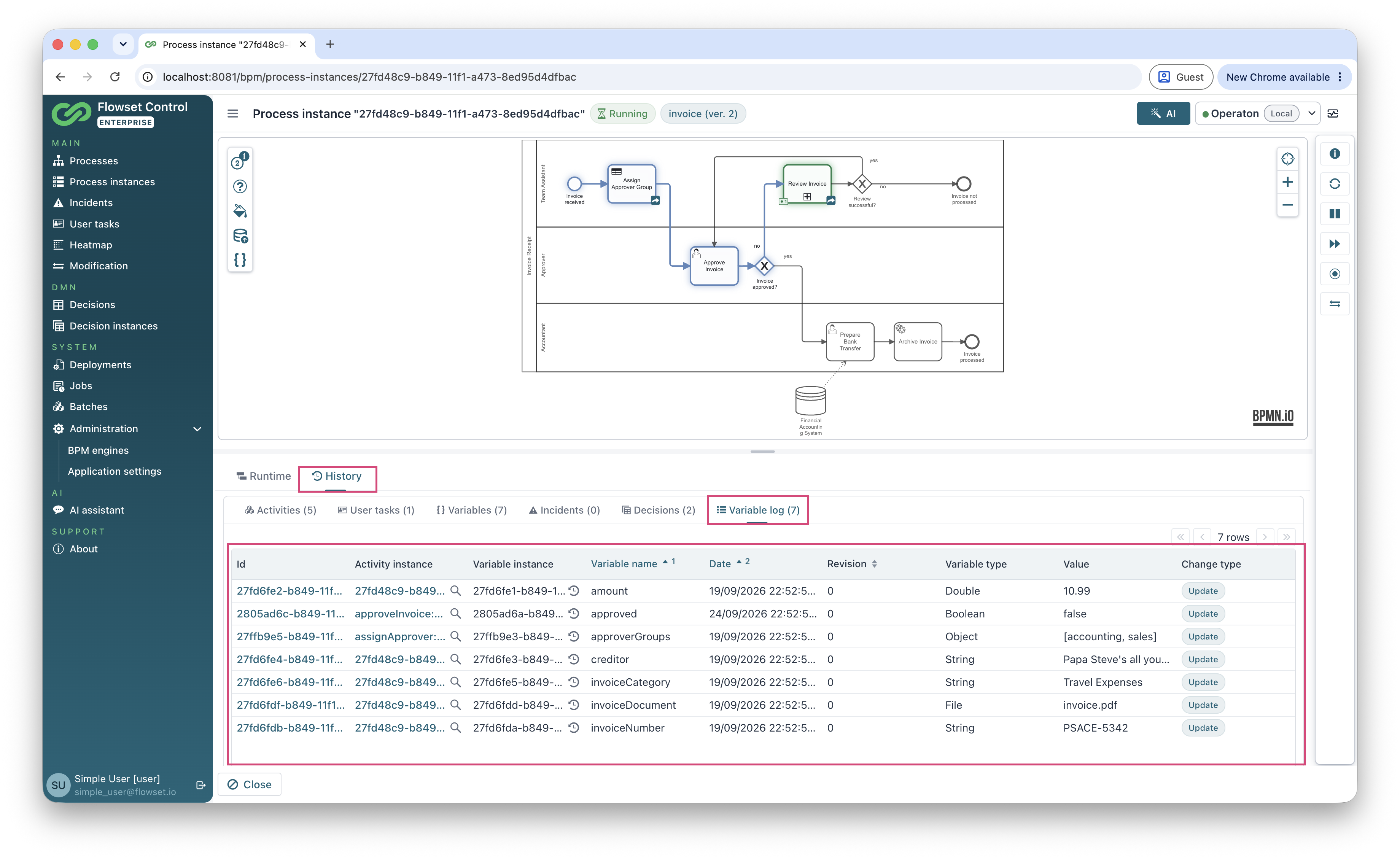
Each row represents one change of a variable:
| Column | Description |
|---|---|
Id |
Identifier of the change. Click it to open the change details. |
Activity instance |
Activity instance in which the change was made. Click the identifier to open the activity instance details. |
Variable instance |
Variable instance that was changed. The button next to the identifier shows the history of this variable on the diagram. |
Variable name |
Name of the process variable. |
Date |
Date and time of the change. |
Revision |
Revision number of the variable assigned by the BPM engine. |
Variable type |
Type of the variable value, for example, |
Value |
Value of the variable after the change. |
Change type |
Update or Delete. See Determining the Change Type. |
Viewing Variable Changes by Activity
This mode answers the question: "Which variables were changed at this step?"
Enabling the Mode
Use one of the following options:
-
Click the Show process variable changes button (
{ }icon) on the diagram toolbar, and then select a completed or running activity on the diagram. Activities that have not been passed yet cannot be selected.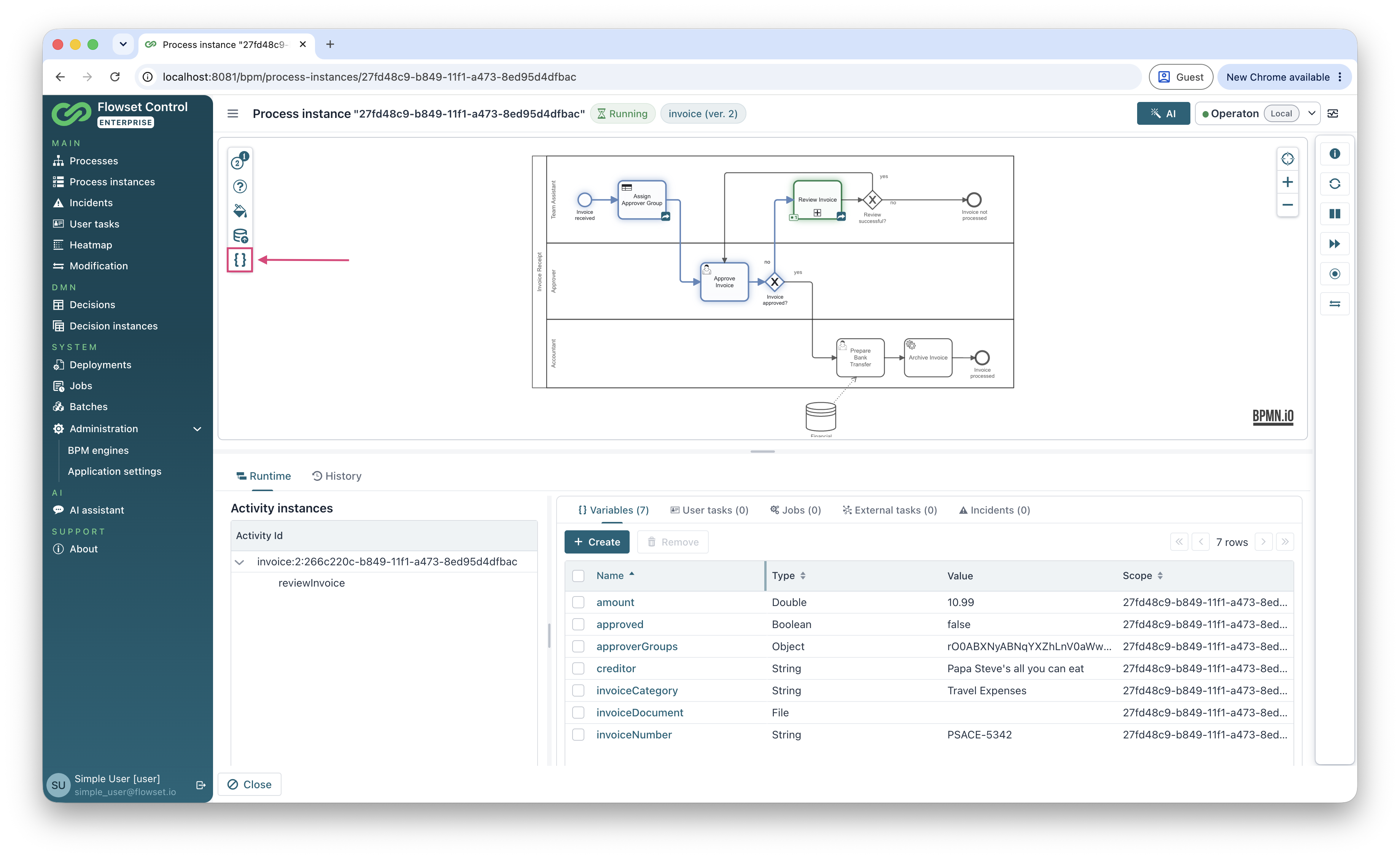
-
Right-click a completed or running activity on the diagram and select Variable changes in the context menu.
When the mode is enabled, the hint "Select activity to view variable changes" is displayed above the diagram, and the selected activity is highlighted.
To exit the mode, click the Hide process variable changes button or close the Variable changes tab.
Variable Changes Tab
When an activity is selected, the closable Variable changes tab opens next to the Runtime and History tabs. The tab contains:
-
Activity — name and identifier of the selected activity;
-
Start time — start time of the selected activity instance;
-
a table of variable changes made in the selected activity. The columns are the same as in the variable log.
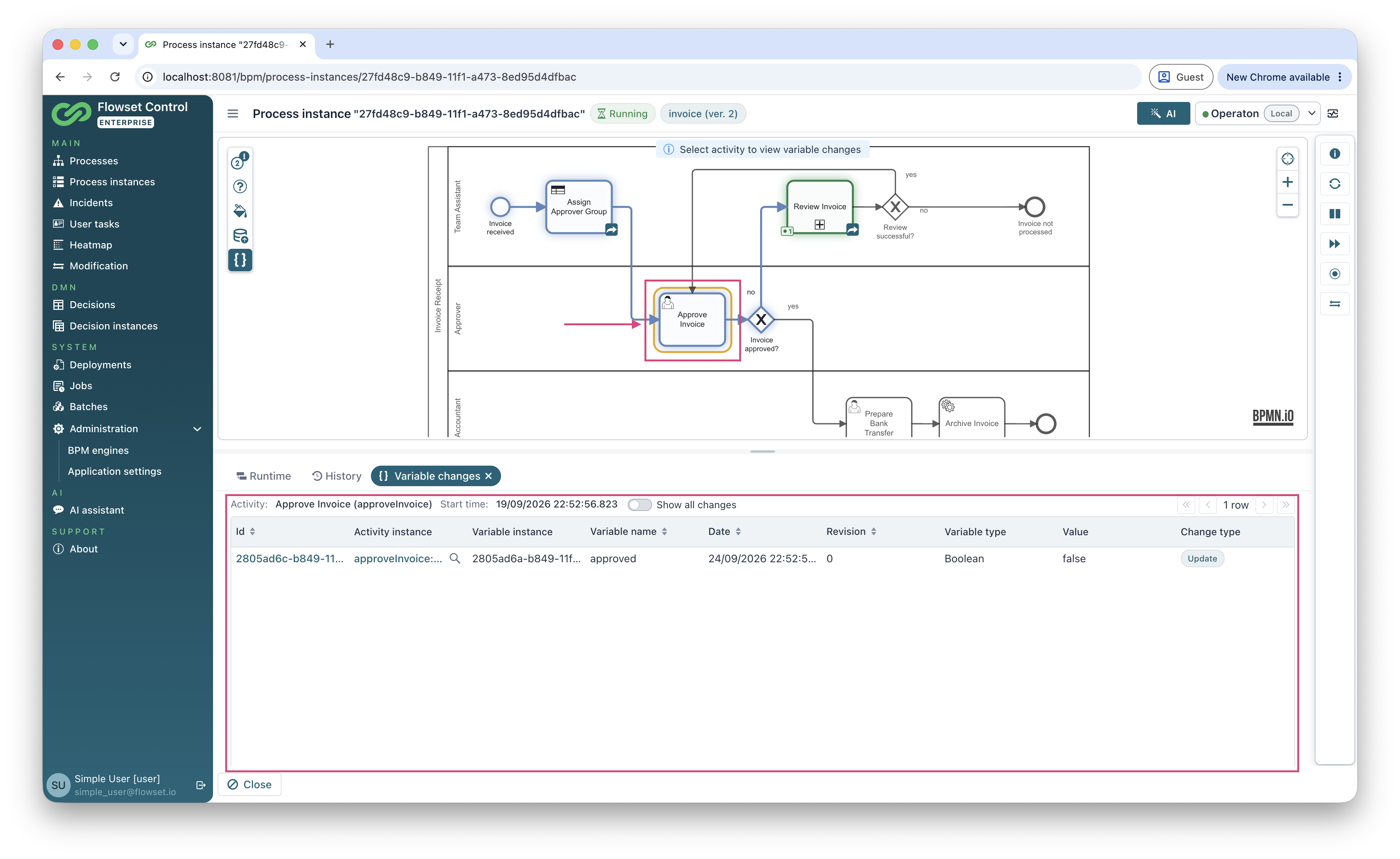
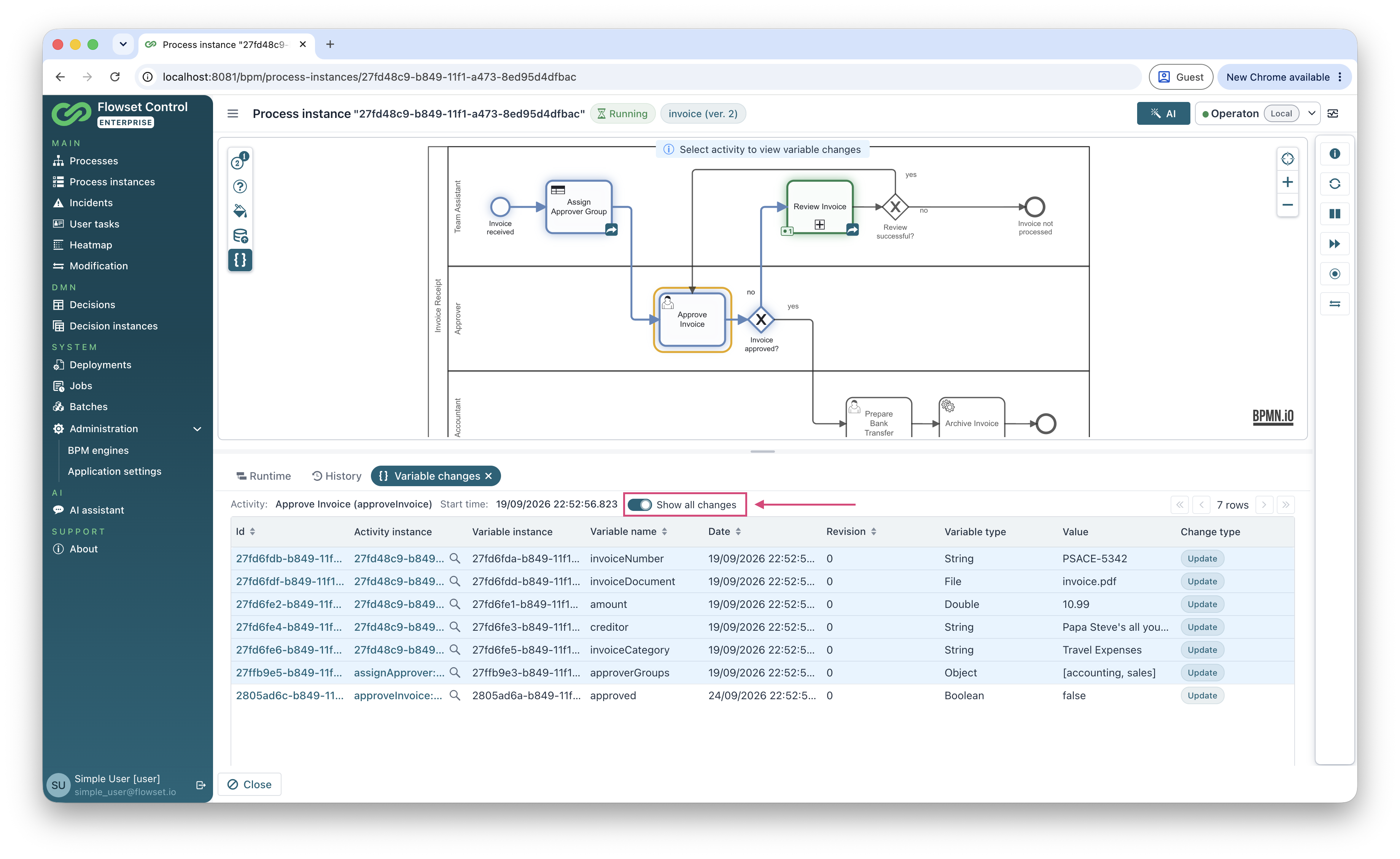
The Show all changes switch displays all variable changes of the process instance in the table. In this case, changes made in other activities are highlighted with a background color, while changes of the selected activity remain without highlighting.
If the selected activity was executed several times (for example, a multi-instance activity or a loop), the Activity instances tree is additionally displayed on the left. Select an activity instance in the tree to see the variable changes made in that particular execution.
|
Variables passed when the process is started are linked to the process instance rather than to a specific activity instance. They are displayed as changes of the start event. |
Viewing the History of a Single Variable
This mode answers the question: "How did this variable change while the process was running?"
|
The history is displayed for a specific variable instance, not for a variable name. For example, two local variables with the same name in different executions have separate histories. |
Opening the History
-
Open the process instance and go to the History tab.
-
Select the Variables or Variable log tab.
-
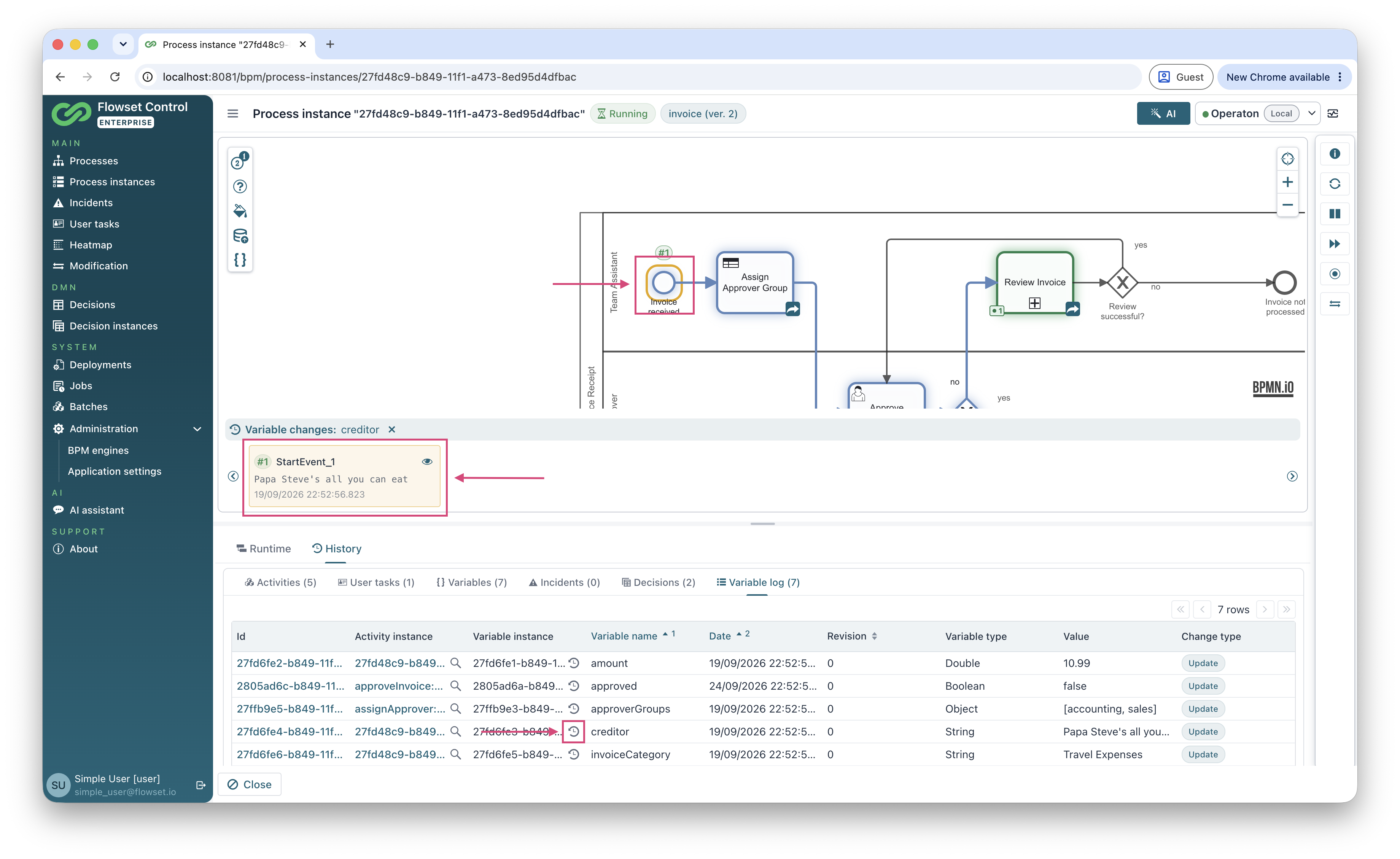
In the Variable instance column, click the Show variable changes on diagram button next to the identifier.
Changes on the Diagram
Badges are displayed above the activities in which the variable was changed:
-
if the variable was changed once in the activity, the badge shows the ordinal number of the change, for example, #1;
-
if the variable was changed several times in the activity, the badge shows the number of changes.
The badge color depends on the type of the change:
| Color | Change type |
|---|---|
Green |
The variable was created (the first change of the variable instance). |
Blue |
The variable was updated. |
Red |
The variable was deleted. |
Change Cards
A list of cards is displayed under the diagram, next to the variable name (for example, Variable changes: creditor). Each card represents one change of the variable and contains:
-
the ordinal number of the change, colored according to the change type;
-
the identifier of the activity in which the change was made;
-
the value of the variable after the change;
-
the date and time of the change;
-
the View details button that opens the change details.
Use the arrow buttons to scroll through the cards, and the close button next to the variable name to hide the history.
Click a card to highlight the related activity on the diagram.
Changes Not Linked to an Activity
Some changes are not linked to any activity, for example, variables changed via the API. Such cards display Unknown activity with a help icon. When you click such a card, the nearest activity completed before the time of the change is selected on the diagram. If there is no such activity, a warning notification is displayed.
BPMN Element Context Menu
Right-click any element on the process instance diagram to open its Activity details context menu. The menu displays:
-
the type of the BPMN element;
-
the Id and Name of the element from the BPMN XML, each with a copy button;
-
for executed elements — the Activity instance section:
-
the status of the activity instance (Running or Completed);
-
the start time and, for completed activities, the end time;
-
-
for multi-instance activities — the Activity instances section with the number of instances instead of the status and times;
-
the Variable changes action for running and completed activities that shows the variable changes of the activity.
|
The BPM engine does not store a historic activity instance for a running activity with an incident. Therefore, the start time is not displayed for such activities. |
Change Details
Additional information is available in the following dialogs:
-
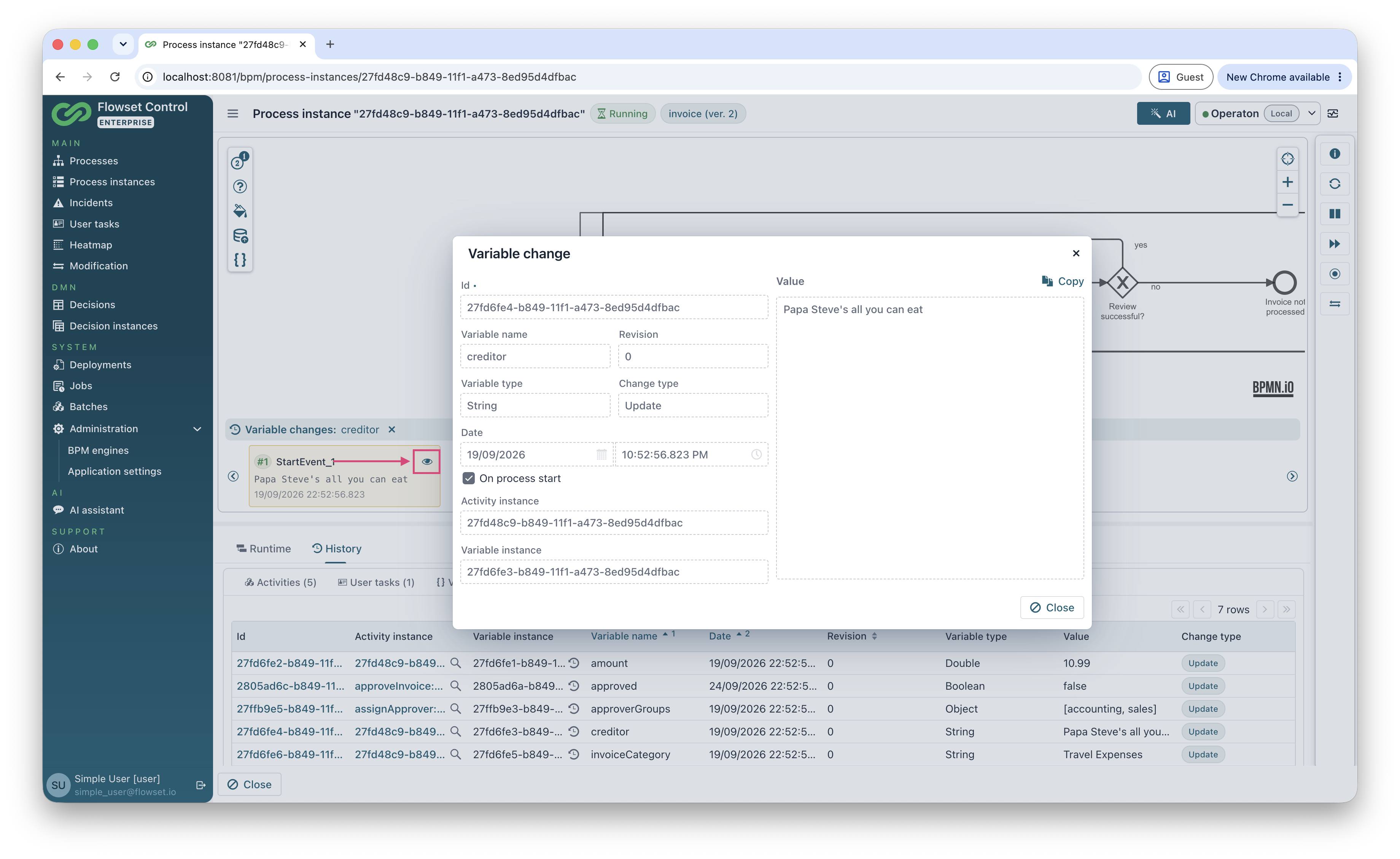
Variable change — opens from the Id column or with the View details button on a change card. Shows the variable name, revision, variable type, change type, date and time, the On process start flag, the identifiers of the activity instance and the variable instance, and the full value with the Copy button. For file variables, the file can be downloaded; for object variables, the object type and serialization format are displayed.
-
Variable instance — opens from the Variable instance column. Contains the General tab and the Changes tab with all changes of this variable instance.
-
Activity instance — opens from the Activity instance column. Contains the General tab and the Variable changes tab with all variable changes made in this activity instance.
Determining the Change Type
The BPM engine does not store the type of a variable change explicitly, so Flowset Control calculates it:
-
Delete — the variable has no value after the change (for file variables — no file name);
-
Update — in all other cases.
Whether a variable was created is not a property of an individual change: it is determined from the whole history of the variable instance. Therefore, in tables and in the Variable change dialog, the first change is displayed as Update, while on the diagram and in the cards, the first change of the variable instance is marked as a creation (green badge).
|
For variables of the |
Working with Process Instance Modification
Viewing variable changes by activity, viewing the history of a single variable, and process instance modification are separate diagram modes: only one of them can be active at a time. When you switch between the modes, the selection and data of the previous mode are reset.
Variable history helps to choose the activity from which to restart the process. If a completed activity is selected in one of the variable history modes and you switch to the modification mode, Flowset Control asks whether to use the selected activity as the target activity. Click Yes to preselect it as the target activity for the modification.